

Routing rules
Decide which sites each GatePass hub sends through its gateways, exclude sites that should go direct, and pin a site to one gateway with fallbacks.
Routing rules decide which sites each hub sends through its gateways. Everything else goes straight to the internet from the member's own connection.
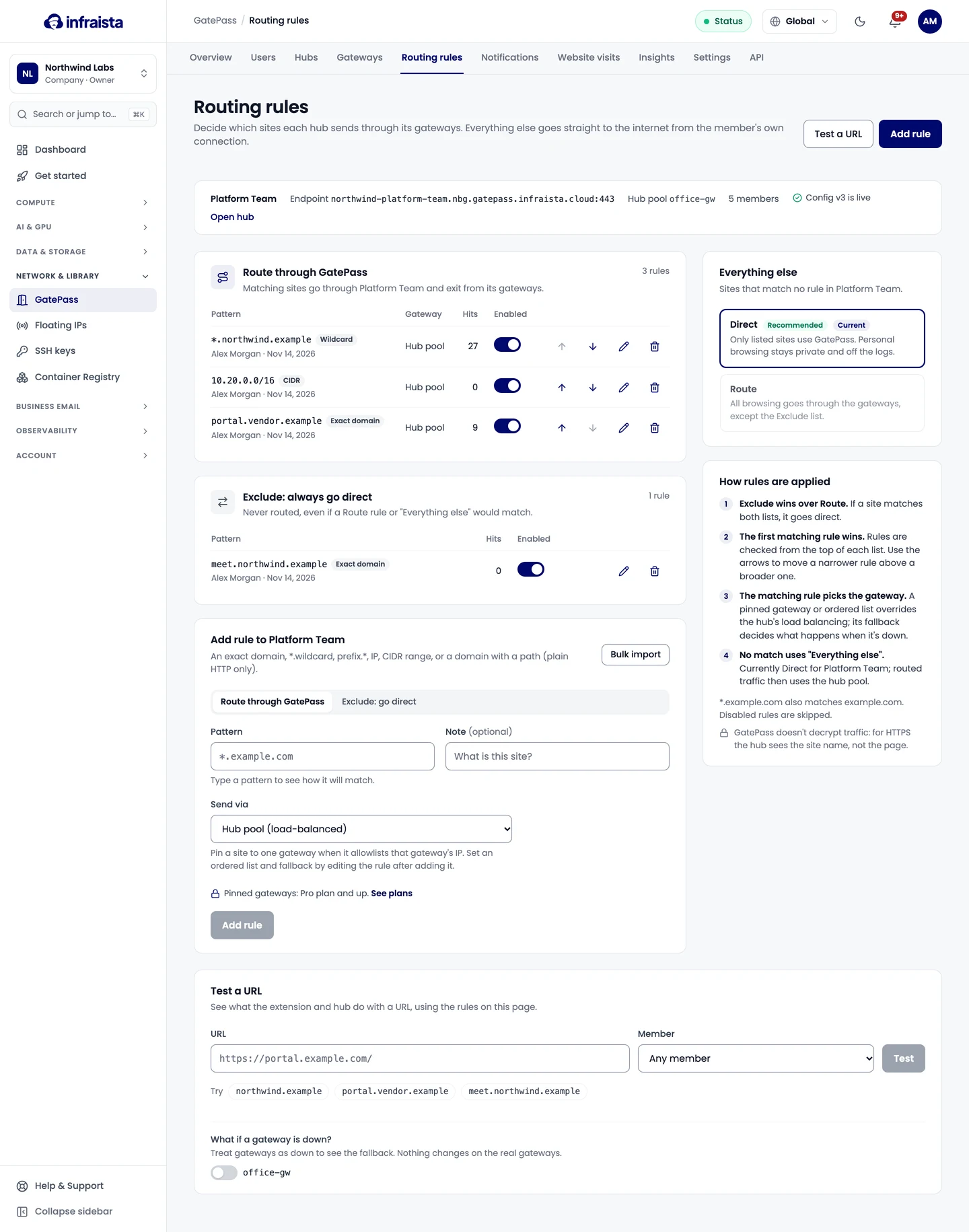
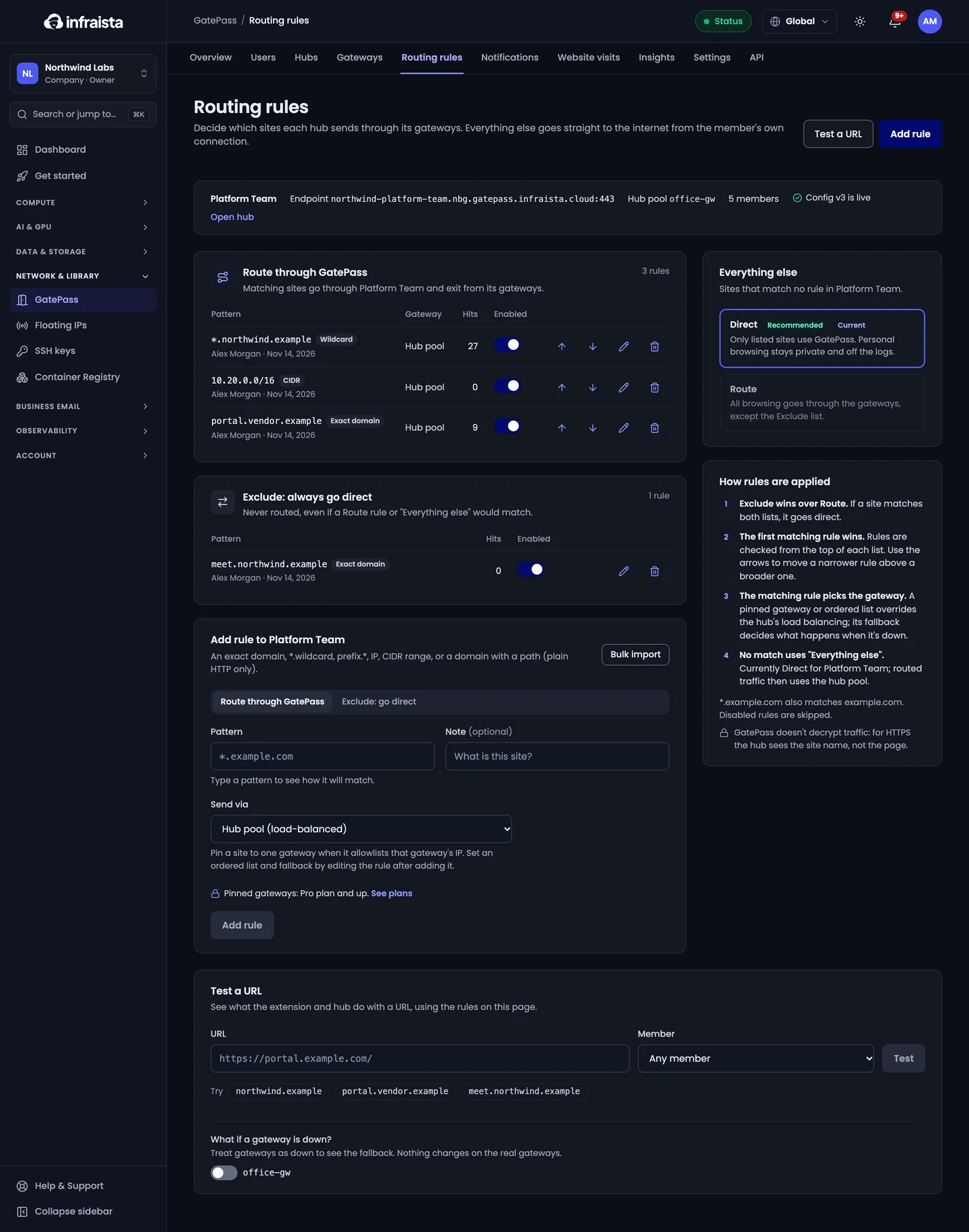
Rule types
| Type | Example | Matches |
|---|---|---|
| Exact domain | portal.vendor.example | That domain only |
| Wildcard | *.northwind.example | The domain and every subdomain |
| Prefix wildcard | updates.* | Any domain that starts like this |
| IP | 10.20.4.15 | One address |
| CIDR | 10.20.0.0/16 | A range of addresses |
| Domain + path | files.vendor.example/team/ | That path on plain HTTP only |
Path rules apply to plain HTTP only: for HTTPS, the hub sees the site name, not the page.
Add rules
- Go to GatePass › Routing rules and pick the hub.
- Under Route through GatePass (or Exclude: always go direct), select add and enter the pattern.
- Under Send via, choose:
- Hub pool: any healthy gateway in the hub, using its load balancing;
- Specific gateway: always exit from one gateway and its IP (for a site that allowlists that IP);
- Ordered list: a primary gateway, then fallbacks in your order.
- Select Add rule.
For a pinned site, choose what happens if its gateway is down: use the hub's pool, next in list, or block the site rather than letting it go direct. Pinning sites to gateways needs Pro or Enterprise.
Bulk import adds many patterns at once: one per line or comma separated. Lines starting with #
are ignored, and https:// and paths after the domain are removed for you.
How rules are applied
- Exclude wins over Route. An excluded site is never routed.
- The first matching rule wins. Reorder rules with the arrows.
- The matching rule picks the gateway.
- No match uses "Everything else".
Everything else is direct by default: sites that aren't listed never touch the hub, so personal browsing isn't routed or logged. You can switch a hub to route everything except the excluded sites; members are told so in the extension.
Test a URL
Under Test a URL, enter an address to see what the extension and hub do with it, using the rules on the page. Tick gateways as down to see the fallback; nothing changes on the real gateways.
Related
Manage hubs
Create GatePass hubs for different teams, choose which gateways each one uses and how it balances between them, set limits, or disable a hub.
Manage GatePass users
Invite people to GatePass, choose the hubs they can use, and suspend, sign out, reset two-factor, reset passwords or remove users.