

Deploy targets
Connect the servers, agents, registries and cloud accounts your pipelines deploy to once, then name them in any pipeline in your organization.
A deploy target is somewhere your pipelines deploy to or push images to. Targets are shared by every
pipeline in the organization, and a pipeline names them in its file (target: web-servers). Open
Pipelines > Targets to see them all.
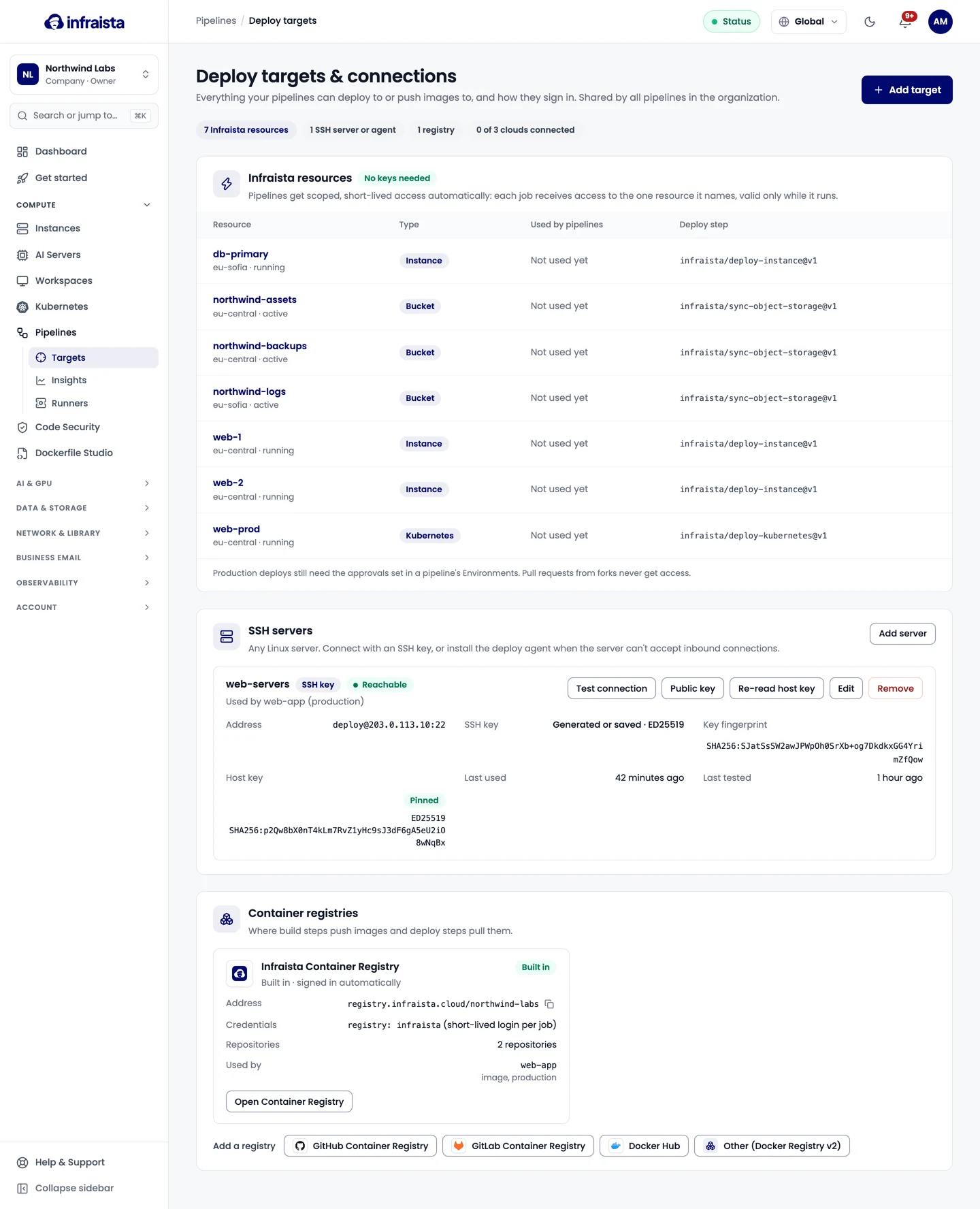
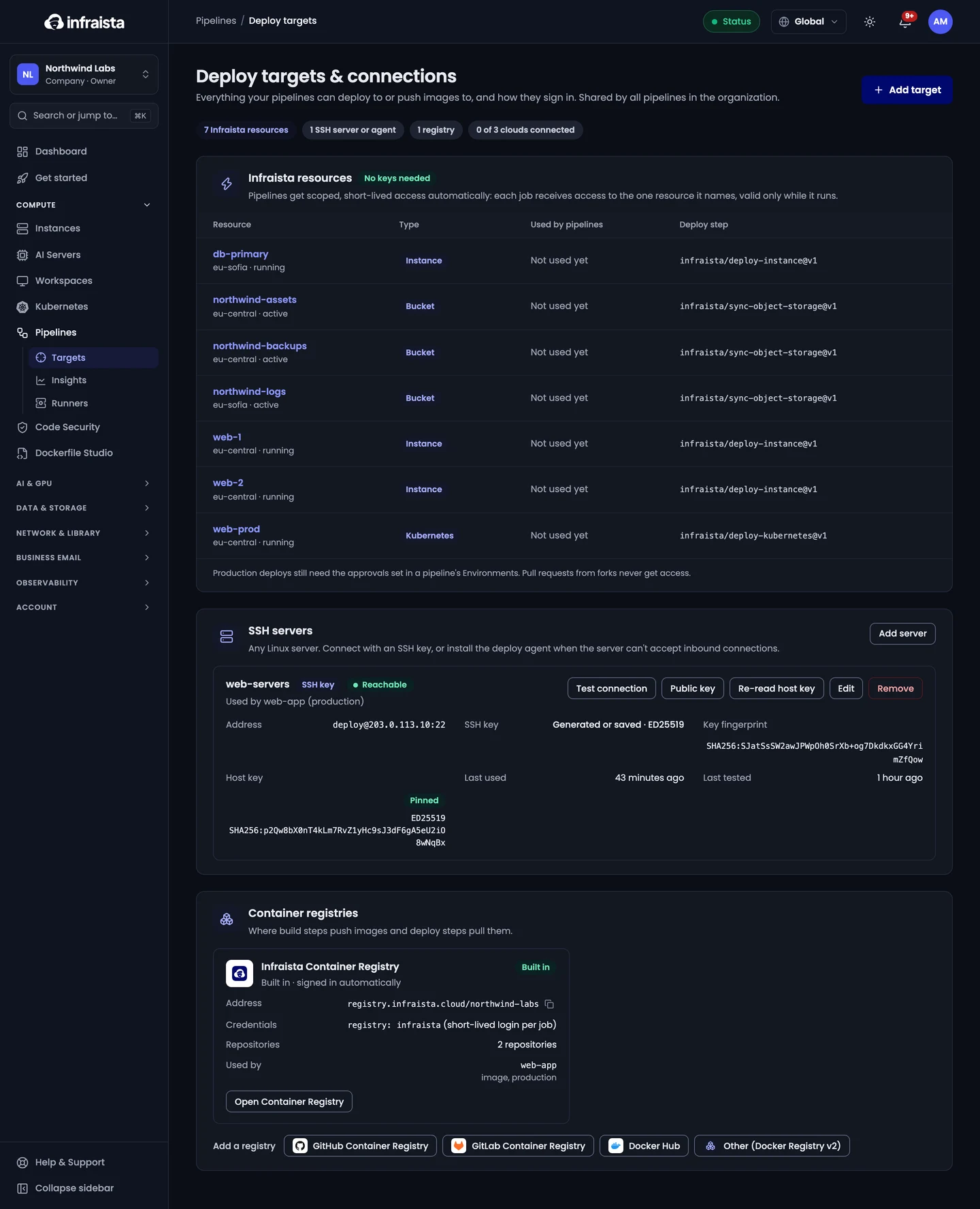
Adding a target needs permission to manage Pipelines.
Infraista resources
Your instances, Kubernetes clusters and buckets are already targets, with no keys needed: each job gets access made for it, to the one resource it names, valid only while it runs. Production deploys still need the approvals set in the pipeline's environments, and pull requests from forks never get access.
- uses: infraista/deploy-kubernetes@v1
  with:
    cluster: production
    manifests: k8s/
    deployment: web       # wait for this rollout to finish

- uses: infraista/sync-object-storage@v1
  with:
    bucket: northwind-assets
    path: dist
    delete: true
SSH servers
Any Linux server that accepts SSH from the internet.
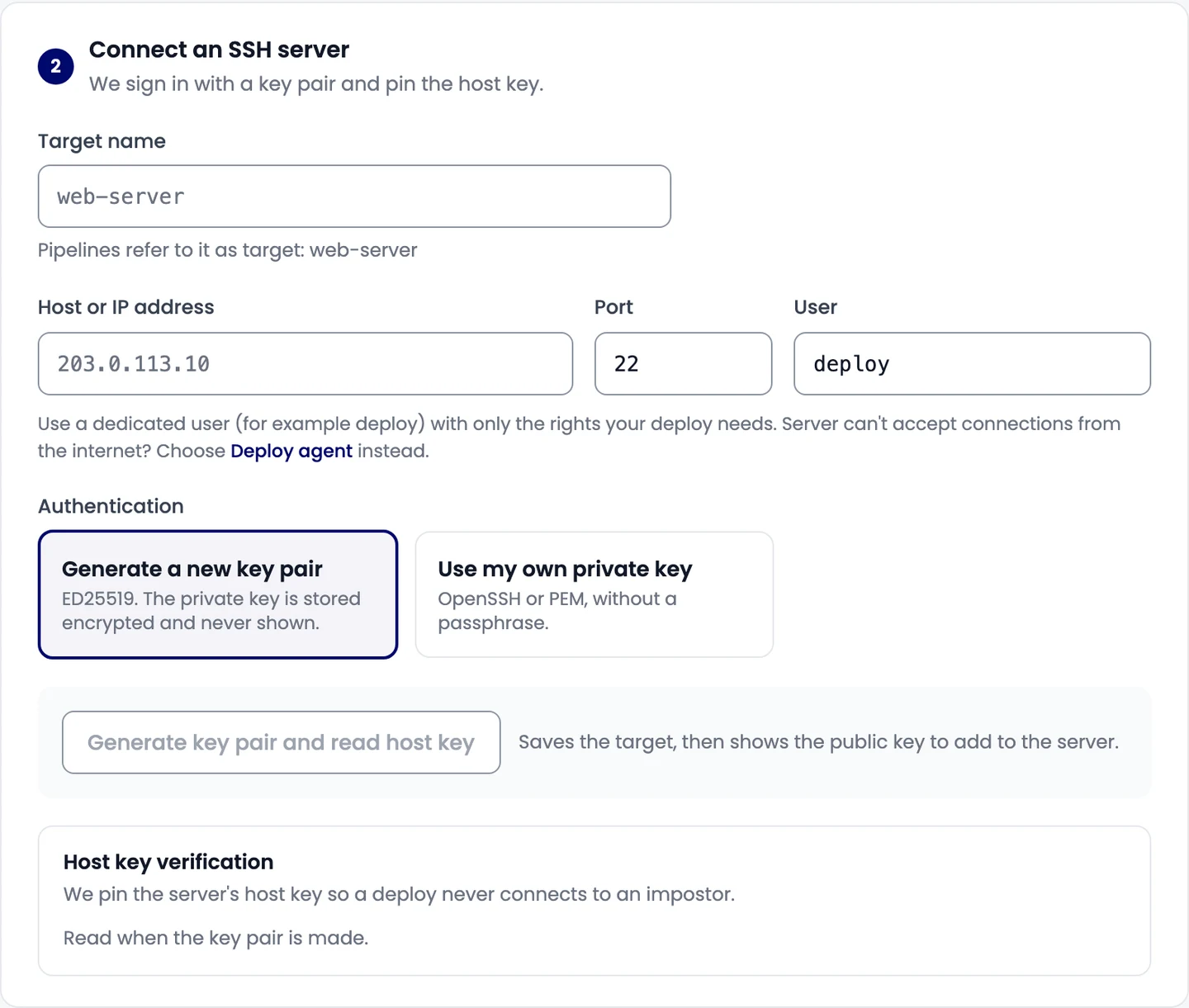
- Open Targets and select Add target > SSH server.
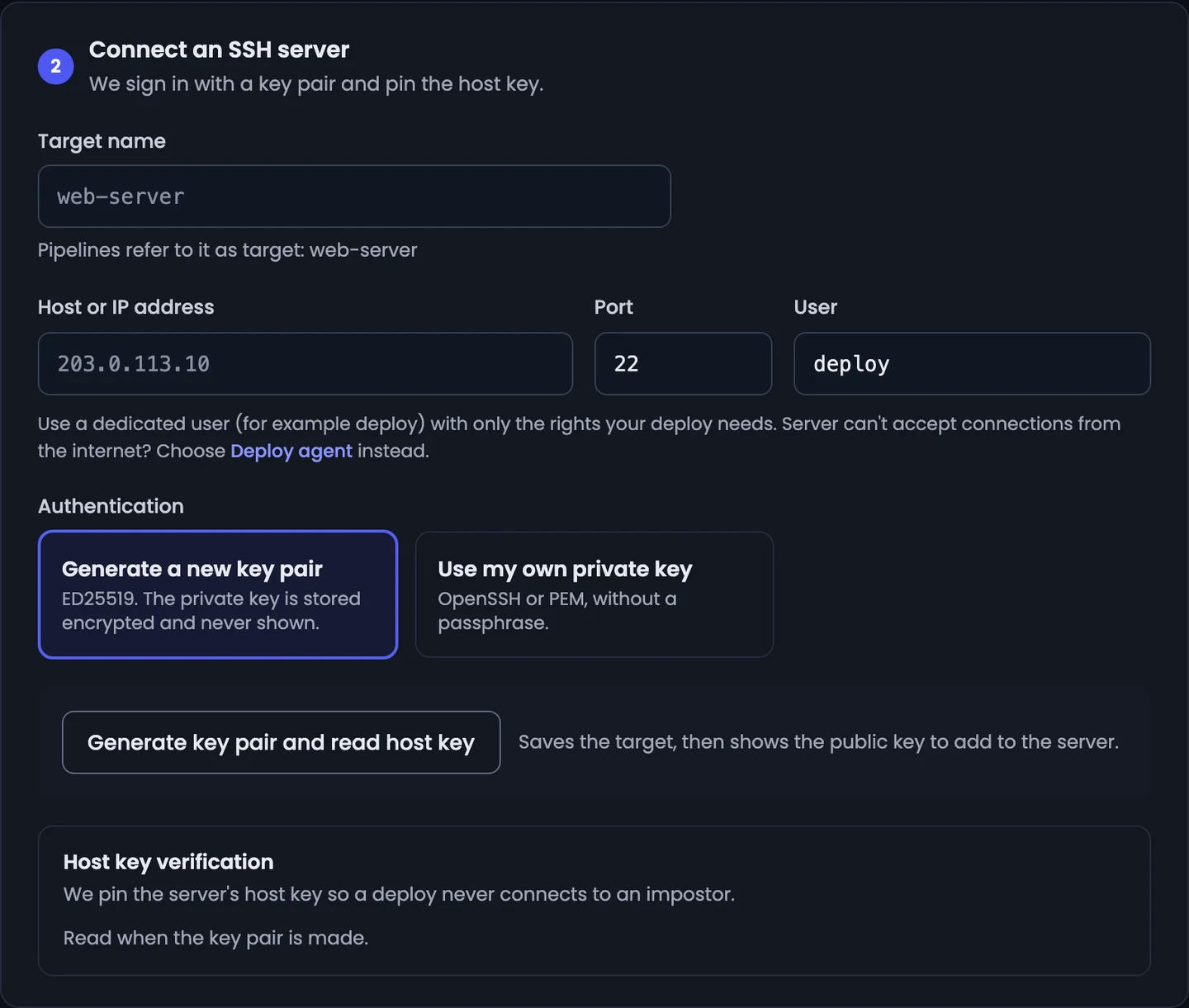
- Enter a Target name, the Host or IP address, Port and User. Use a dedicated user
(for example
deploy) with only the rights your deploy needs. - Choose Generate a new key pair (ED25519) or Use my own private key (OpenSSH or PEM, without a passphrase). The private key is stored encrypted and never shown again.
- Add the public key it shows to
~/.ssh/authorized_keysof that user on the server. - Compare the host key fingerprint with the one on your server and confirm it. The host key is pinned: if it ever changes, deploys stop until you re-read and pin the new one.
- Select Save and test.
- uses: infraista/deploy-ssh@v1
  with:
    target: web-servers
    registry: infraista            # sign the server in to your Container Registry first
    script: |
      cd /srv/web-app
      docker compose pull && docker compose up -d
To run containers without writing a script, use infraista/deploy-docker (see the
file reference).
When you remove an SSH target, its private key is deleted; remove the public key from the server's
authorized_keys yourself.
Deploy agents
For servers Infraista can't reach: on a private network, behind NAT, or with no inbound SSH. A small agent on the server keeps an outbound HTTPS connection (port 443) to Infraista and runs deploy tasks. No ports to open, no VPN, no public IP.
-
Select Add target > Deploy agent, name it and select Create install command.
-
Run the command on the server as root:
curl -fsSL https://api.infraista.com/install/deploy-agent | sudo bash -s -- pdt_… -
Wait for Agent connected, then save.
- The token in the command is shown only once. Making a new install command stops the old token.
- Scripts run as a new user,
infraista-deploy. Give it what your deploys need (for exampleusermod -aG docker infraista-deploy), or addrootat the end of the command to run them as root. - Re-running the install command later upgrades the agent.
- uses: infraista/deploy-agent@v1
  with:
    target: office-server
    script: ./deploy.sh
Container registries
Your Container Registry is built in: push and pull with
registry: infraista, and each job gets its own short-lived login. Nothing to set up.
For other registries (Docker Hub, GitHub Container Registry, GitLab Container Registry, or any Docker
Registry v2), select Add target > Container registry and enter the registry host, username and a
token with push and pull rights. Build steps then push there with registry: <name>, with no secrets
in each pipeline. Rotate the token by editing the target.
Cloud accounts
Cloud accounts let infraista/cloud-login get short-lived cloud credentials for a job through
OIDC, with no stored keys. You set up trust once on the cloud's side; the console shows the issuer,
audience and subject to use, and the subject names the pipeline and environment, so only the ones you
allow can sign in. Select Verify to check the connection.
- uses: infraista/cloud-login@v1
  with:
    target: production-cloud
- run: ./deploy-infra.sh
Test, edit and remove
Each target shows its status (Connected, Failing, Not tested, or Online and Offline for agents), which pipelines use it and when it was last used. Use Verify connection to test it again. Removing a target that pipelines use makes their deploy steps fail until it's added again.
Related
Environments and deployments
Protect production with approvals, allowed branches, wait timers and deploy windows, see every deployment, and roll an environment back to an earlier run.
Pipeline settings
Change a pipeline's name, file path, default runner and timeout, cancel outdated runs, report status checks, add a status badge, and pause or delete it.