

Runs and logs
Follow a pipeline run job by job, read and search its logs, re-run failed jobs, cancel a run, and see results on your commits and pull requests.
Every time a pipeline starts, it creates a run: the jobs of the pipeline file at that commit. Open a pipeline to see its runs, newest first.
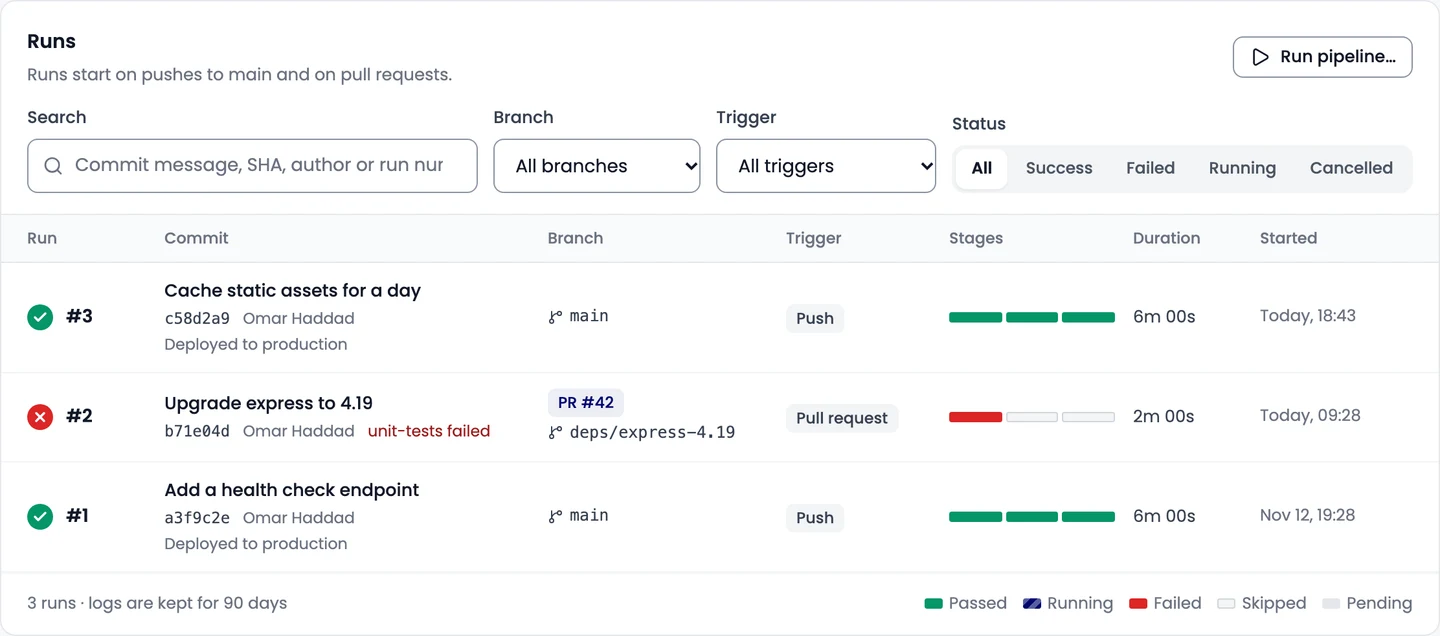
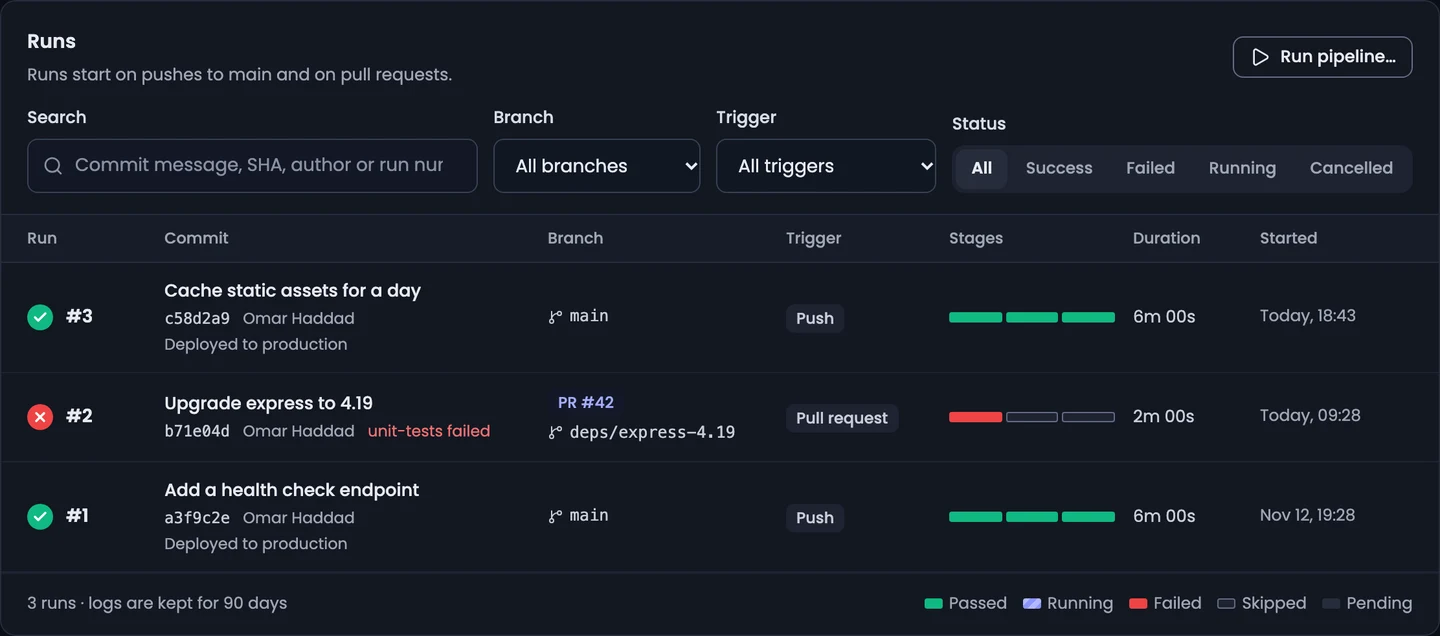
Filter by status, branch or trigger, or search by commit message, SHA, author or run number. Logs are kept for the period set in Caches & artifacts (90 days by default).
Follow a run
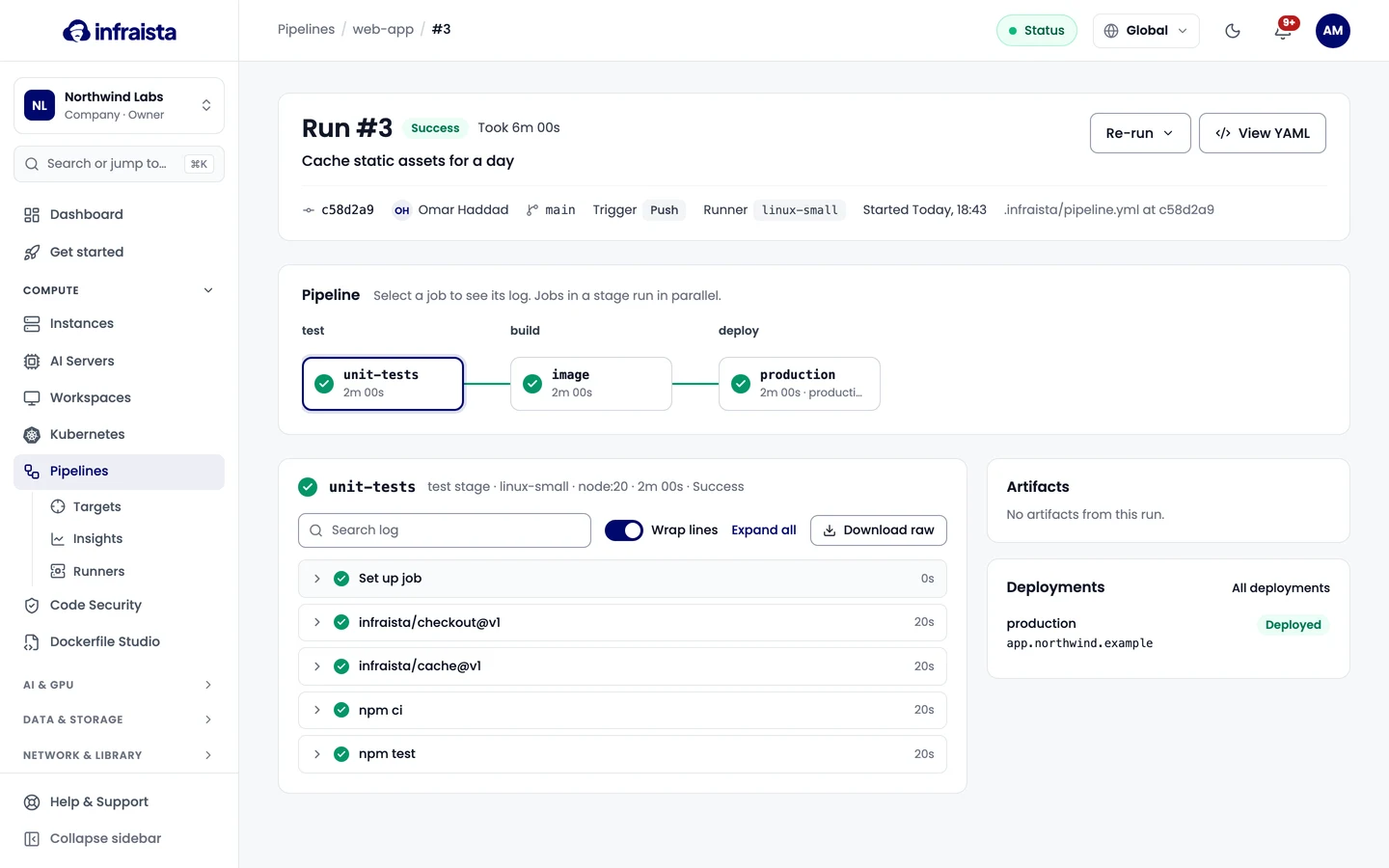
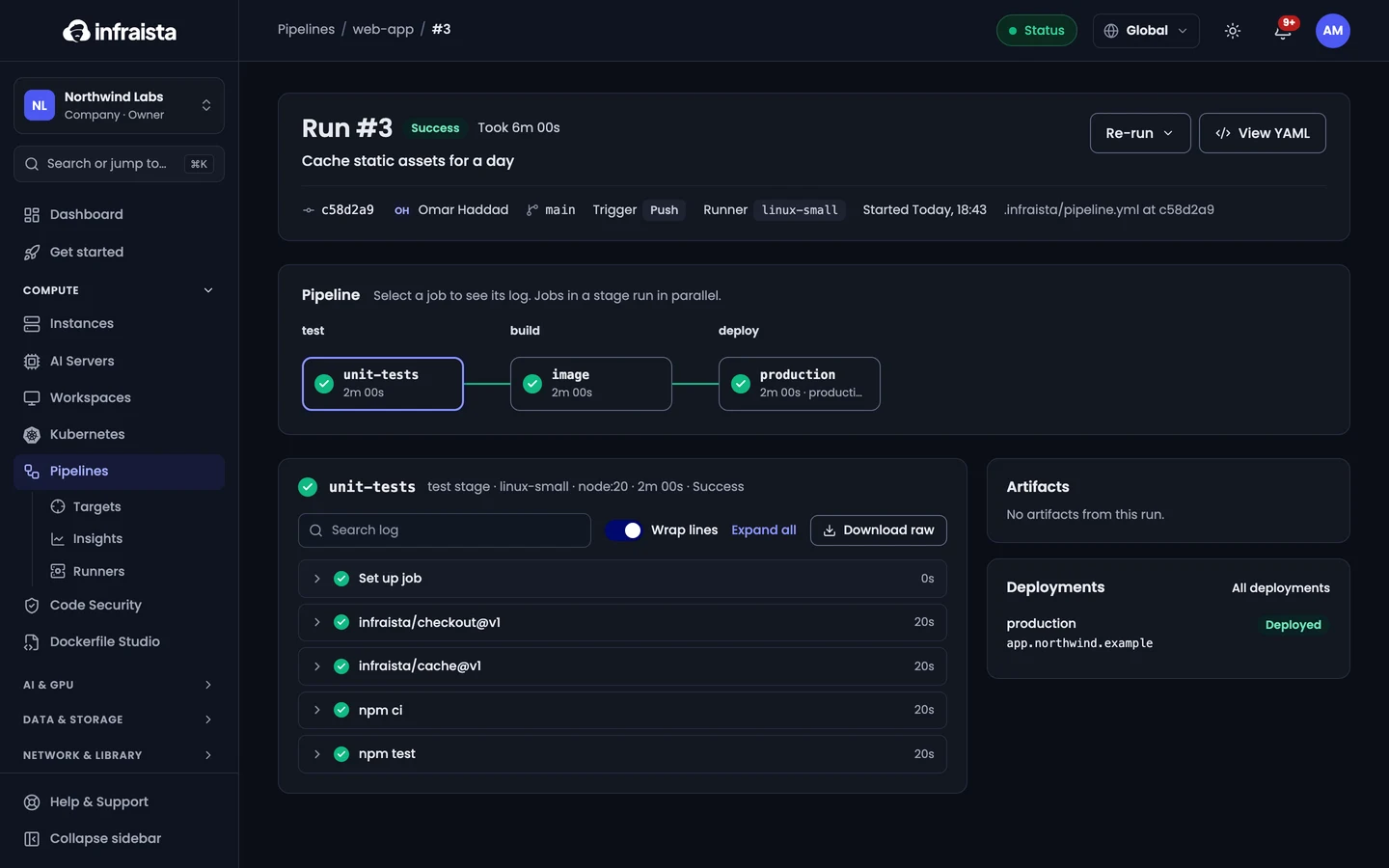
Select a run to open it. The Pipeline graph shows each stage with its jobs; jobs in a stage run in parallel. Select a job to read its log, step by step.
In the log:
- Search log finds lines in the job; steps without matches are hidden.
- Wrap lines, Expand all / Collapse all, and Download raw for the whole log.
- Select a line number to copy a link to that line.
- Secrets are masked as
***.
A job that's waiting shows why: Waiting for a linux-small runner, Waits for other jobs, Waiting for approval, or Skipped: if its condition was false.
When a run fails
The run shows which jobs failed, and the jobs after them are skipped.
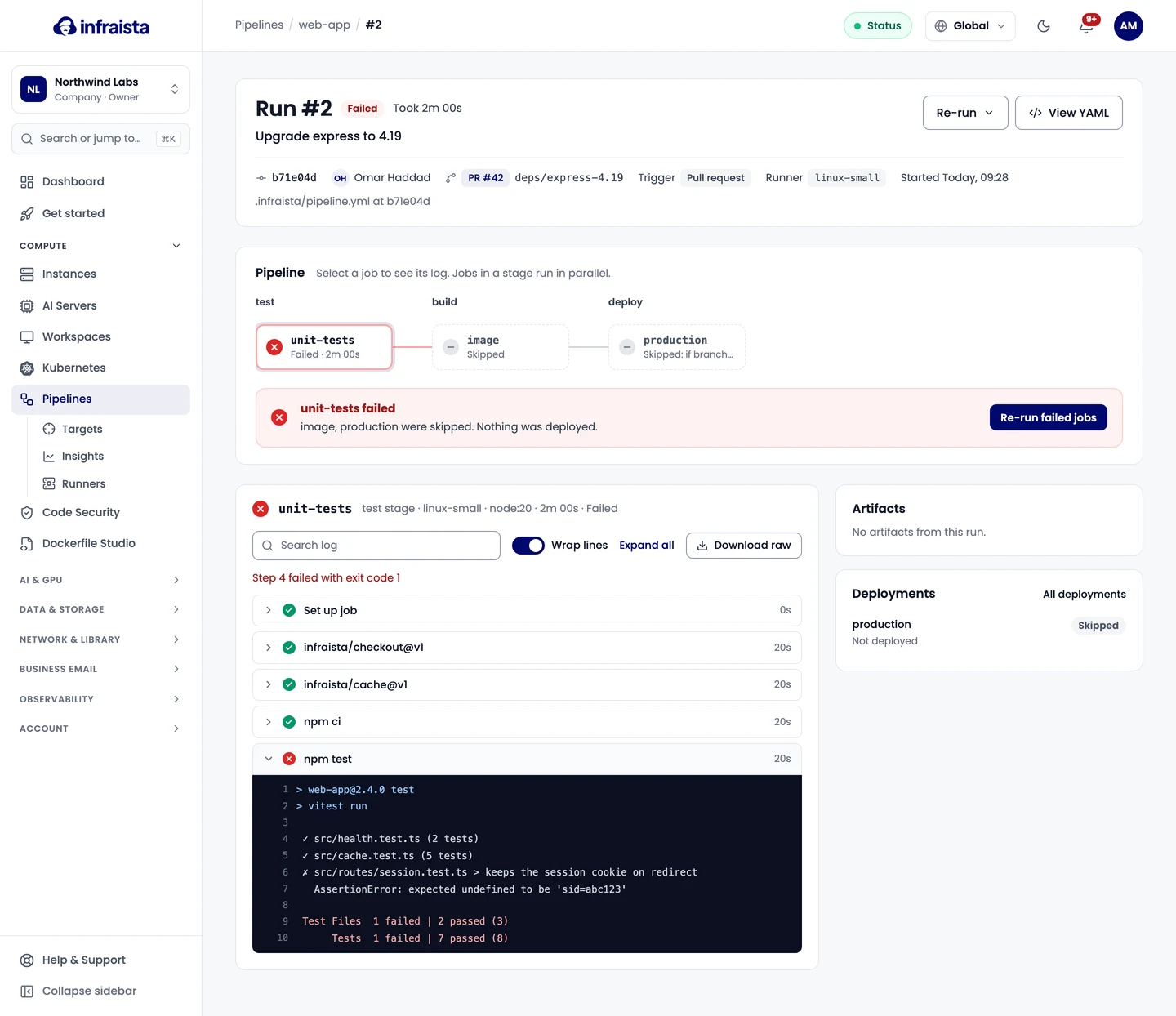
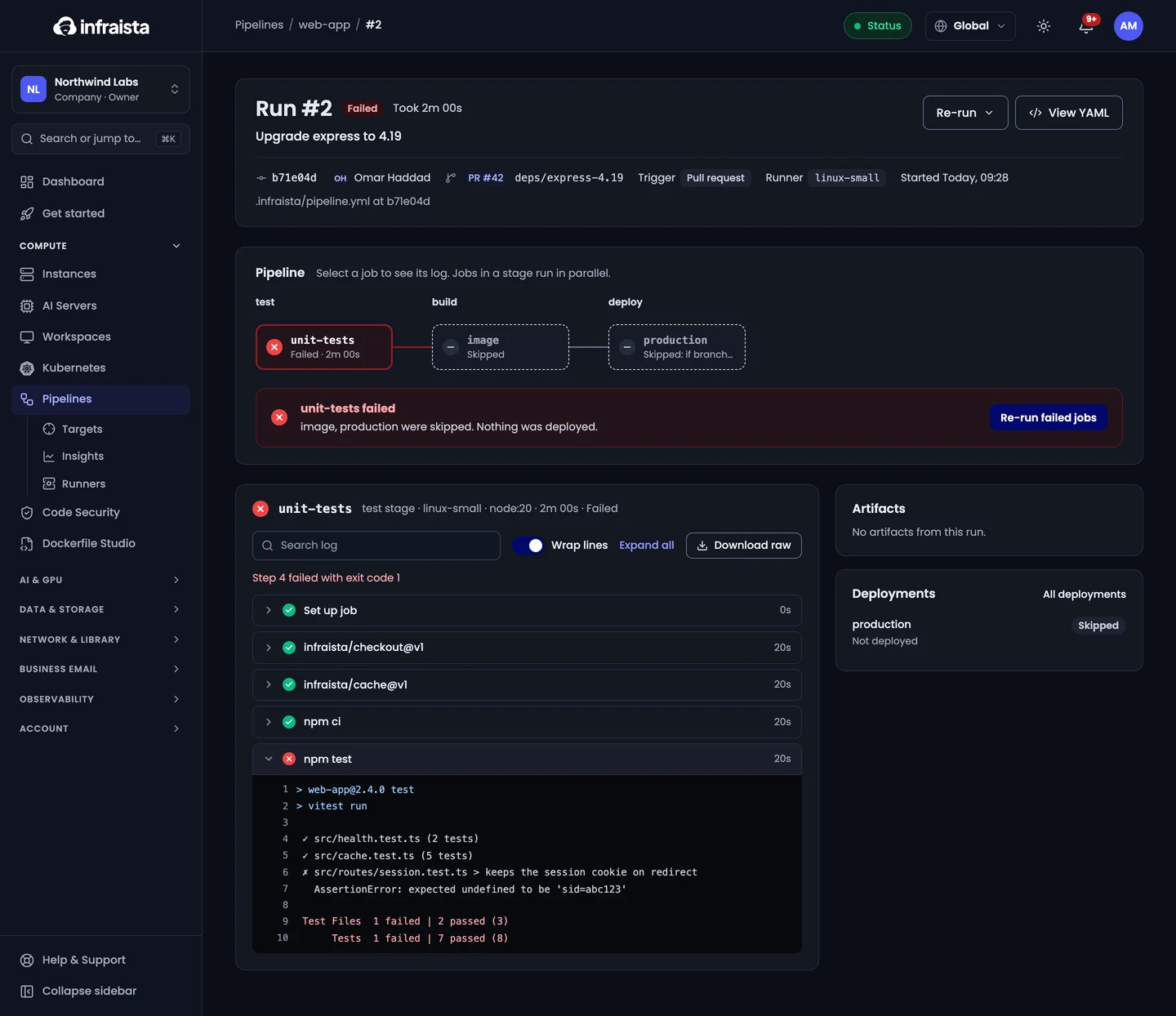
- Re-run failed jobs only runs the failed jobs again; jobs that passed are reused as they were.
- Re-run all jobs starts over from the same commit.
- View YAML shows the pipeline file as it was at that commit.
A failed run notifies the organization's Owners and Admins, and whoever started the run, in the console.
Cancel a run
Select Cancel run. Running jobs stop within a few seconds and jobs that haven't started are cancelled.
Start a run by hand
On the pipeline, select Run pipeline, pick a Branch (the latest commit on it runs), fill in
any inputs, and select Start run. The file must allow manual runs (manual under on:).
Results on your commits and pull requests
Each run reports a status check named infraista/<pipeline name> on its commit, linking to the run.
To block merging when a run fails, require that check in your repository's branch protection rules
(GitHub), Pipelines must succeed (GitLab), or a minimum of successful builds (Bitbucket).
Insights
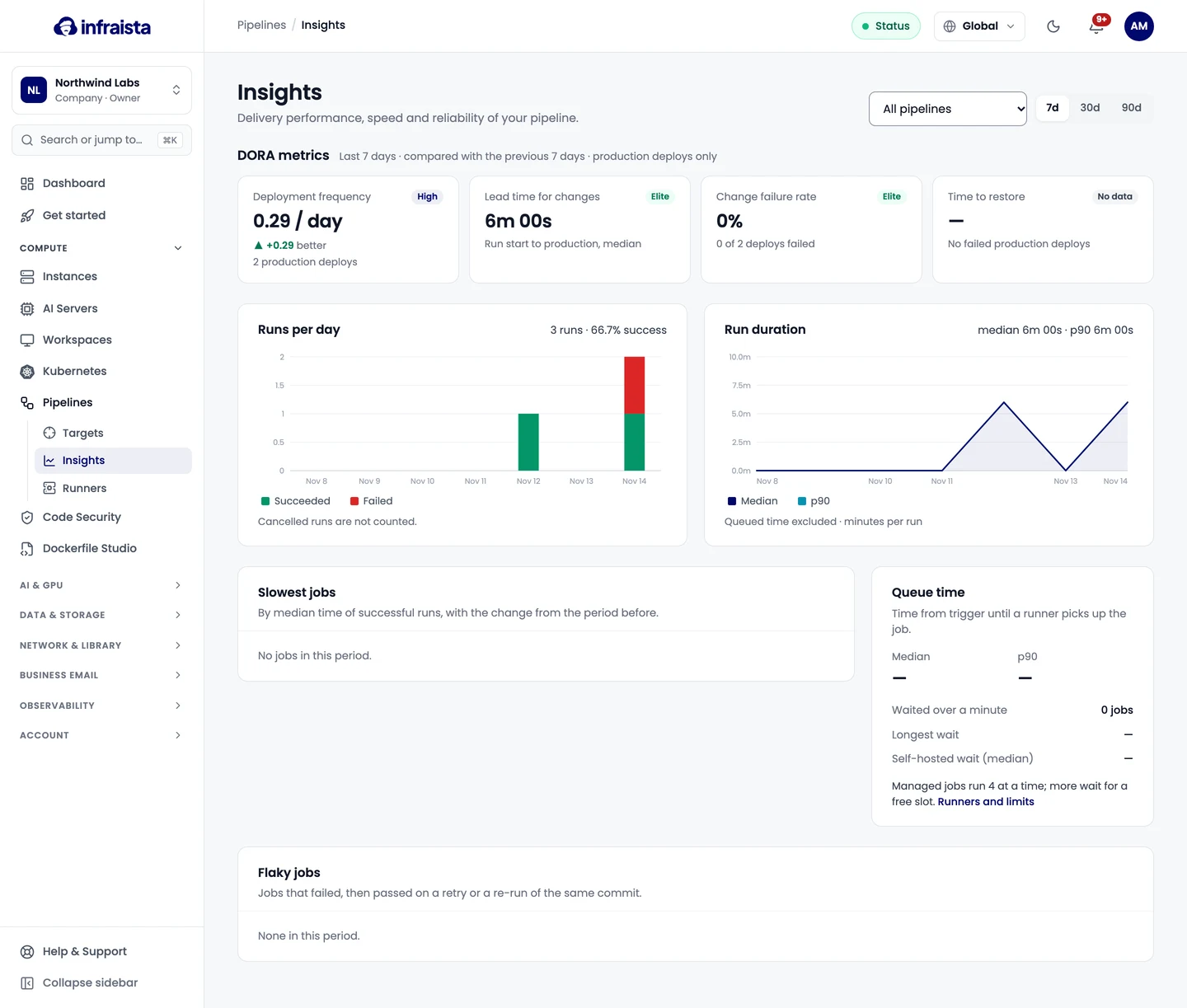
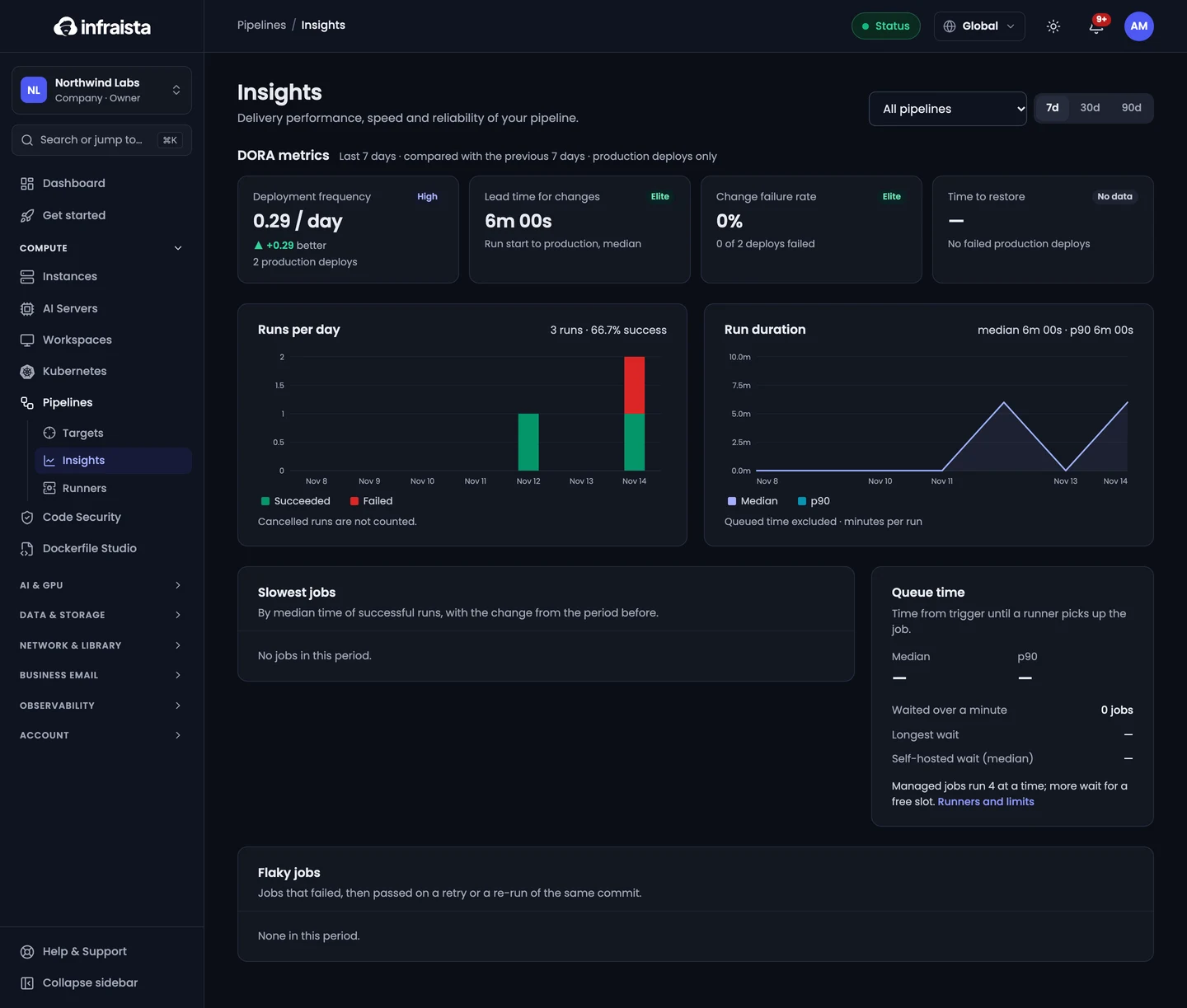
Pipelines › Insights shows, for one pipeline or all of them over 7, 30 or 90 days: runs and failures per day, run time, queue time, the slowest and flaky jobs, managed minutes by pipeline, and delivery measures computed from deployments to environments named production, prod or live: deploy frequency, lead time, change failure rate and time to restore.
If something goes wrong
- "The pipeline file has errors". Nothing ran; open the run to see each error with its line, then fix the file.
- A job waits for a runner for a long time. All managed slots may be in use (see the concurrency limit on Runners), or no self-hosted runner online has all the job's labels.
- A job failed with a timeout. Raise
timeouton the job (up to 72 hours) or the pipeline's default in Settings.
Related
Pipeline file reference
Every key of .infraista/pipeline.yml, from triggers, inputs and stages to jobs, steps, conditions, built-in variables and the options of each built-in action.
Triggers
Start pipeline runs on pushes, pull requests, tags, a schedule, by hand with inputs, from another system's webhook, or when another pipeline finishes.