

Sign-in security
Protect your account with two-factor sign-in and passkeys, see where you're signed in, review your sign-in history and set how long sessions last.
Everything about how you sign in is in Settings › Security. These settings are yours; an organization can also require two-factor sign-in for all its members.
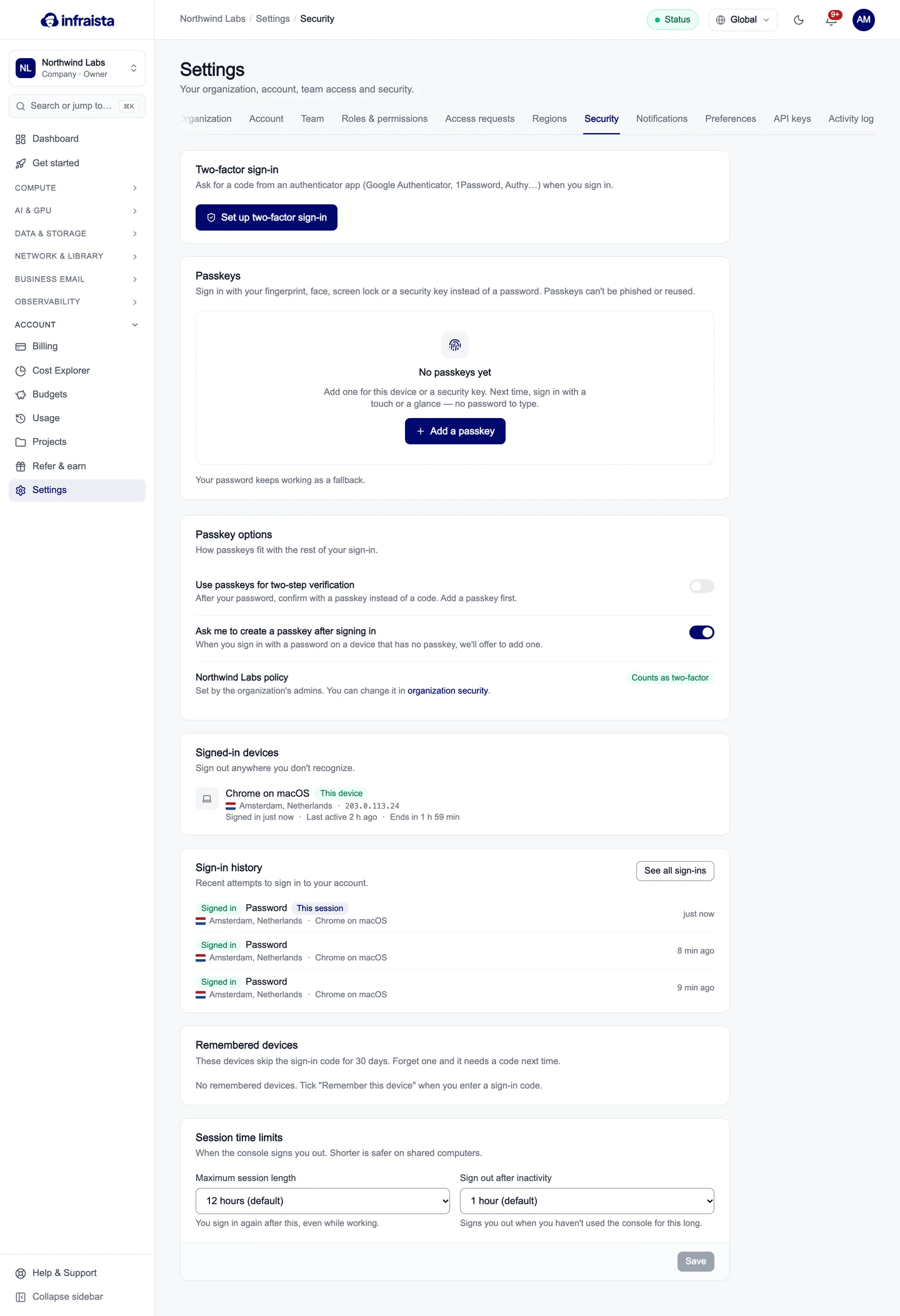
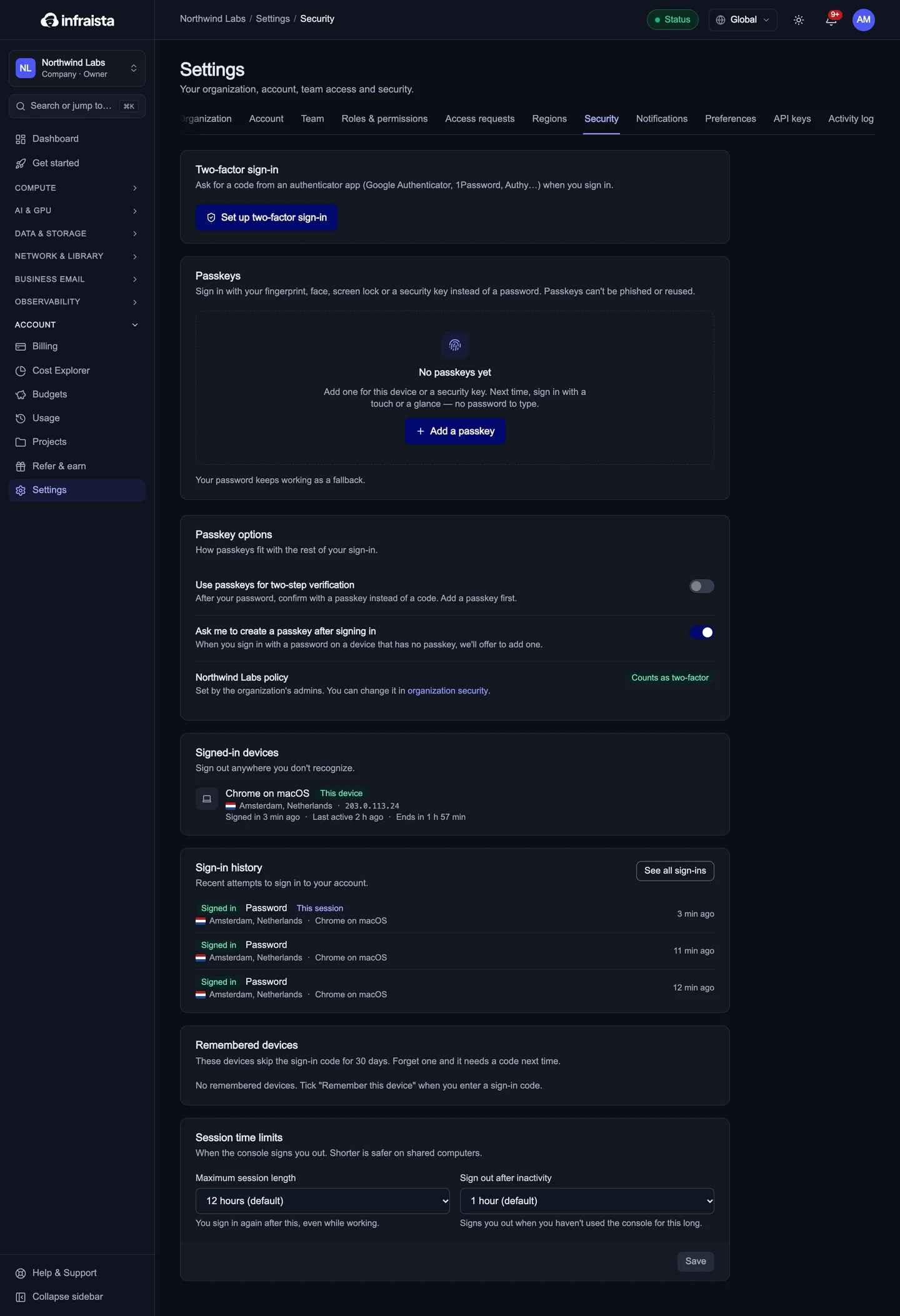
Turn on two-factor sign-in
Two-factor sign-in asks for a 6-digit code from an authenticator app (Google Authenticator, 1Password, Authy and others) after your password.
- Select Set up two-factor sign-in.
- Scan the QR code with your authenticator app. Can't scan? Type the key shown under it into the app.
- Enter the 6-digit code the app shows and select Turn on.
- Save the recovery codes it shows somewhere safe, such as a password manager. Each one signs you in once if you lose your phone, and you won't see them again. (New recovery codes makes a fresh set later; the old ones stop working.)


From now on, after your password, enter the current code from the app. Lost the app? Select Use a recovery code on the sign-in page.
Add a passkey
A passkey signs you in with your fingerprint, face, screen lock or a security key instead of a password. Passkeys can't be phished or reused on another site.
- Under Passkeys, select Add a passkey.
- Follow your browser's prompt (Touch ID, Windows Hello, your phone, or a security key).
- Give the passkey a name you'll recognize.
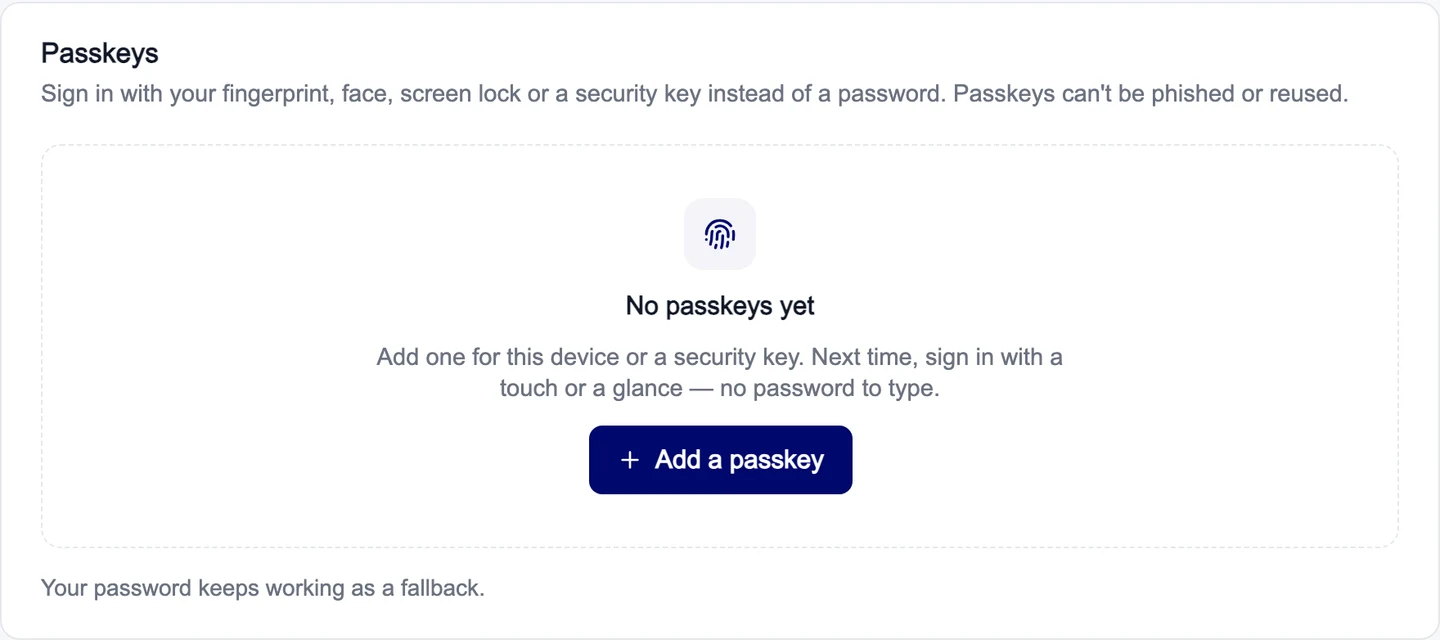
Next time, select Sign in with a passkey on the sign-in page. Your password keeps working as a fallback.
Under Passkey options:
- Use passkeys for two-step verification: after your password, confirm with a passkey instead of an app code.
- Ask me to create a passkey after signing in: offers to add one when you sign in on a device that doesn't have one yet.
See where you're signed in
Signed-in devices lists every browser signed in to your account, with its location and when it was last active. Sign out any you don't recognize, then change your password.


Sign-in history shows recent attempts, successful or not; See all sign-ins opens the full list. We also email you when someone signs in from a new device or country.
Remembered devices
When you tick Remember this device while entering an email code, that device skips the code for 30 days. Remembered devices lists them; forget one and it needs a code again next time.
Session time limits
Choose when the console signs you out:
- Maximum session length: 12 hours by default. You sign in again after this, even while working.
- Sign out after inactivity: 1 hour by default.
Select Save. Shorter is safer on shared computers. Your organization's admins may set a shorter maximum for everyone.
Related
Your profile and preferences
Change your name, phone, country and password, update your profile picture, and choose the light, dark or system theme for the console.
Invite teammates
Invite people to your organization by email, pick their role, resend or revoke invitations, change a member's role and remove members.