

Organization settings
Edit your organization's profile, invoice details and contacts, require two-factor sign-in for every member, and transfer or delete the organization.
Settings › Organization holds everything that belongs to the organization as a whole. Owners and Admins can change it; everyone else sees it read-only.
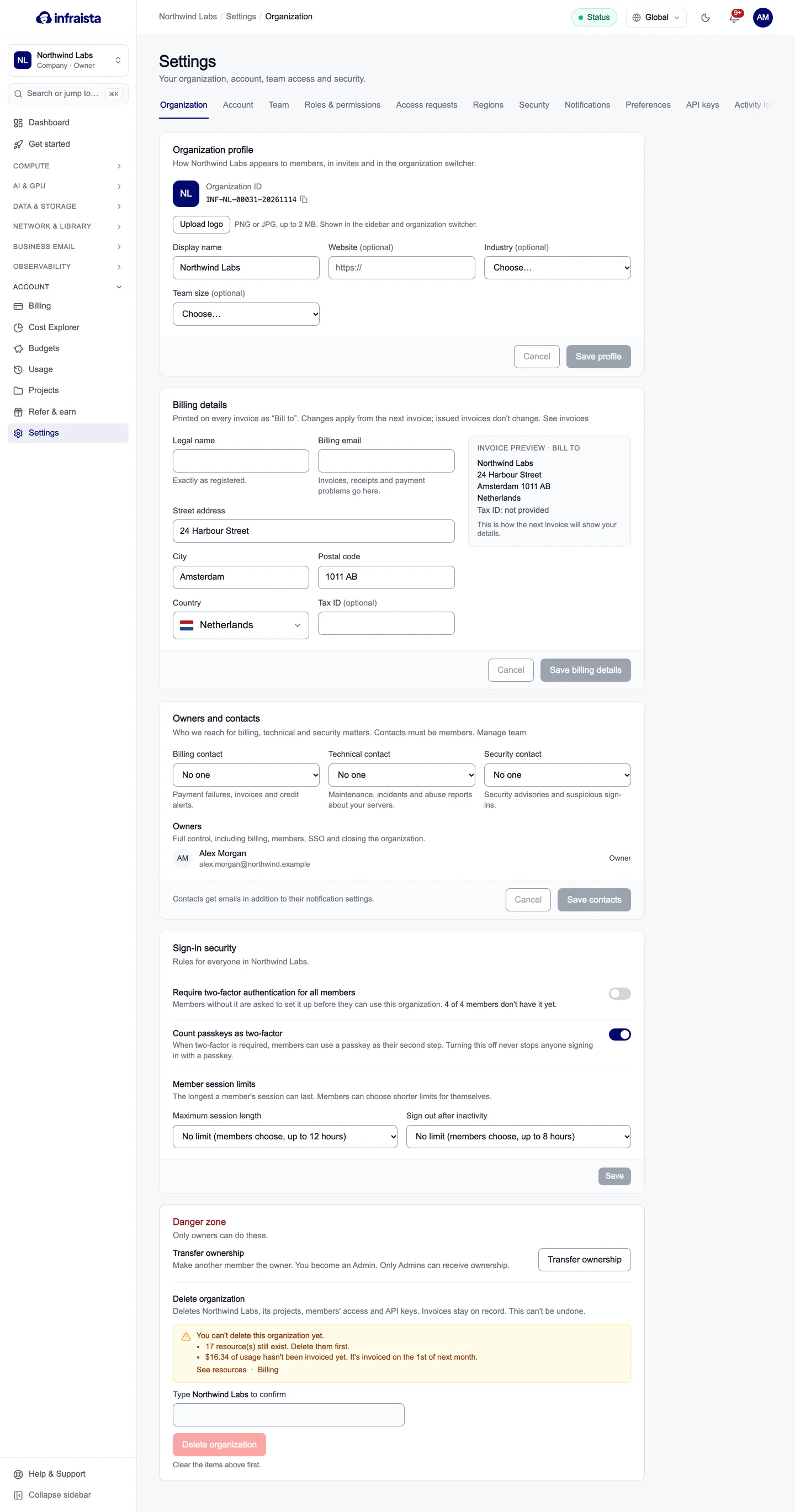
Organization profile
How the organization appears to members, in invites and in the organization switcher:
- the Organization ID (quote it when you contact support);
- Upload logo: PNG or JPG up to 2 MB, shown in the sidebar and switcher;
- Display name, and optionally Website, Industry and Team size.
Select Save profile.
Billing details
What every invoice shows under Bill to: Legal name (exactly as registered), Billing email (for invoices, receipts and payment problems), address, country and an optional Tax ID. The Invoice preview shows the result as you type. Select Save billing details; changes apply from the next invoice, and issued invoices don't change.
Owners and contacts
Pick who we contact about what. Contacts must be members:
| Contact | Gets |
|---|---|
| Billing contact | Payment failures, invoices and credit alerts |
| Technical contact | Maintenance, incidents and abuse reports about your servers |
| Security contact | Security advisories and suspicious sign-ins |
Contacts get these emails in addition to their own notification settings. Owners are listed below them.
Sign-in security
Rules for everyone in the organization:
- Require two-factor authentication for all members: members without it must set it up before they can use this organization. The line below shows how many don't have it yet.
- Count passkeys as two-factor: lets members use a passkey as their second step.
- Member session limits: the longest a member's session can last (Maximum session length) and Sign out after inactivity. Members can choose shorter limits for themselves.
Select Save.
Danger zone
Only Owners see these:
- Transfer ownership makes another member the owner; you become an Admin. Only Admins can receive ownership, so change their role first if needed.
- Delete organization deletes the organization, its projects, members' access and API keys. Invoices stay on record. It can't be undone, and you can only do it once all resources are deleted and all usage has been invoiced: the page lists what's left. Type the organization's name to confirm.
Related
Access requests
Members ask for access their role doesn't include; Owners and Admins grant it to that person for a while, change their role, add it to their role, or decline.
Notifications
Choose which events reach you by email or browser push, from server status changes to billing and security alerts, and find everything under the bell.