

Roles and permissions
What each built-in role can do, how to adjust the built-in roles, and how to create custom roles that grant exactly the actions a teammate needs.
Every member of an organization has one role. A role is a set of permissions: one switch for each action on each page of the console, such as viewing servers, restarting them or paying invoices.
Built-in roles
| Role | Can do |
|---|---|
| Owner | Full control, including billing, members and closing the organization. Can't be edited |
| Admin | Manage every resource, member and setting, including billing |
| Developer | Create, run and delete resources. No billing or member management |
| Billing | Invoices, payment methods, budgets and credits. Read-only on resources |
| Viewer | Read-only access to resources. Can't change anything |
An organization can have several Owners. You pick a role when you invite someone and can change it at any time.
See or adjust a role
Go to Settings › Roles & permissions and select a role on the left.
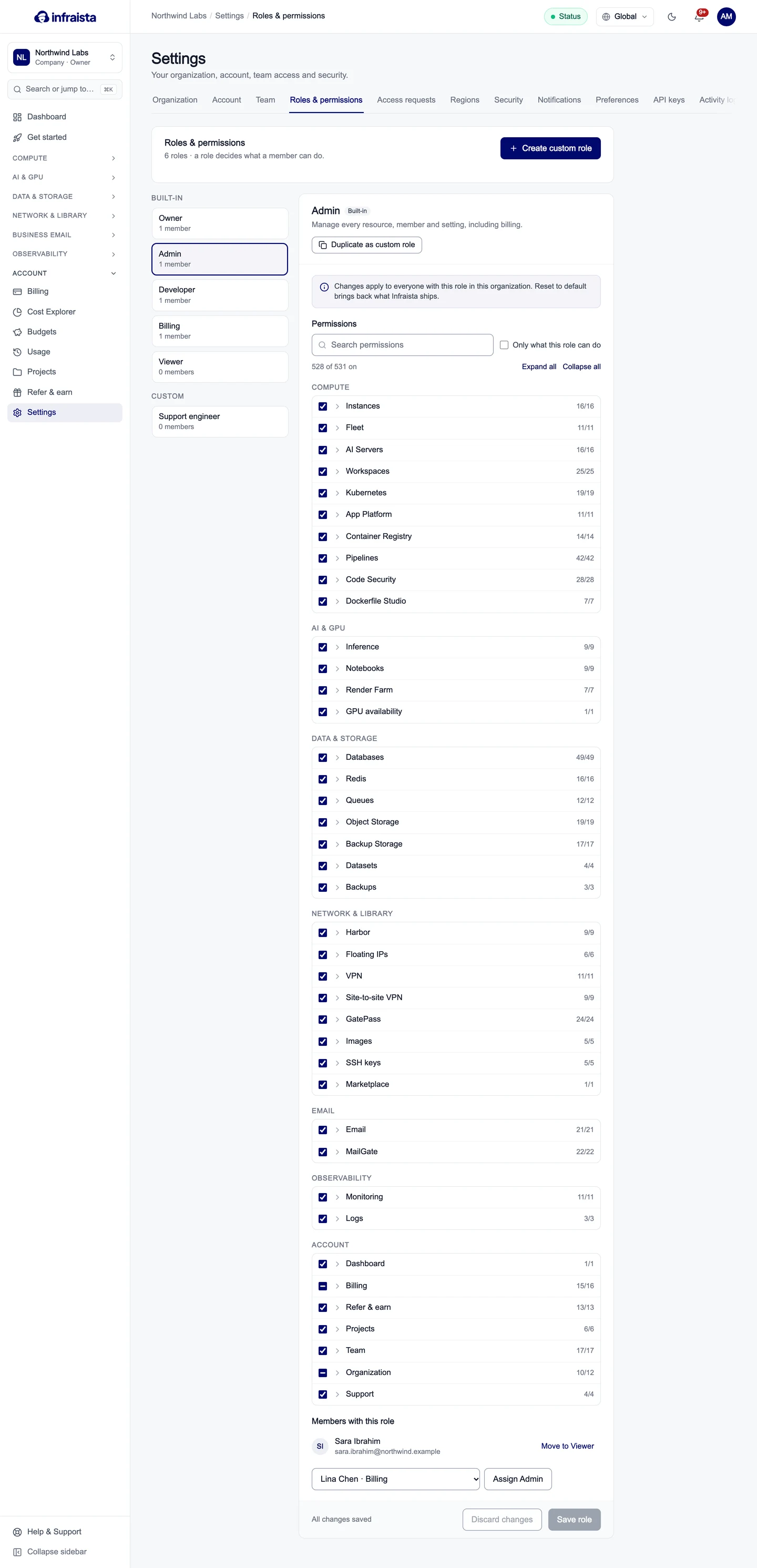
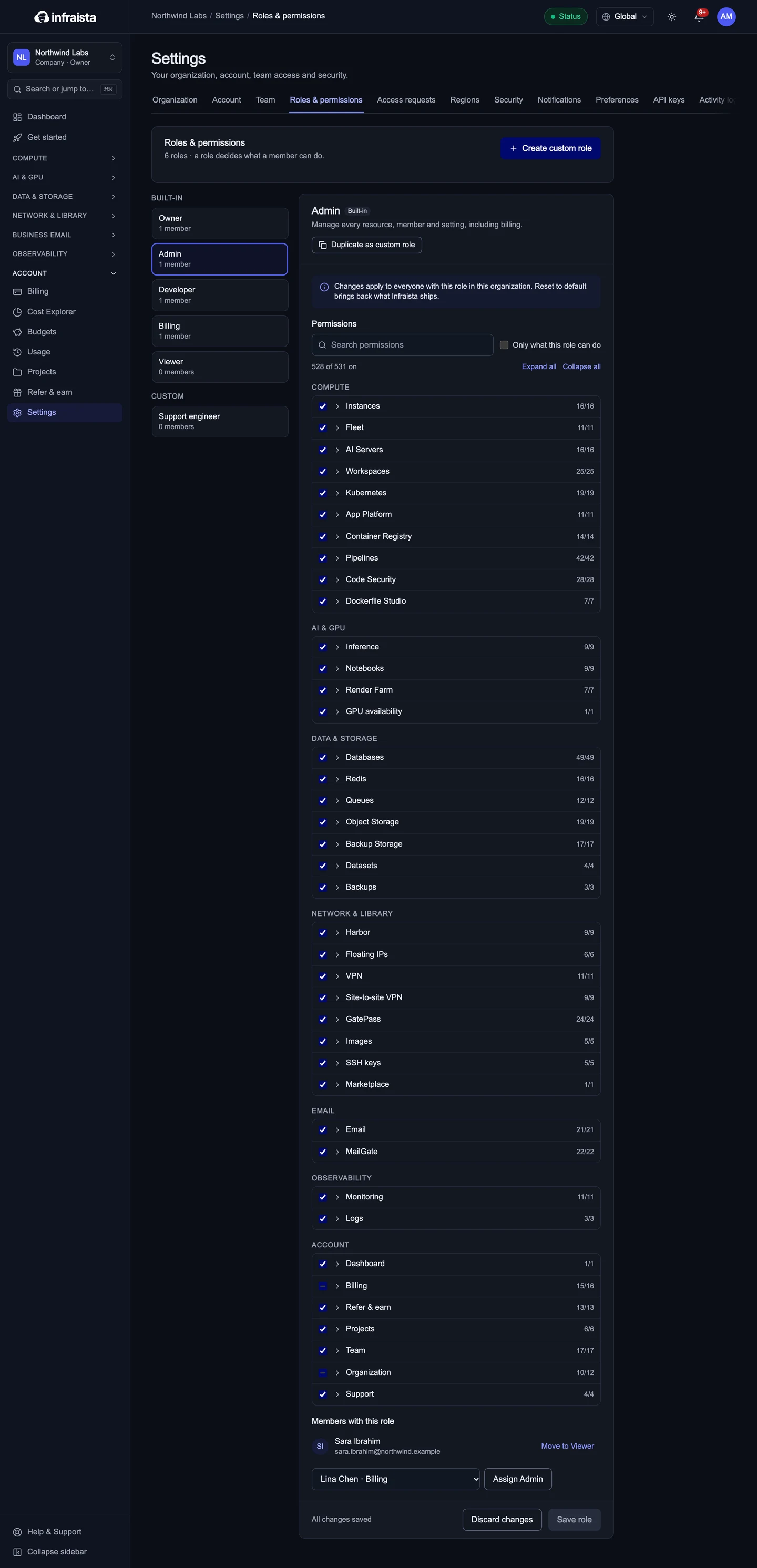
- Permissions are grouped by product (Compute, Data & Storage, Account and so on). Select a product to expand it and see each action; the count shows how many are on.
- Search permissions finds an action by name, and Only what this role can do hides the rest.
- Members with this role lists who has it. Pick someone and select Assign to give them this role.
You can change what Admin, Developer, Billing and Viewer allow in your organization. Changes apply to everyone with that role here. Reset to default brings back what Infraista ships.
Create a custom role
Custom roles grant exactly what someone needs, for example "restart servers but no billing".
- Select Create custom role, or open a built-in role and select Duplicate as custom role to start from it.
- Give it a Name and a short Description.
- Tick the permissions it should have. Some actions need another one to make sense (for example, restarting servers needs seeing them); those are ticked for you.
- Select Save role.
An organization can have up to 25 custom roles. Assign one from Members with this role or from Settings › Team.
When someone needs more access
A member who hits something their role doesn't allow sees what's missing and can Request access. Their request comes to the Owners and Admins; see Access requests.
Related
Invite teammates
Invite people to your organization by email, pick their role, resend or revoke invitations, change a member's role and remove members.
Access requests
Members ask for access their role doesn't include; Owners and Admins grant it to that person for a while, change their role, add it to their role, or decline.