

Sign in
Sign in to the Infraista console with your password or a passkey, enter the email code on a new device, and reset a forgotten password.
You sign in at console.infraista.com/login with your email and password, or with a passkey.
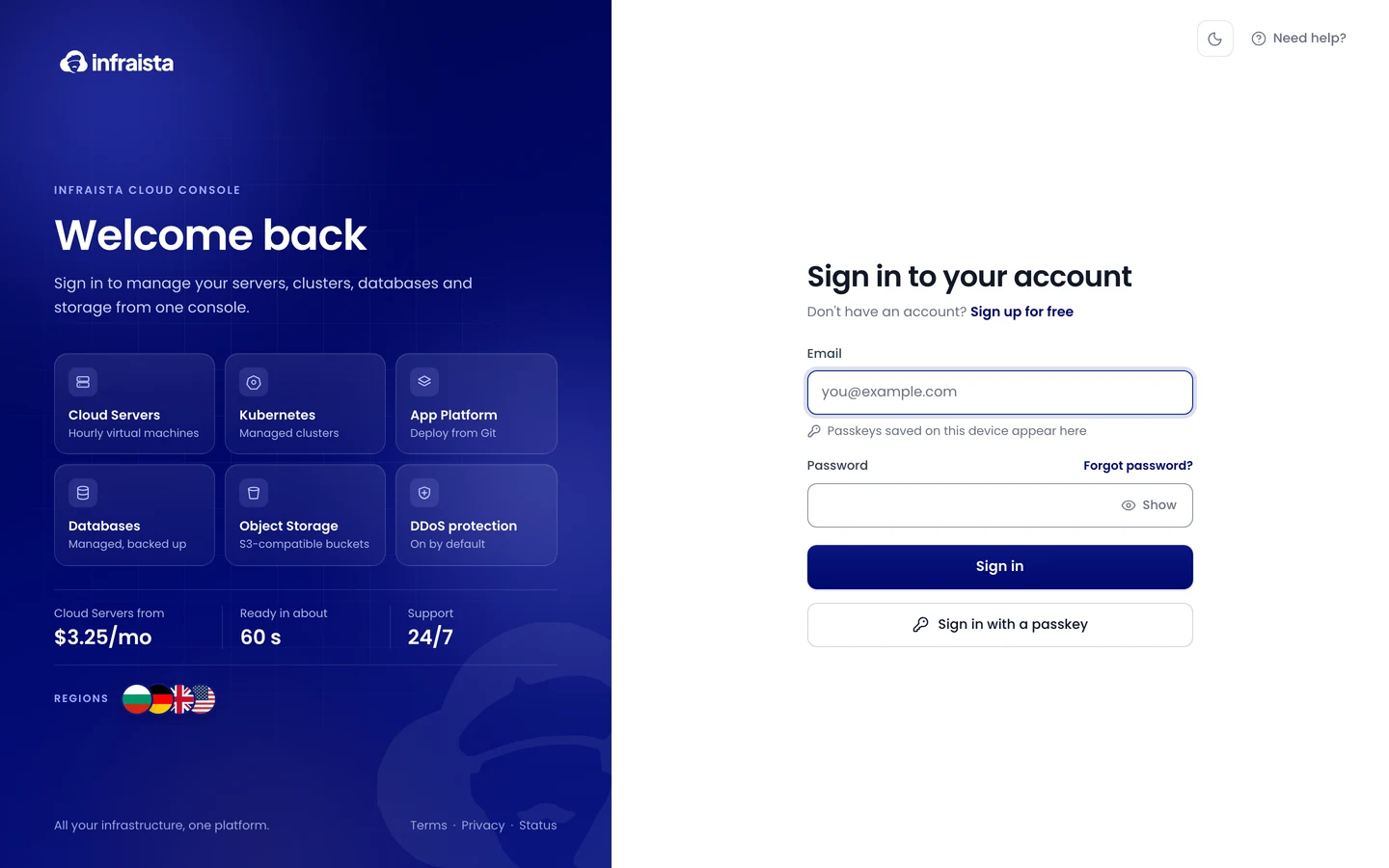
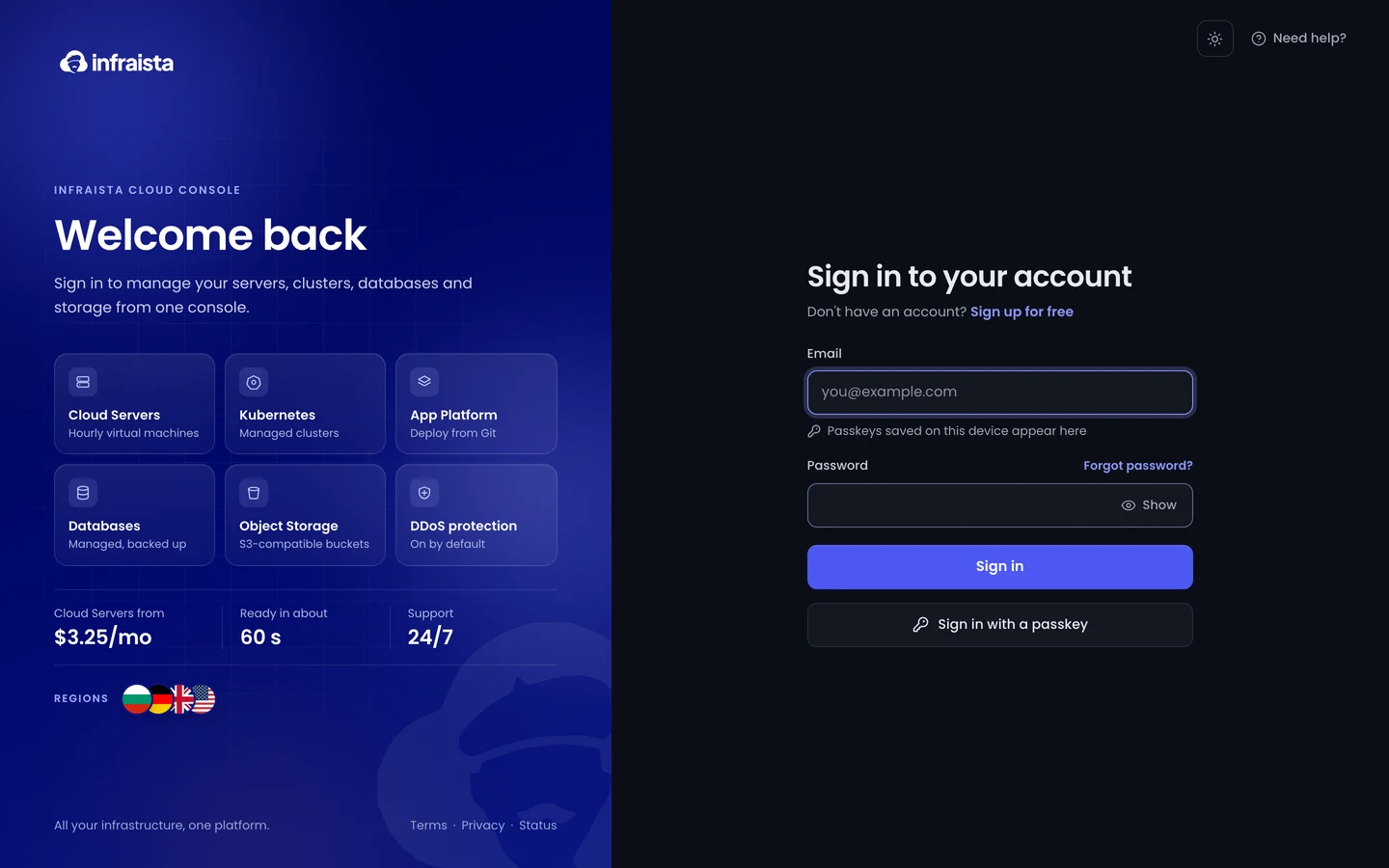
Sign in with your password
- Enter your Email and Password.
- Select Sign in.
- If we ask for a code, check your email and enter the 6-digit code (see below).
- If you turned on two-factor sign-in, enter the code from your authenticator app.
Sign in with a passkey
A passkey uses your fingerprint, face, screen lock or a security key instead of a password, and can't be phished. Add one in Sign-in security, then:
- Select Sign in with a passkey, or click the Email field and pick a passkey your browser suggests.
- Confirm with your fingerprint, face or device PIN.
Codes on a new device or from a new country
When you sign in from a device or a country we haven't seen for your account, we email you a 6-digit code to make sure it's you:
- Open the email Your Infraista sign-in code and enter the code. It expires in 10 minutes. If you didn't try to sign in, don't share the code and change your password.
- Tick Remember this device for 30 days on a computer only you use, so it doesn't ask again.
You can see and forget remembered devices in Settings › Security.
Reset a forgotten password
- On the sign-in page, select Forgot password?.
- Enter the email you use for Infraista and select Send reset link.
- Open the link in the email (it works once, for 60 minutes) and choose a New password.
Resetting your password signs you out on all devices.
How long you stay signed in
By default the console signs you out after 12 hours, or after 1 hour without using it. You can shorten both in Settings › Security › Session time limits, and your organization's admins can set a maximum for everyone.
If something goes wrong
- No code email. Check spam, then select Resend. You can resend a few times per sign-in.
- "That code is not valid." Codes expire after 10 minutes; use the code from the newest email.
- Lost your authenticator app. Select Use a recovery code and enter one of the codes you saved when you turned on two-factor sign-in. Each code works once.
Related
Create your account
Sign up for Infraista, choose a personal or organization account, and finish the four setup steps so you can start deploying.
A tour of the console
Find your way around the Infraista console, from the dashboard and sidebar to search, the region switcher, notifications and the status page.