

Connect to your server
Add an SSH key to Infraista, log in to your server as root over SSH, use the browser console when SSH isn't available, and reset the root password.
You log in to a cloud server as root, over SSH with a key (recommended) or a password. The browser console works even when SSH doesn't.
Add an SSH key
Keys you save in Infraista can be installed on new servers with one tick. Saving keys is free.
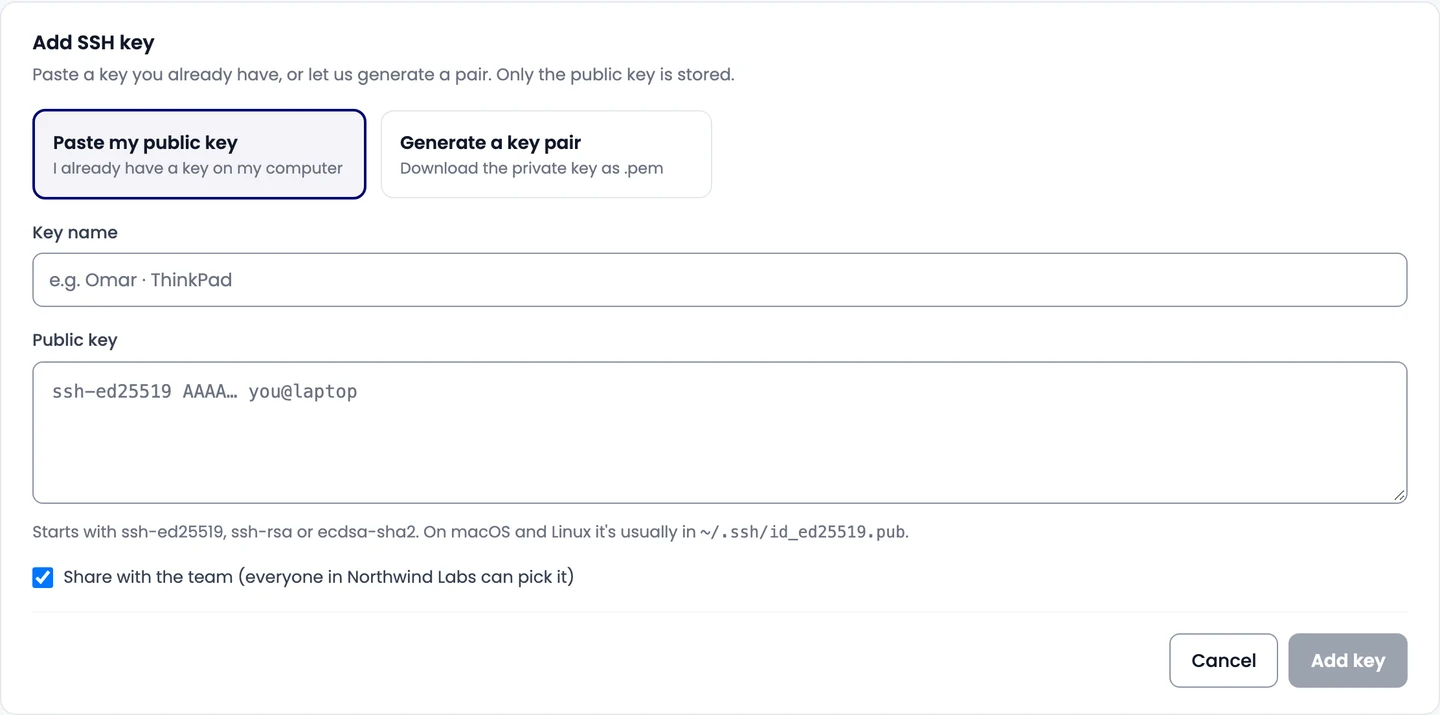
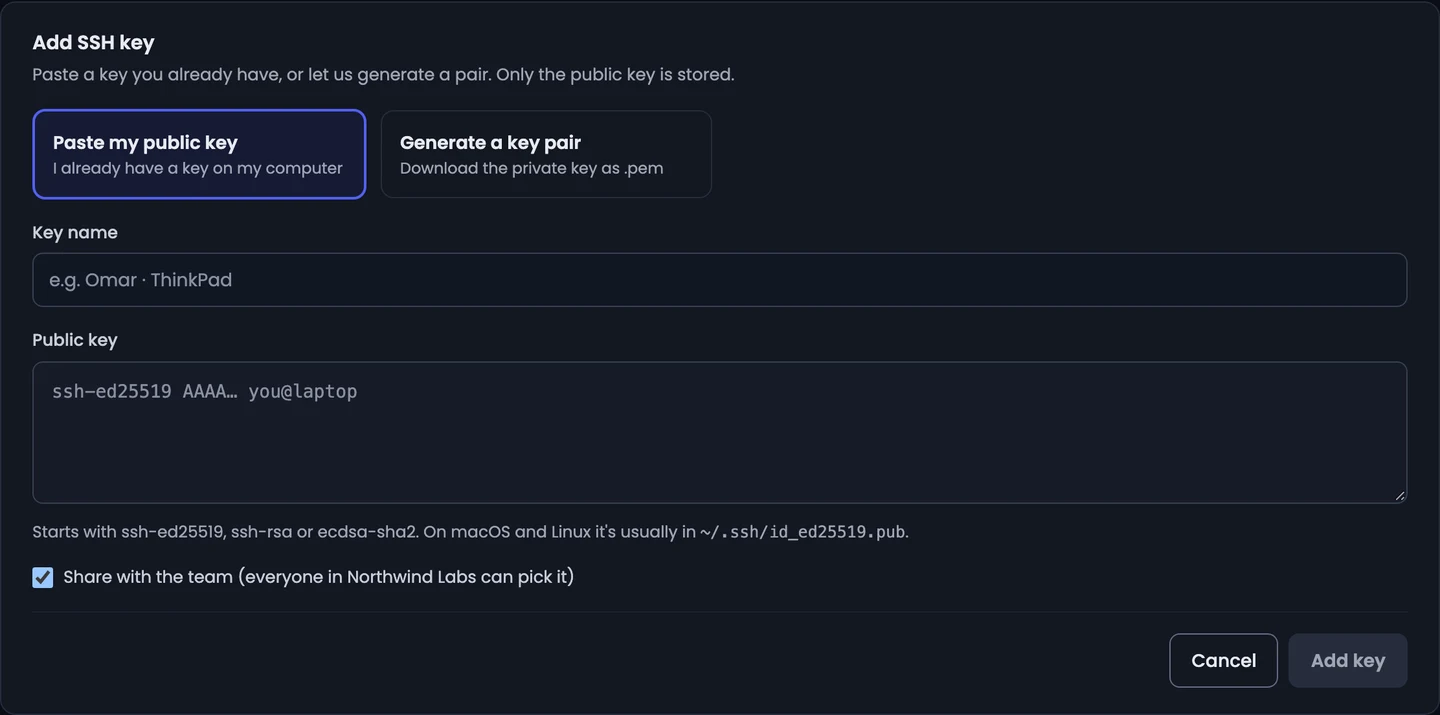
- Go to Network & Library › SSH keys and select Add SSH key.
- Choose how:
- Paste my public key if you already have one. On macOS and Linux it's usually in
~/.ssh/id_ed25519.pub. It starts withssh-ed25519,ssh-rsaorecdsa-sha2. - Generate a key pair to have one made for you. Download the private key (
.pem) straight away: we don't keep it.
- Paste my public key if you already have one. On macOS and Linux it's usually in
- Enter a Key name, for example the computer it's on.
- Leave Share with the team ticked so everyone in the organization can pick it, or untick it to keep it to yourself.
- Select Add key.
Don't have a key yet? On your computer, run:
ssh-keygen -t ed25519 -C "you@laptop"
cat ~/.ssh/id_ed25519.pub
and paste the line it prints.
Your saved keys are listed under Team keys and My keys:
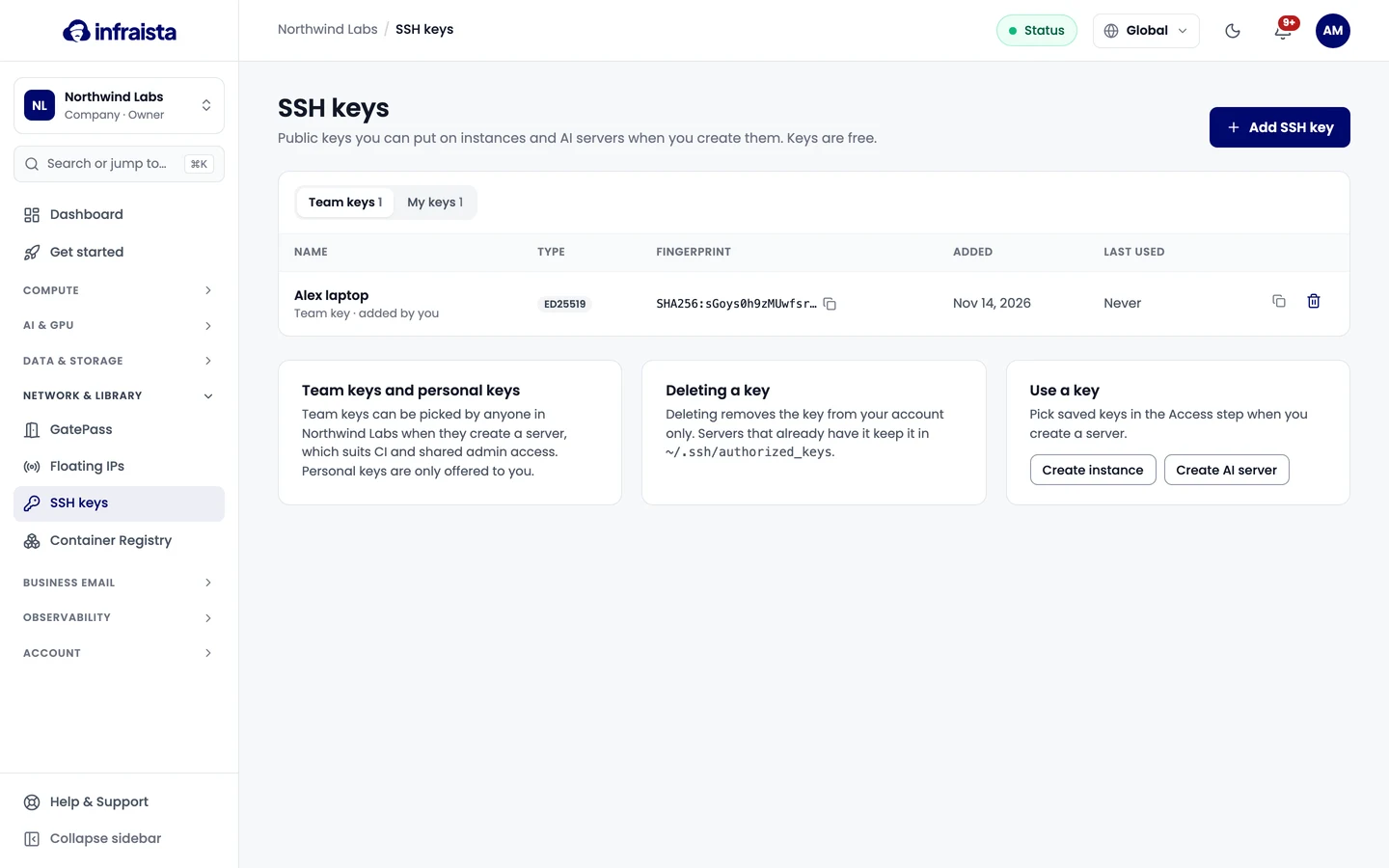
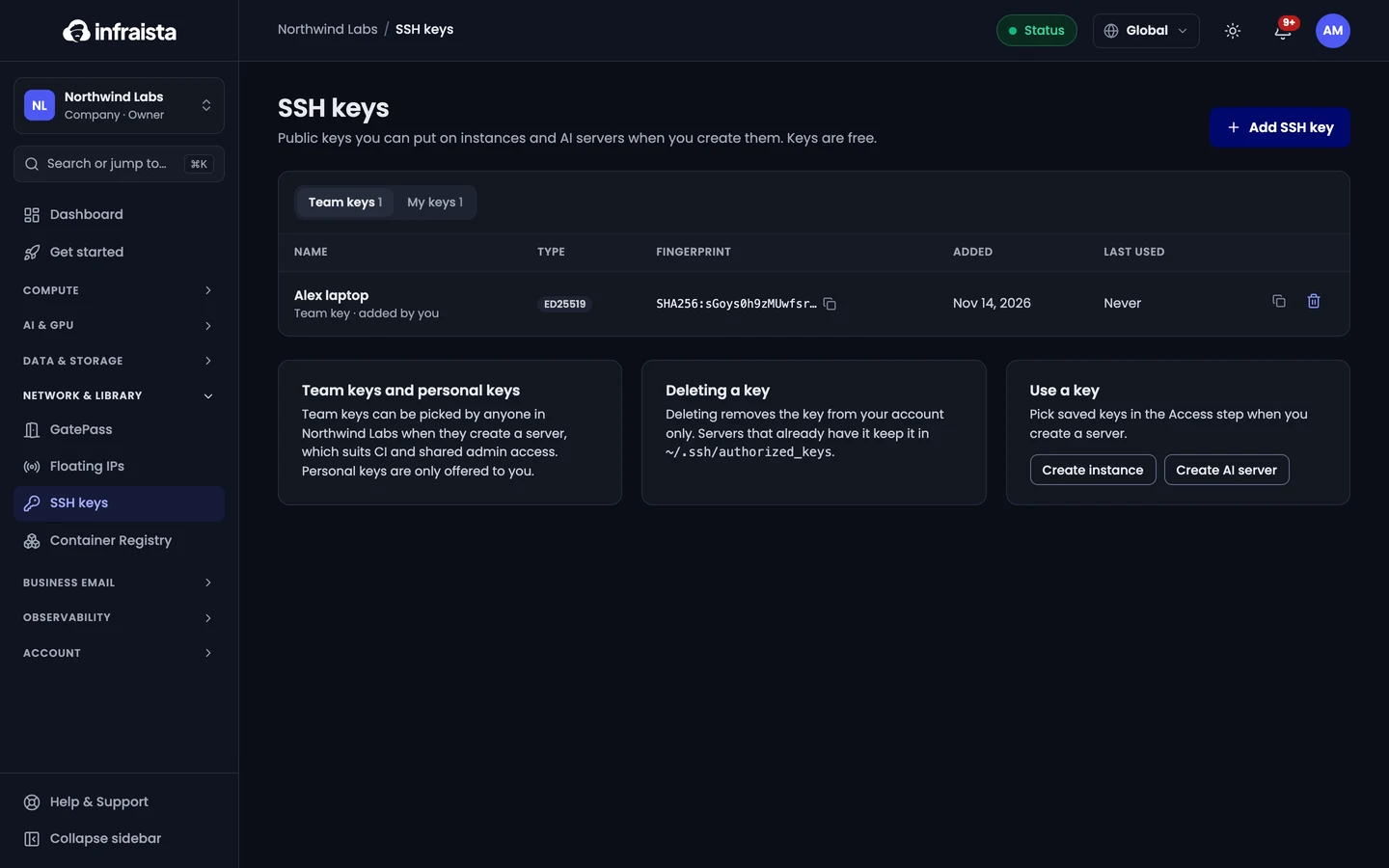
Keys are installed when a server is created. To add a key to an existing server, log in and append it
to /root/.ssh/authorized_keys. Deleting a key in Infraista doesn't remove it from servers that
already have it.
Log in over SSH
Open the server (Compute › Instances › the server). The Connect card shows its IP address and the exact command; select the copy button next to SSH.
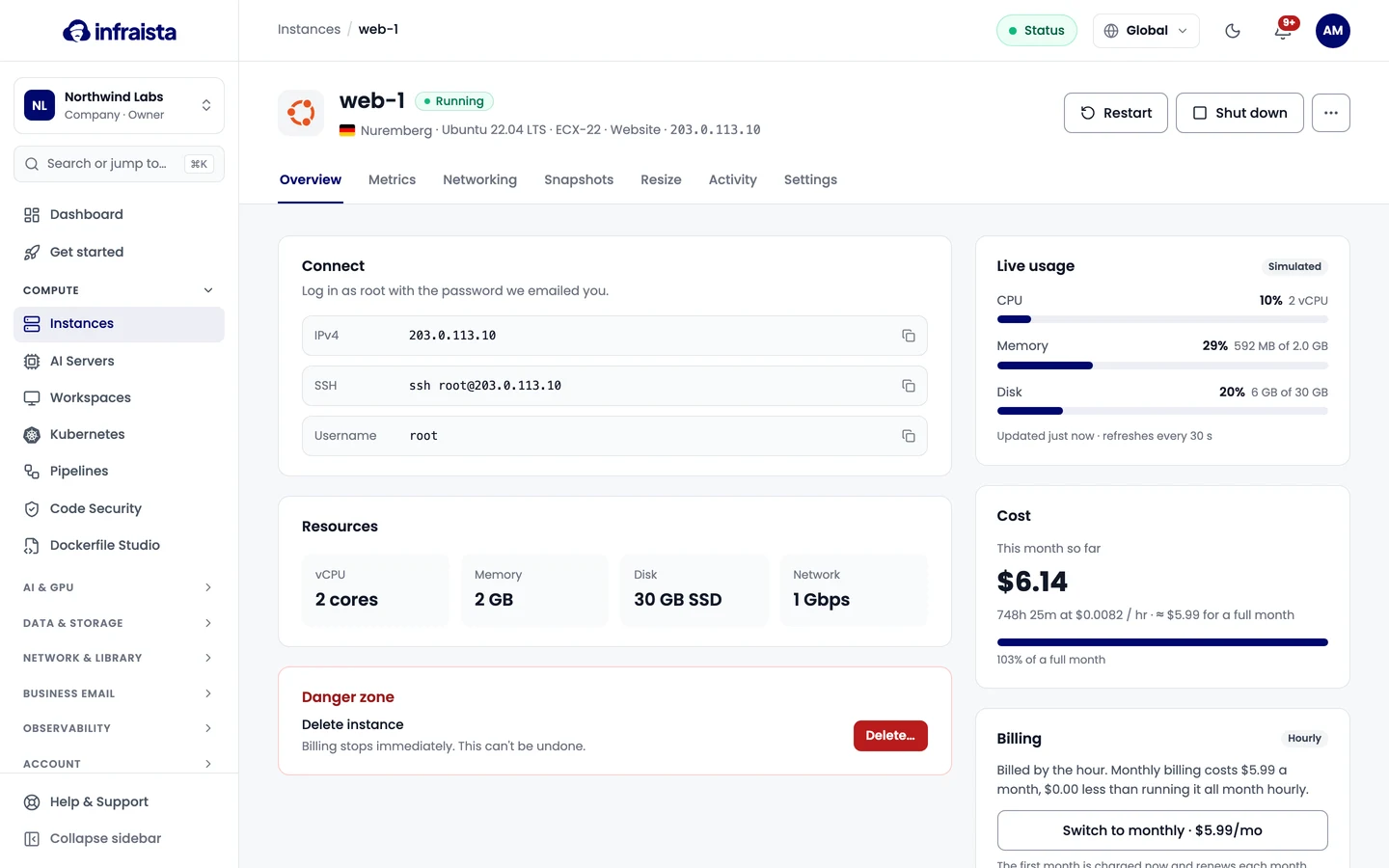
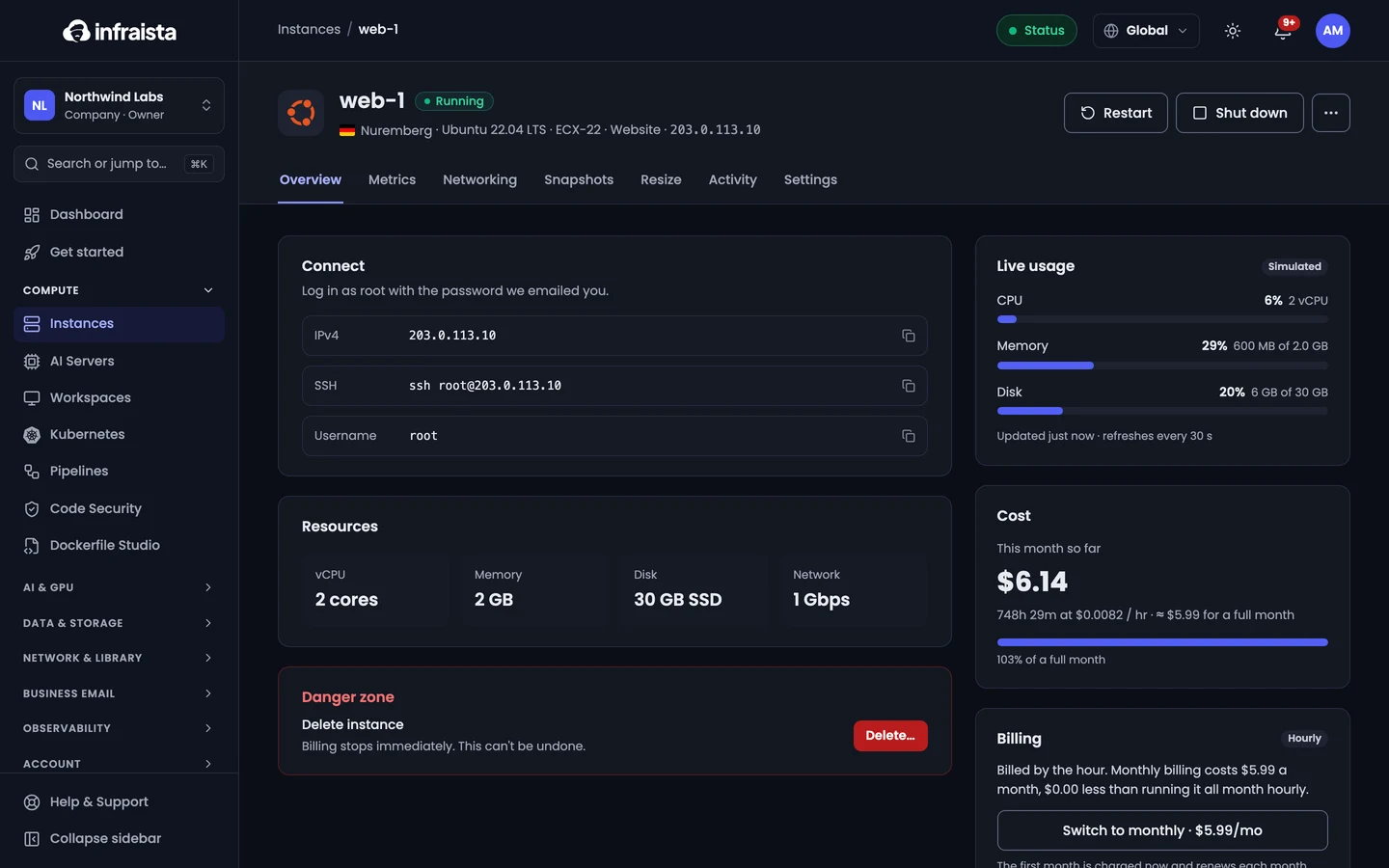
ssh root@203.0.113.10Answer yes the first time to trust the server's fingerprint. If your key isn't the default one,
add -i path/to/key.
If you chose a root password instead of a key, use the password from the email we sent when the server was created.
Use the browser console
When SSH isn't reachable (a firewall rule, a broken network setting), open the server and select Open console. It shows the server's screen in your browser, as if you were at the keyboard, and works without any network access to the server.
Reset the root password
Open the server, select the ⋯ menu and Reset root password…, then confirm with Reset password. The new password is shown once: copy it straight away. The old one stops working, so anyone using it is locked out. On Windows servers this resets the Administrator password for Remote Desktop.
If something goes wrong
Permission denied (publickey): the key you're using isn't on the server. Check you ticked it when you created the server, or log in with the browser console and add it.- The connection times out: the server may still be starting (wait a minute), or a firewall is blocking port 22. Use Open console to check.
REMOTE HOST IDENTIFICATION HAS CHANGED: you rebuilt the server or reused an IP. Remove the old entry withssh-keygen -R 203.0.113.10and connect again.
Related
Create a cloud server
Launch a cloud server (instance) in about a minute. Pick a size, an operating system and a location, add your SSH key and choose hourly or monthly billing.
Compute
Run cloud servers, GPU AI servers, cloud desktops for your team and managed Kubernetes clusters, all billed by the hour while they run.