

Regions and data locations
See where your organization can deploy, how restricted regions work, and how to request access to a region that opens on request.
A region is the city where a resource runs and its data is stored. You pick one when you create a resource, and it can't be changed afterwards. Prices are the same in every region.
See your regions
Open Settings › Regions, or select the region switcher in the top bar and then Manage regions.
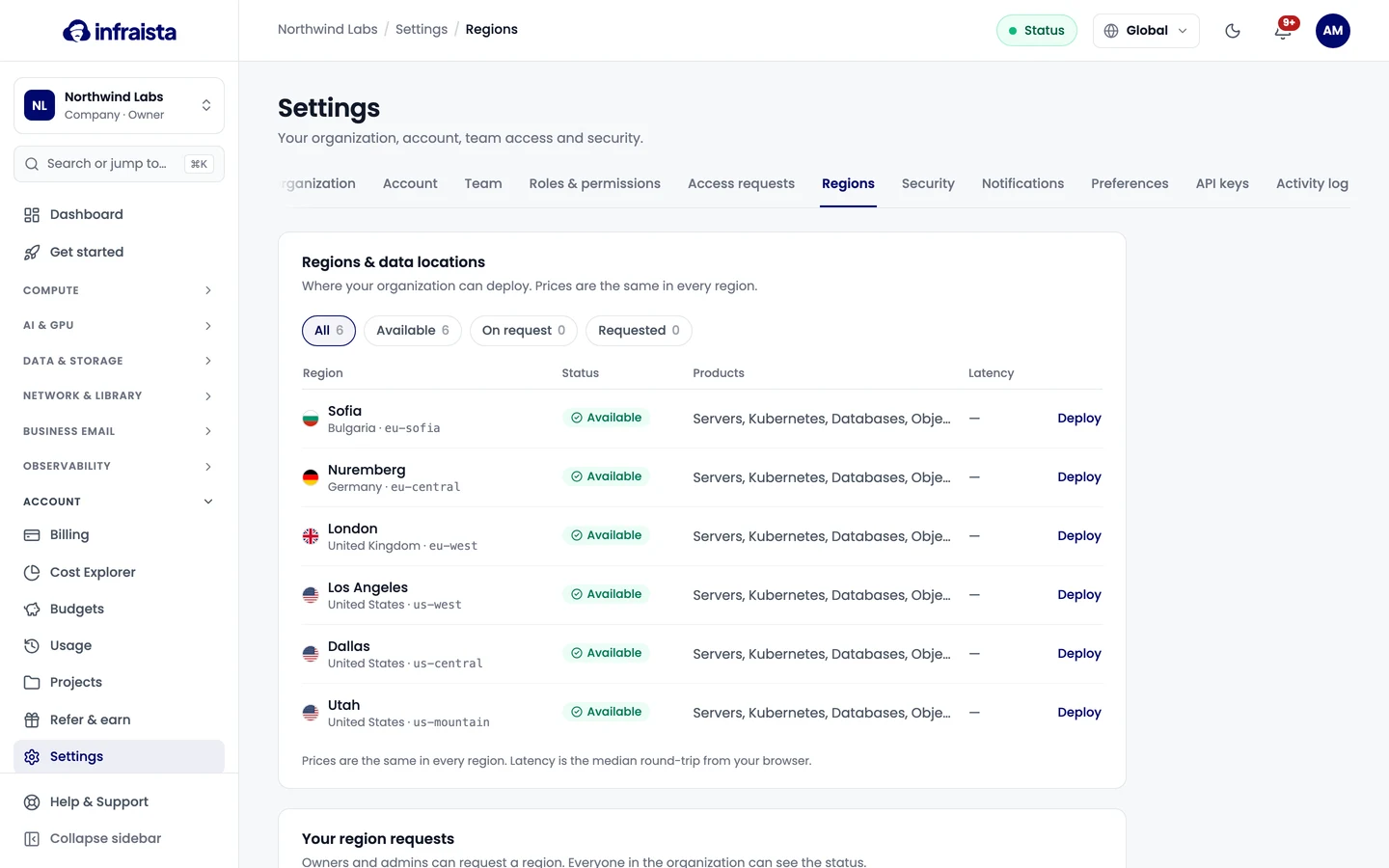
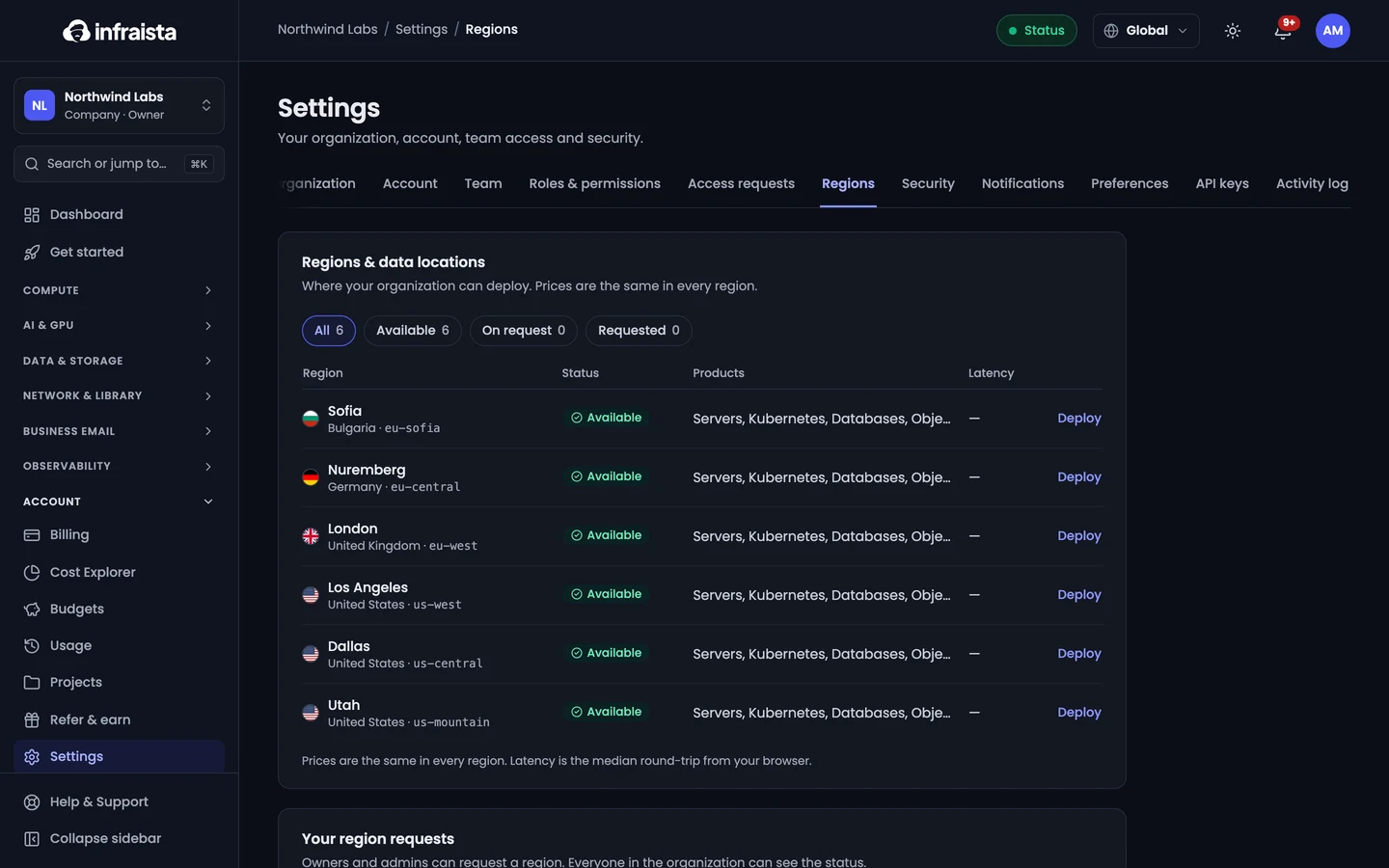
Each row shows:
- the city, country and region code (for example
eu-central), which you use in the API; - Status: Available (deploy now), On request (needs approval) or Requested (waiting for a decision);
- Products you can create there;
- Latency: the typical round trip from your browser to that region;
- Deploy, which starts a new server in that region.
Request a restricted region
Some regions open on request. Tell us what you'll run there and our team reviews it, usually within one business day.
- In Settings › Regions, select Request access on the region's row (or Request a region).
- Fill in the form:
- What will you run there;
- a Rough size: servers, total vCPU, GPUs, storage and monthly traffic;
- the Expected start;
- which Projects need it (access is approved per project or for the whole organization);
- whether the data must stay in that region (data residency), and your Use case.
- Send the request.
The request moves through Requested · in review, then Approved or Declined. If we need more information it shows Needs more info: reply in the request and the review continues. You get an email and a console notification on every change.
An approval can come with a quota (for example a vCPU limit) and an end date, shown on the region. Only Owners and Admins can request a region; everyone in the organization can see the status.
Show one region at a time
The region switcher in the top bar (Global by default) filters every list in the console to one region. Choose Global again to see everything.
Related
Organizations
Work alone in a personal account or together in an organization. Create an organization, switch between them and understand who owns what.
Create a cloud server
Launch a cloud server (instance) in about a minute. Pick a size, an operating system and a location, add your SSH key and choose hourly or monthly billing.