

Getting started
A tour of the console
Find your way around the Infraista console, from the dashboard and sidebar to search, the region switcher, notifications and the status page.
The console is where you create and manage everything in Infraista. This page explains what each part of the screen does.
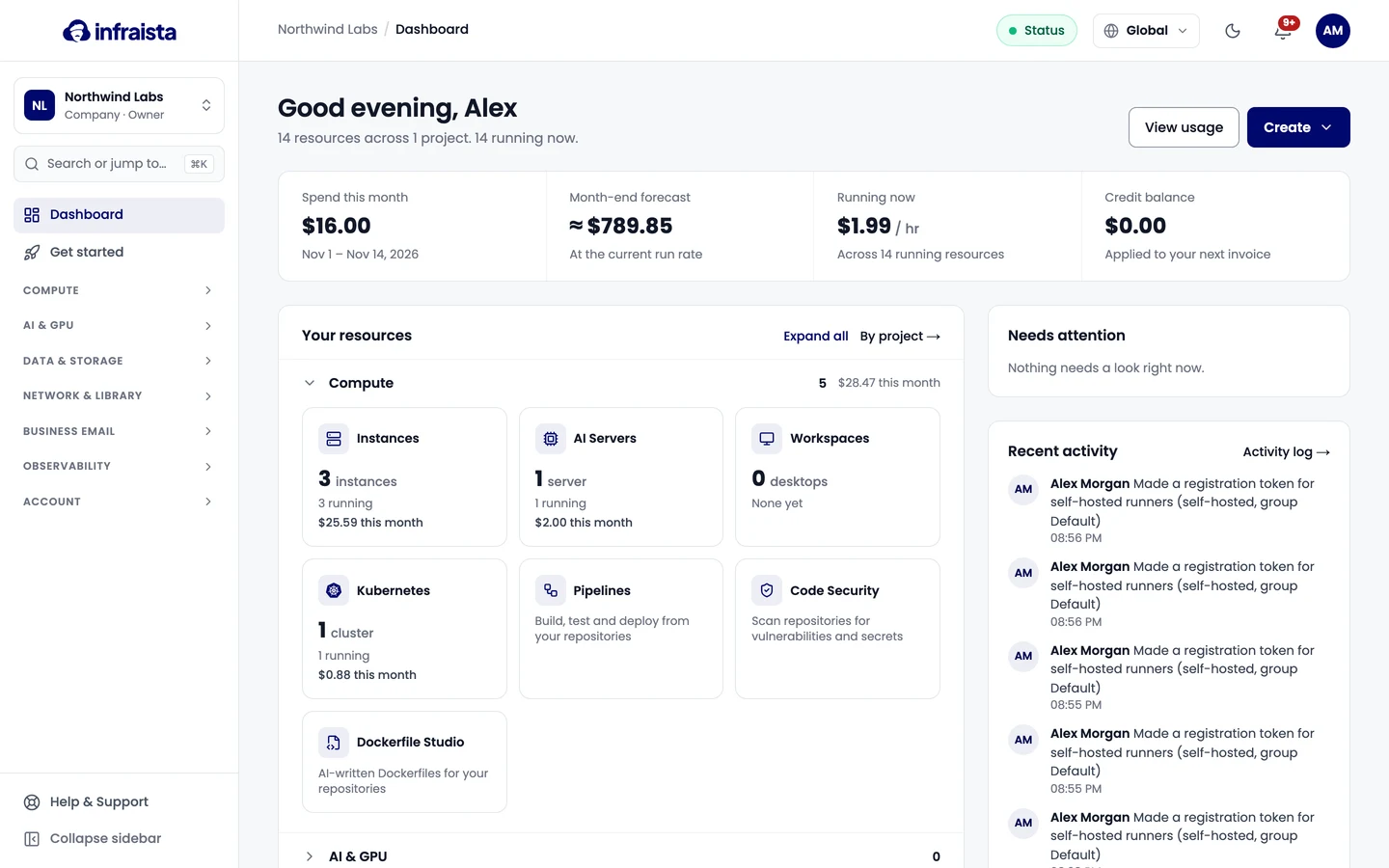
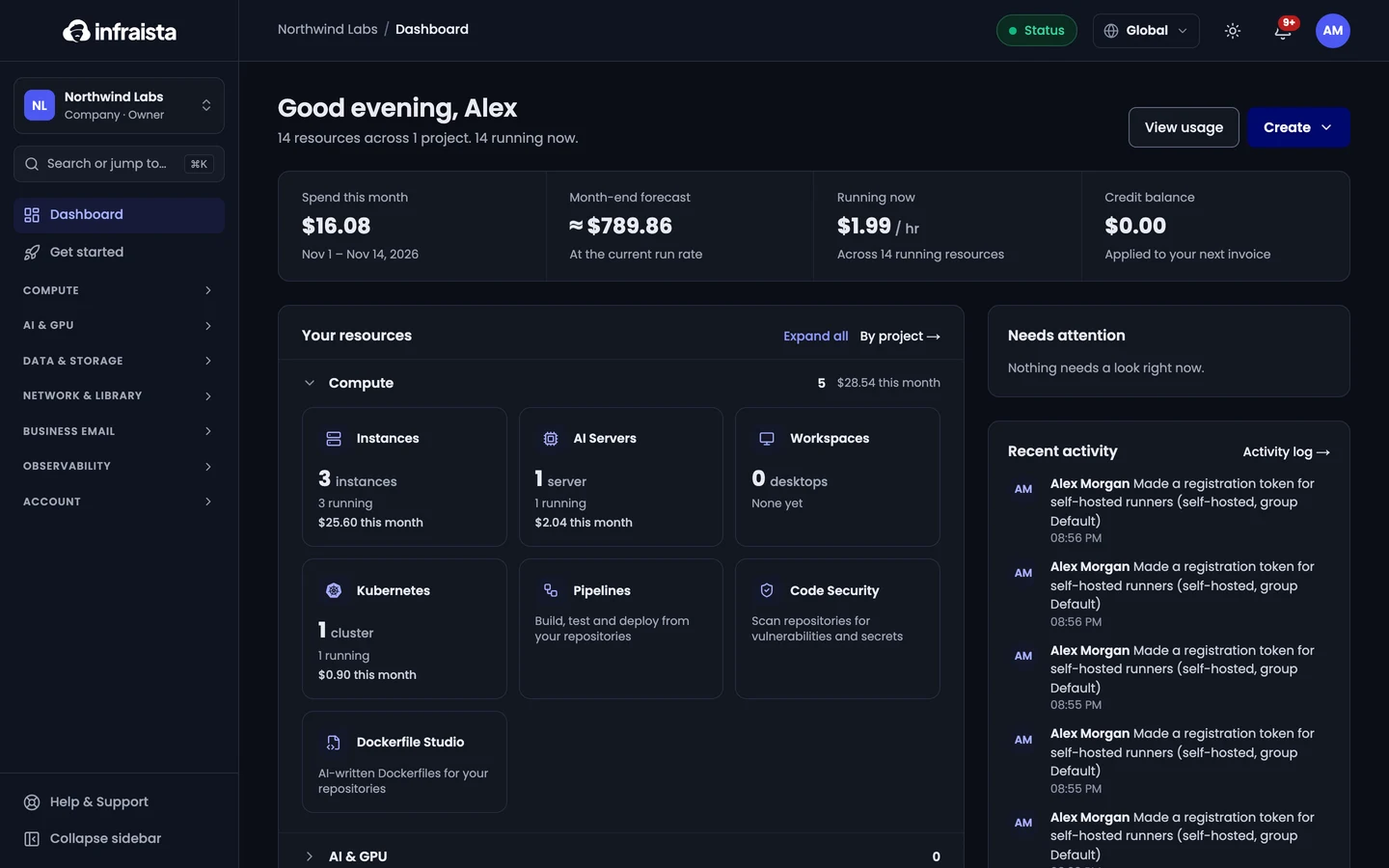
Sidebar
- Organization switcher (top): which account you're working in. See Organizations.
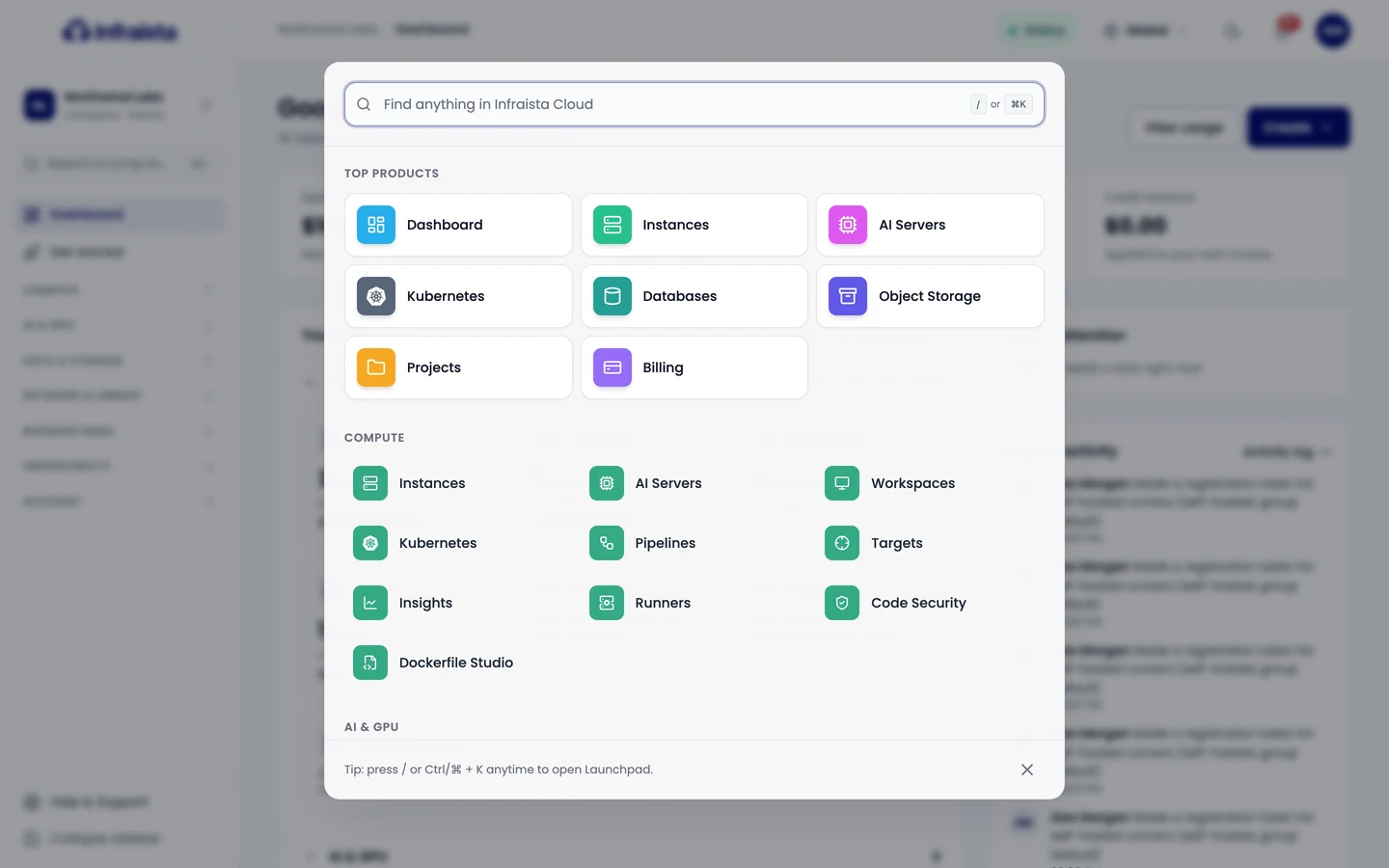
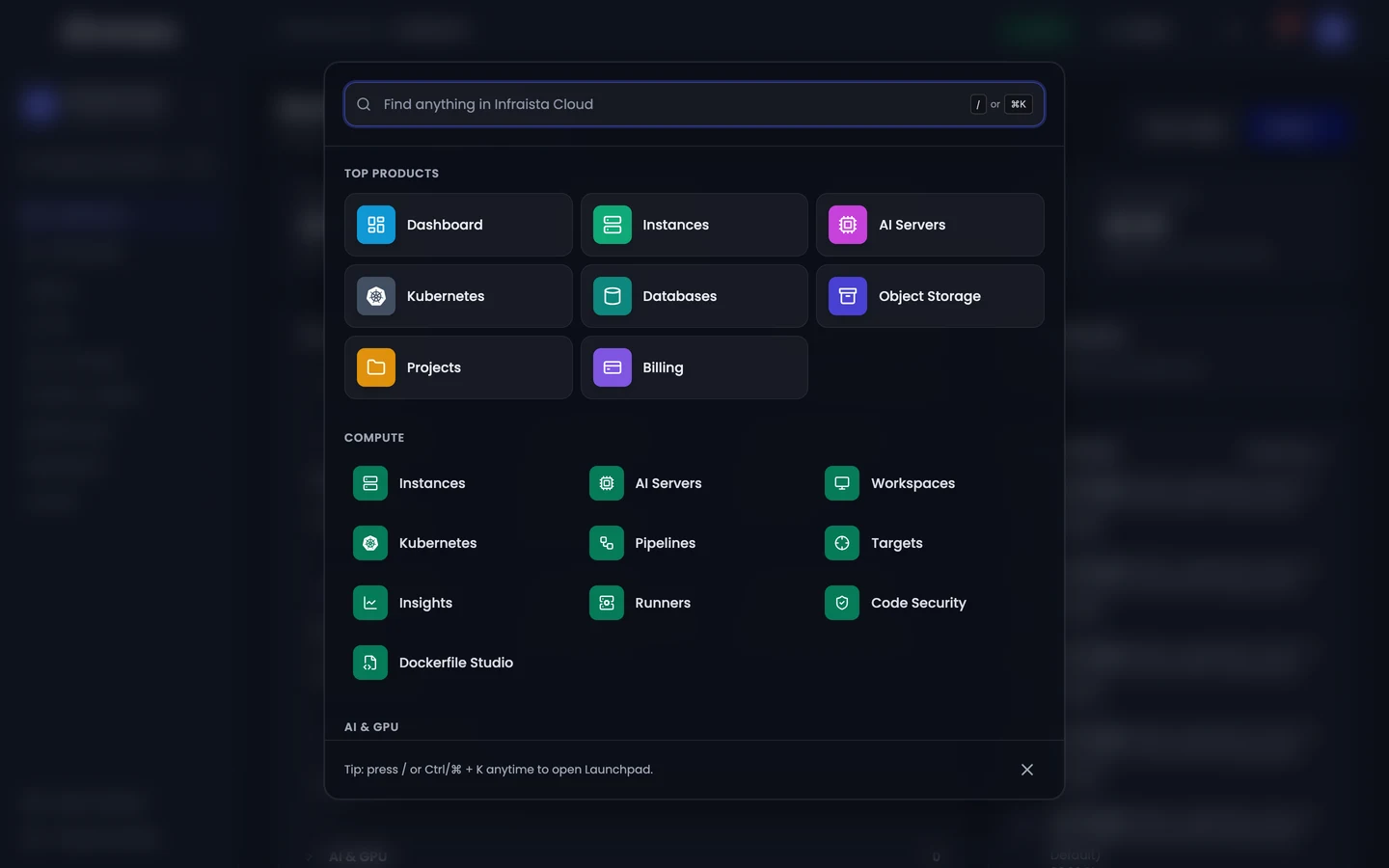
- Search or jump to…: opens the Launchpad (below).
- Dashboard and Get started: your overview and a setup checklist.
- Product groups: Compute, AI & GPU, Data & Storage, Network & Library, Observability and Account. Select a group to open it.
- Help & Support (bottom): chat with us or open a ticket.
- Collapse sidebar: more room for wide tables.
Dashboard
The dashboard shows, for the current organization:
- Spend this month, the Month-end forecast at the current run rate, what's Running now per hour, and your Credit balance.
- Your resources, grouped by product, with counts and this month's cost. By project groups them by project instead.
- Needs attention: anything in this organization that needs a look.
- Recent activity: who changed what. Activity log opens the full history.
Create (top right) starts any new resource, and View usage opens the cost breakdown.
Search and the Launchpad
Press / or Ctrl+K (⌘+K on a Mac) anywhere in the console, then type to find a product, a page or one of your resources.
Top bar
| Item | What it does |
|---|---|
| Breadcrumb | Where you are; select a part to go back up |
| Status | Current incidents and planned maintenance |
| Region switcher (Global) | Shows resources from all regions, or only one. Manage regions opens Regions |
| Theme | Switch between light and dark |
| Bell | Notifications: server events, billing, security alerts and access requests |
| Your initials | Your account, settings and Sign out |