

Web panel
Give your team and sub-accounts a browser panel to browse, upload and restore files, and on Agency and Reseller plans brand it with your logo, domain and email sender.
The web panel is a browser app for a storage box. You and your sub-accounts can see usage, browse, upload and download files, restore files from snapshots and find connection guides, without an SFTP client.
Turn it on when you create the box, or on the box's Panel & branding tab.
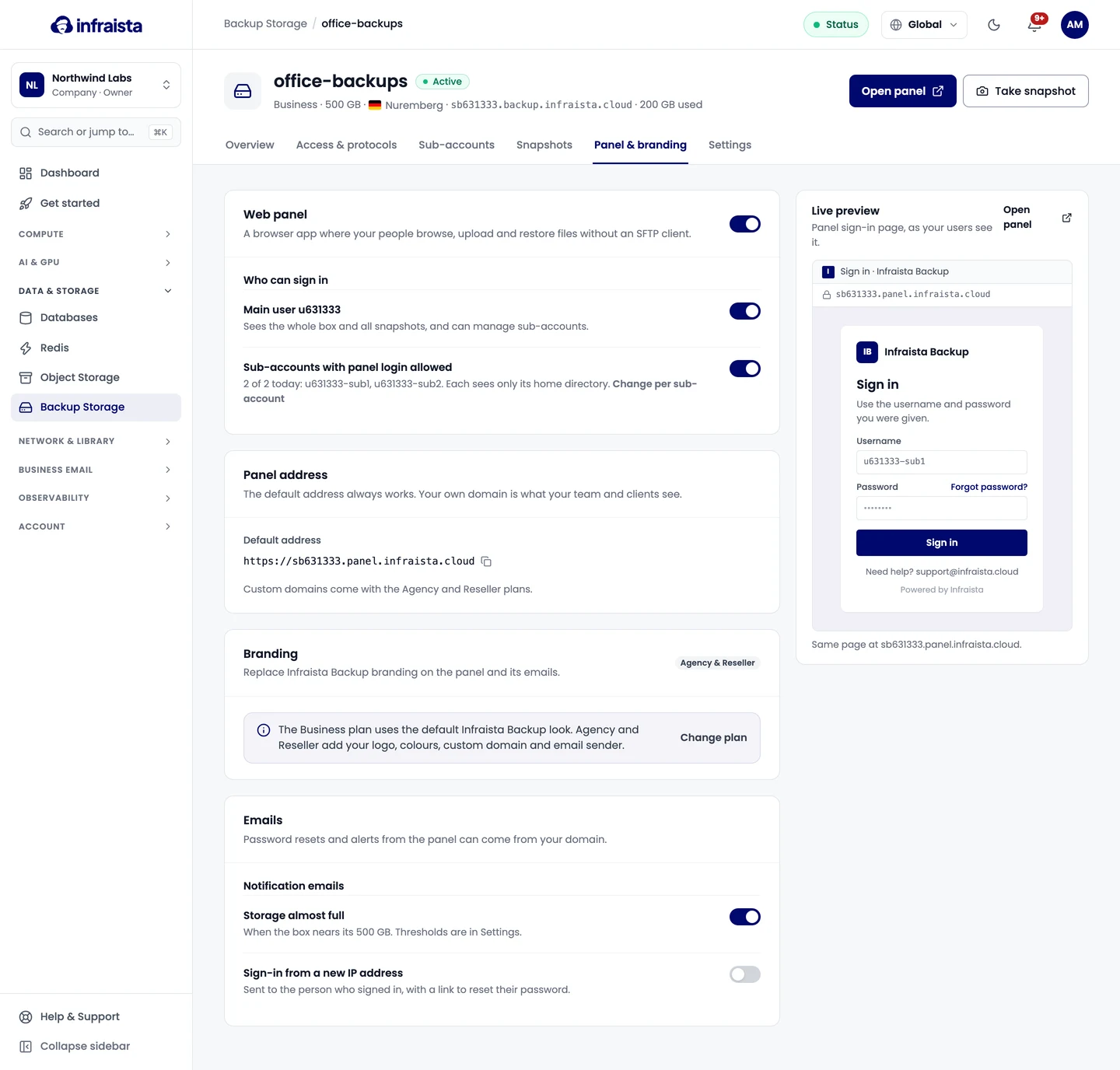
Who can sign in
- The Main user sees the whole box and all snapshots, and can manage sub-accounts.
- Sub-accounts with panel login allowed see only their home directory. Change it per sub-account on Sub-accounts.
The panel uses the password, so the main user needs password sign-in turned on. With the panel off, its address shows a "not available" page; SFTP, FTP, WebDAV and rsync keep working.
Open panel on the box's header opens it.
Panel address
Every box has a default address, like sb100001.panel.infraista.cloud, that always works.
On Agency and Reseller you can also use your own Custom domain, such as
backup.example.com:
- Enter the domain and save.
- Add the CNAME record shown at your DNS provider.
- Select Check again until it shows DNS verified. DNS changes can take up to an hour.
The certificate is issued and renewed automatically once DNS is verified.
Branding (Agency and Reseller)
Replace the default "Infraista Backup" look on the panel and its emails:
- Brand name, shown in the browser tab, panel header and email sender name;
- Square logo (512 × 512 px), Wide logo (600 × 160 px) and Favicon (64 × 64 px): PNG, JPG or ICO, up to 1 MB;
- Accent color, the Login headline and Login subtext;
- Support email and Support link;
- Hide "Powered by Infraista".
Emails: password resets and alerts from the panel can come from your own Sender address. Add the DNS records shown (already have an SPF record? Add the include shown to it instead of creating a second one), then Check records. Until both are found, emails go out from Infraista's panel address under your brand name.
Related
Snapshots and restores
Protect a storage box with automatic and manual snapshots, restore single files from the web panel, or roll the whole box back to an earlier point in time.
Manage a storage box
Rename a storage box, change its plan, reset the main password, set quota alert emails, show the snapshots folder, or delete the box.