

Connect to a storage box
Connect to a storage box over SFTP, SCP, WebDAV or FTP, use rsync and BorgBackup over SSH on port 23, and limit access to known IP addresses.
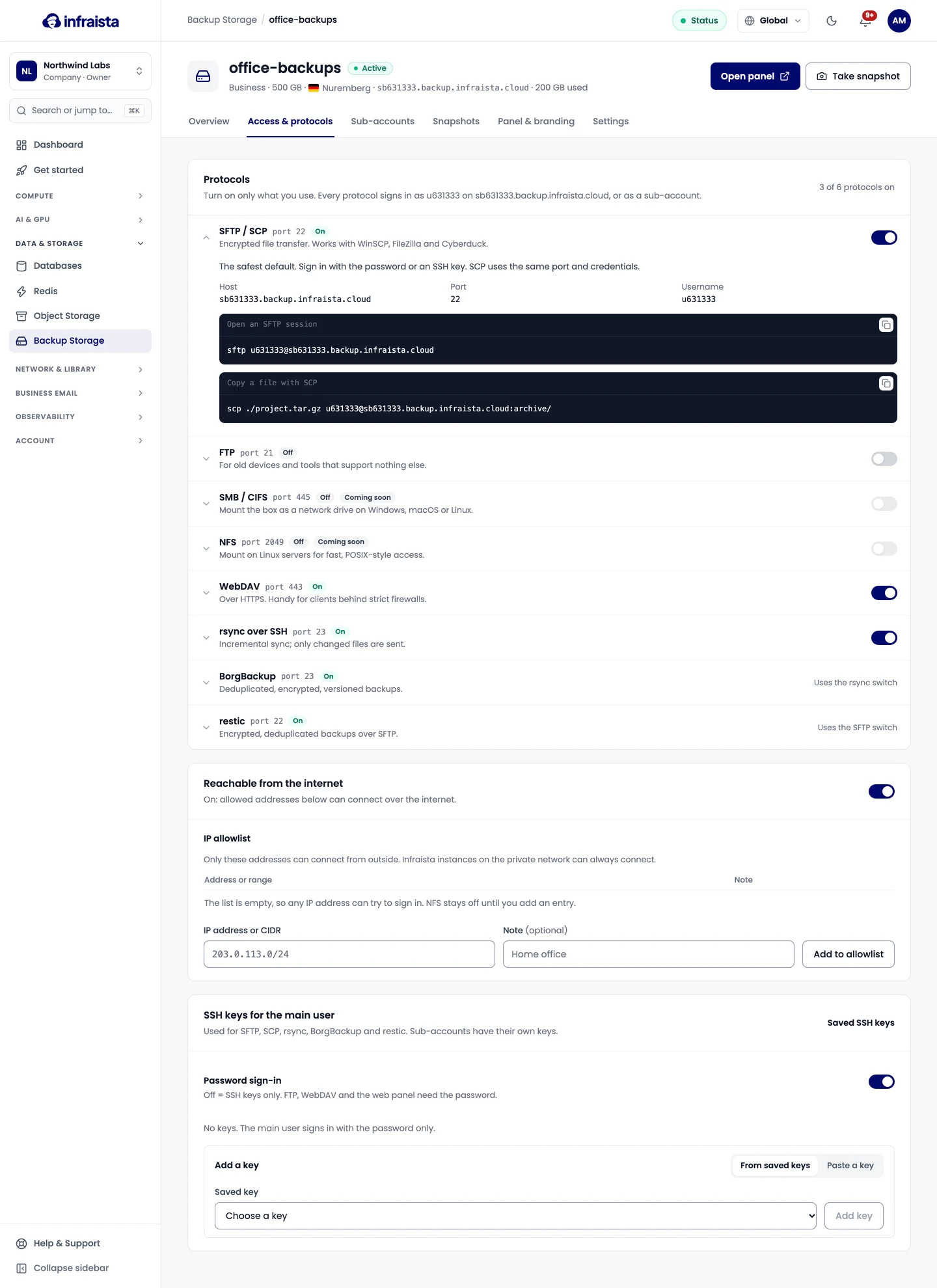
Every protocol signs in as the box's main user (or a sub-account) on the box's host. Find both, and each protocol's port, on the box's Overview under Connection.
Protocols
Turn protocols on and off on the box's Access & protocols tab. Turn on only what you use.
| Protocol | Port | Use it for |
|---|---|---|
| SFTP / SCP | Shown on the Overview (usually 22) | Encrypted file transfer: WinSCP, FileZilla, Cyberduck, scripts. The safest default |
| rsync over SSH | 23 | Incremental sync: only changed files are sent. The same switch turns BorgBackup on |
| WebDAV | 443 (HTTPS) | Windows Explorer, macOS Finder and WebDAV clients, also behind strict firewalls. Not on Starter |
| FTP | 21 | Old devices and tools that support nothing else |
restic works over SFTP, so it's available whenever SFTP is on.
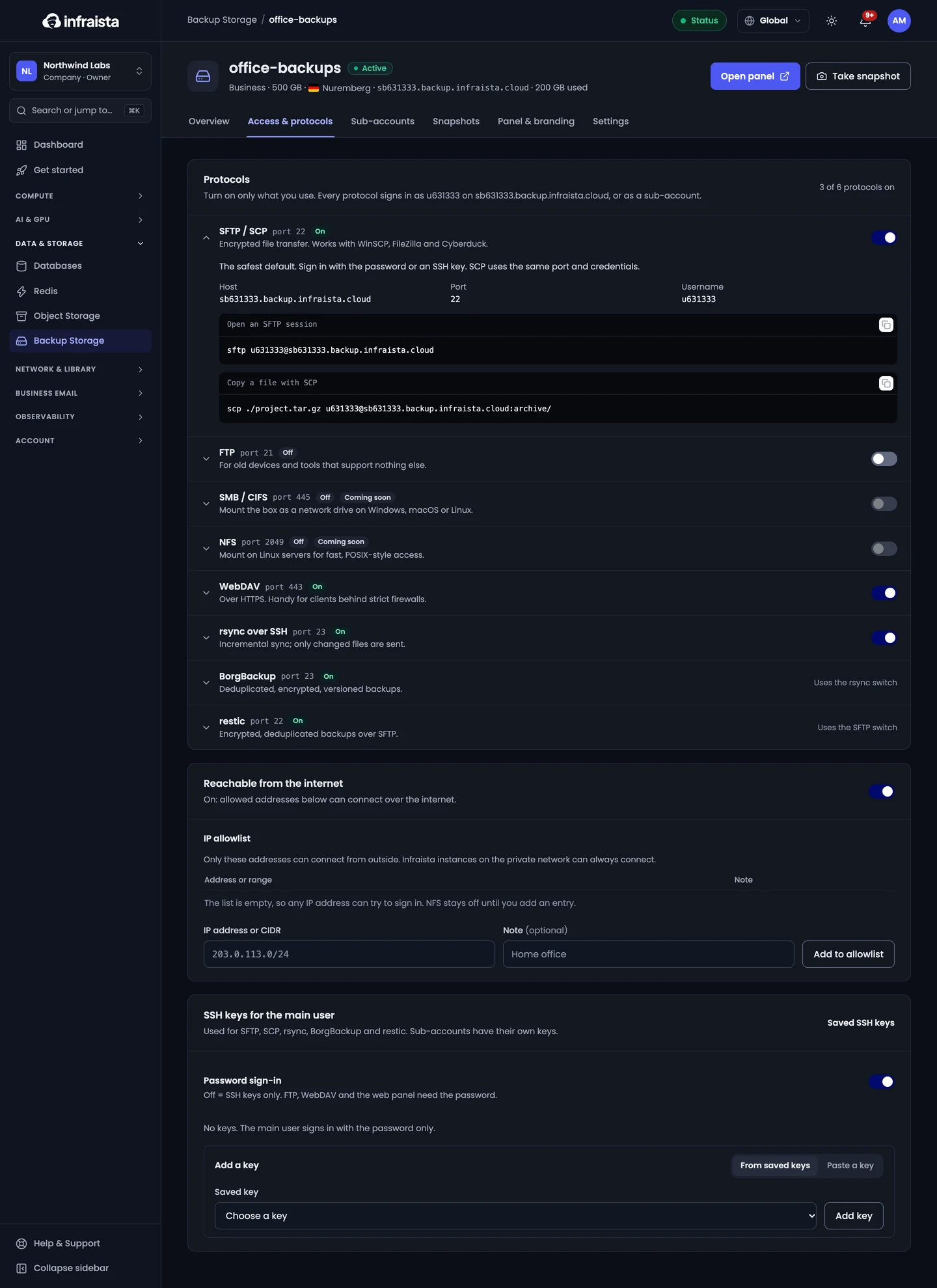
The Access & protocols tab shows ready-to-copy commands for each protocol with your box's host, username and ports filled in.
Examples
Replace u100001 and sb100001.backup.infraista.cloud with your username and host, and use the ports
your Overview shows.
SFTP and SCP
sftp u100001@sb100001.backup.infraista.cloud
scp ./project.tar.gz u100001@sb100001.backup.infraista.cloud:archive/
If your SFTP port isn't 22, add -P <port> to sftp and scp.
WebDAV: open https://sb100001.backup.infraista.cloud/ in Windows Explorer, macOS Finder (Go ›
Connect to Server) or any WebDAV client, and sign in with the username and password.
FTP
ftp sb100001.backup.infraista.cloudFor rsync, BorgBackup and restic, see Back up with rsync, BorgBackup and restic.
Sign in with an SSH key
Add keys to the main user on the Access & protocols tab, or pick saved keys when you create the box. Keys work for SFTP, SCP, rsync, BorgBackup and restic; FTP, WebDAV and the web panel always use the password.
Limit who can connect
On Access & protocols:
- Reachable from the internet off: only Infraista servers on the private network can connect.
- On, with an empty IP allowlist: any IP address can try to sign in.
- On, with addresses or ranges in the allowlist (for example
203.0.113.10or203.0.113.0/24): only those can connect.
If something goes wrong
- Permission denied: check the username (
uplus the box number), the password or key, and that the protocol is turned on. - Connection refused or times out: check the port on the Overview, and that your address is in the allowlist if one is set.
- The password stopped working: someone may have reset it. Reset it again on Settings and update your tools.
Related
Create a storage box
Order a storage box for backups. Pick a plan and a location, choose password or SSH key sign-in, the protocols to allow and an automatic snapshot schedule.
Back up with rsync, BorgBackup and restic
Send scheduled backups to a storage box with rsync over SSH, deduplicated and encrypted BorgBackup repositories, or restic over SFTP, with ready-to-run commands.