

Manage a storage box
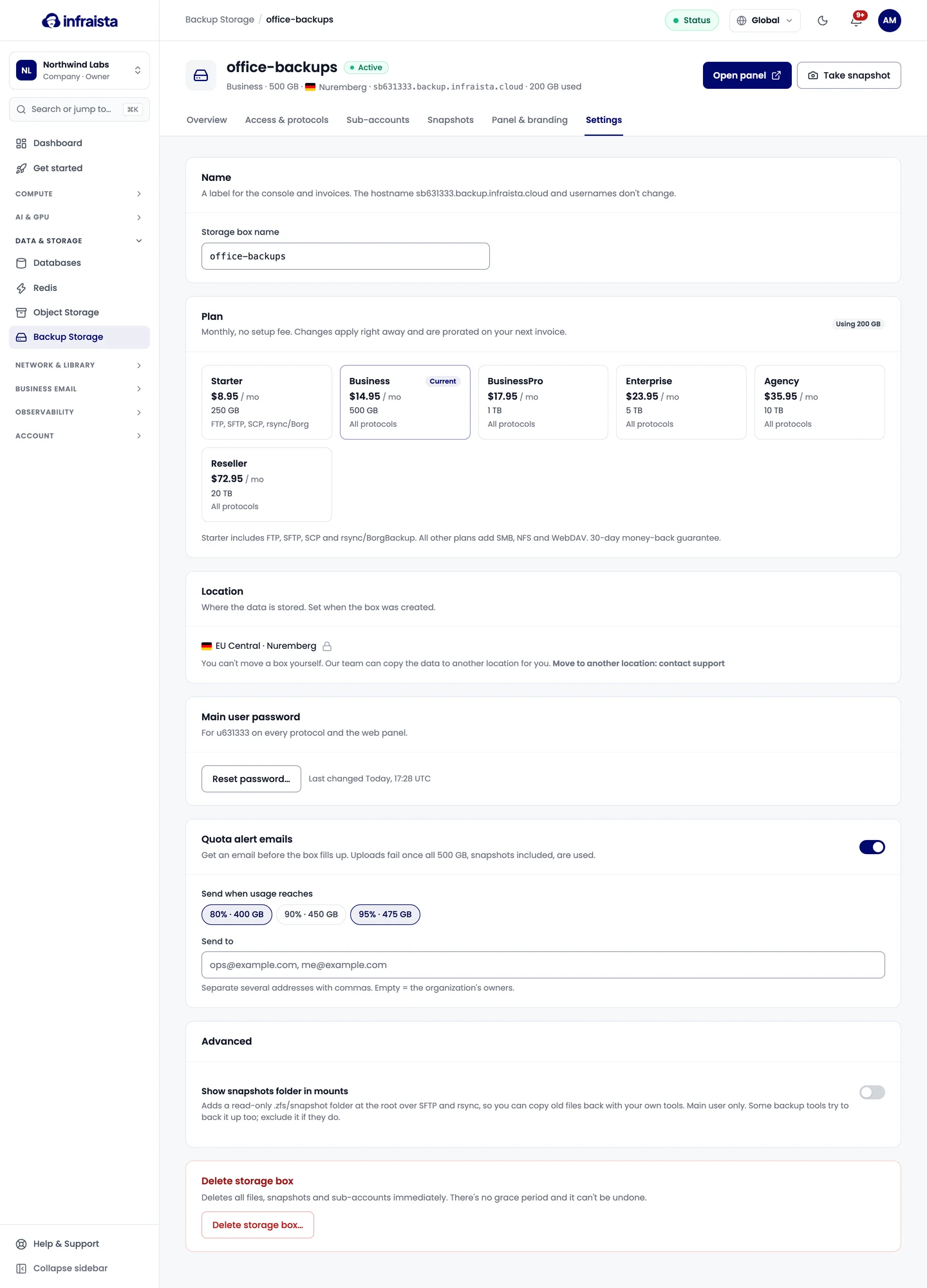
Rename a storage box, change its plan, reset the main password, set quota alert emails, show the snapshots folder, or delete the box.
A box's Settings tab holds everything about the box itself.
Rename
Change the Storage box name: a label for the console and invoices. The host name and usernames don't change.
Change the plan
Pick a plan and select Upgrade to or Downgrade to. Changes apply right away and are prorated on your next invoice: the page shows the amount before you confirm.
- Extra space is available as soon as you confirm.
- You can't downgrade below the data you store.
- Moving to a plan without WebDAV turns it off.
- Leaving Agency or Reseller switches the panel back to default branding, and your custom panel domain stops working.
Location
Set when the box was created; you can't move a box yourself. To move it, contact support: our team can copy the data to another location for you.
Reset the main password
Select Reset password… under Main user password and confirm. The new password is shown once: copy it, then update your backup jobs and mapped drives. SSH keys and sub-accounts aren't affected.
Quota alert emails
Get an email before the box fills up. Uploads fail once all the space, snapshots included, is used.
- Under Quota alert emails, pick the thresholds to Send when usage reaches.
- Under Send to, enter addresses separated by commas, or leave it empty to email the organization's owners.
Delete the box
Delete storage box… deletes all files, snapshots and sub-accounts immediately. There's no grace period: type the box's name to confirm. Billing stops right away; the days used appear on your next invoice.
Related
Web panel
Give your team and sub-accounts a browser panel to browse, upload and restore files, and on Agency and Reseller plans brand it with your logo, domain and email sender.
Redis
Managed Redis-compatible caches for sessions, locks, rate limits and leaderboards, running Valkey 8 with TLS, trusted sources and daily backups.