

Invoices and payments
Find and download your monthly invoices, understand each line, pay an open invoice, and see what happens when a card payment fails.
Invoices are issued on the 1st of each month for the previous month's usage. Credit is applied first, then the billing owner's saved card is charged.
Find an invoice
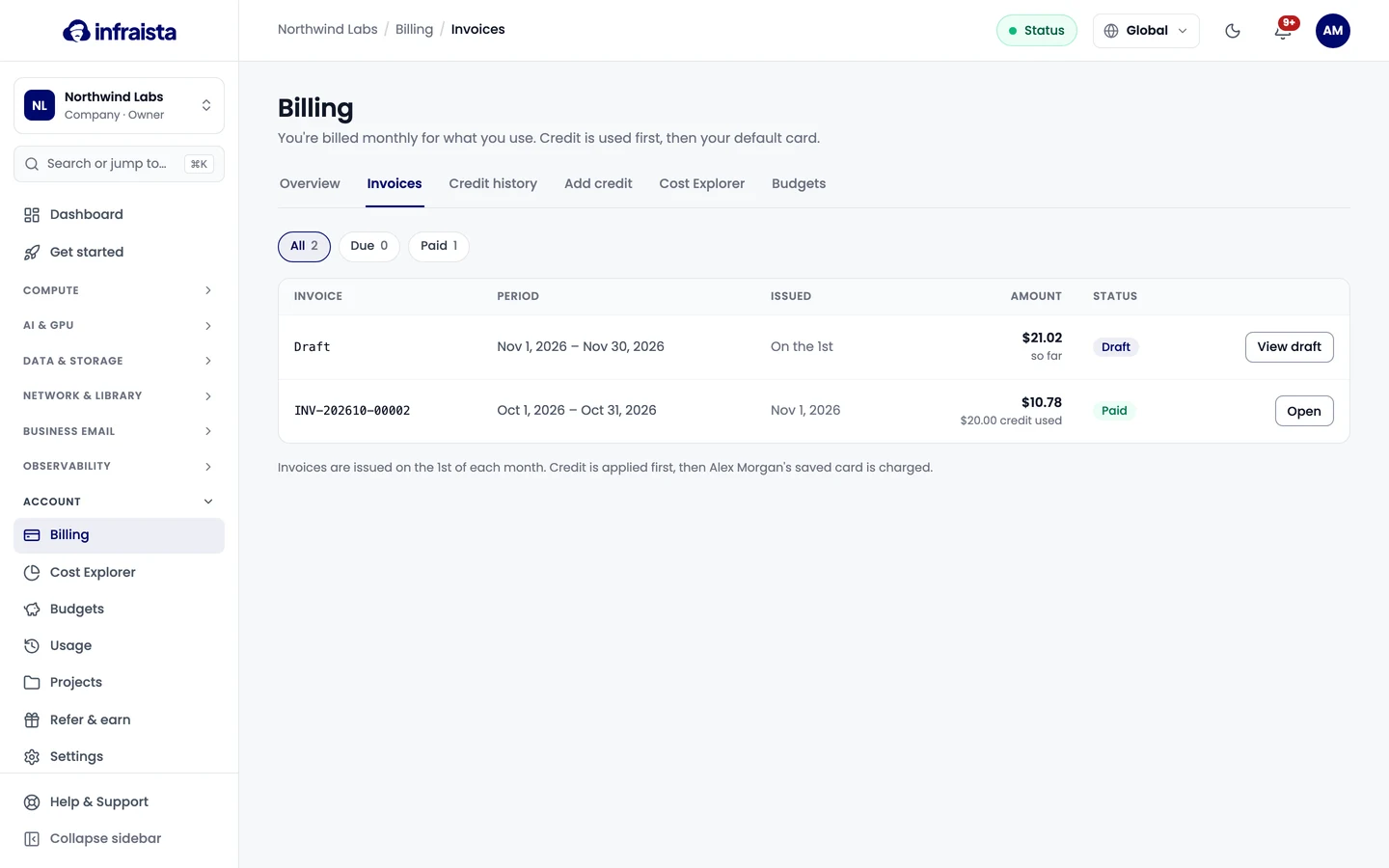
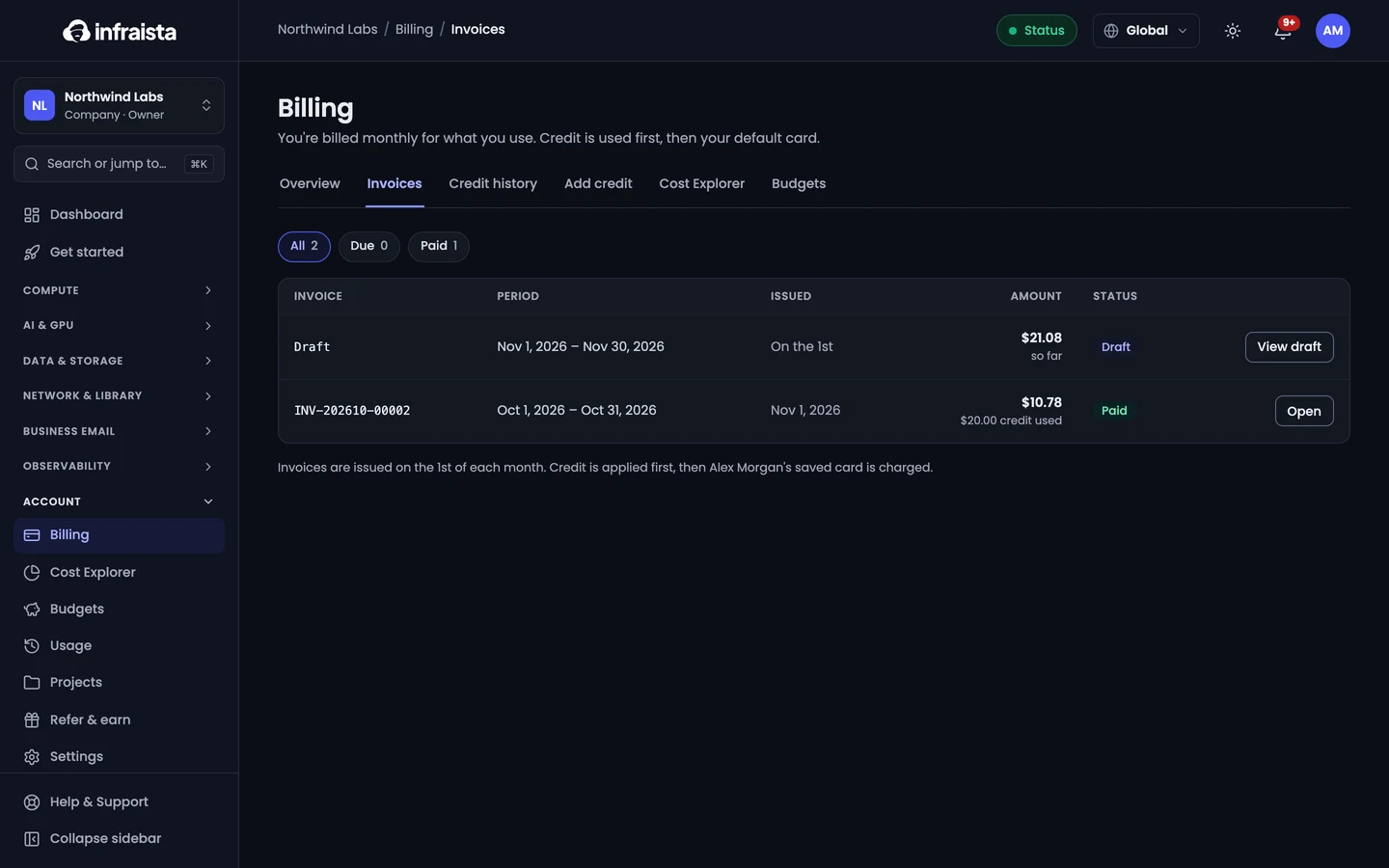
Go to Account › Billing › Invoices. Filter by All, Due or Paid. Upcoming shows the current month's draft with usage so far.
Read an invoice
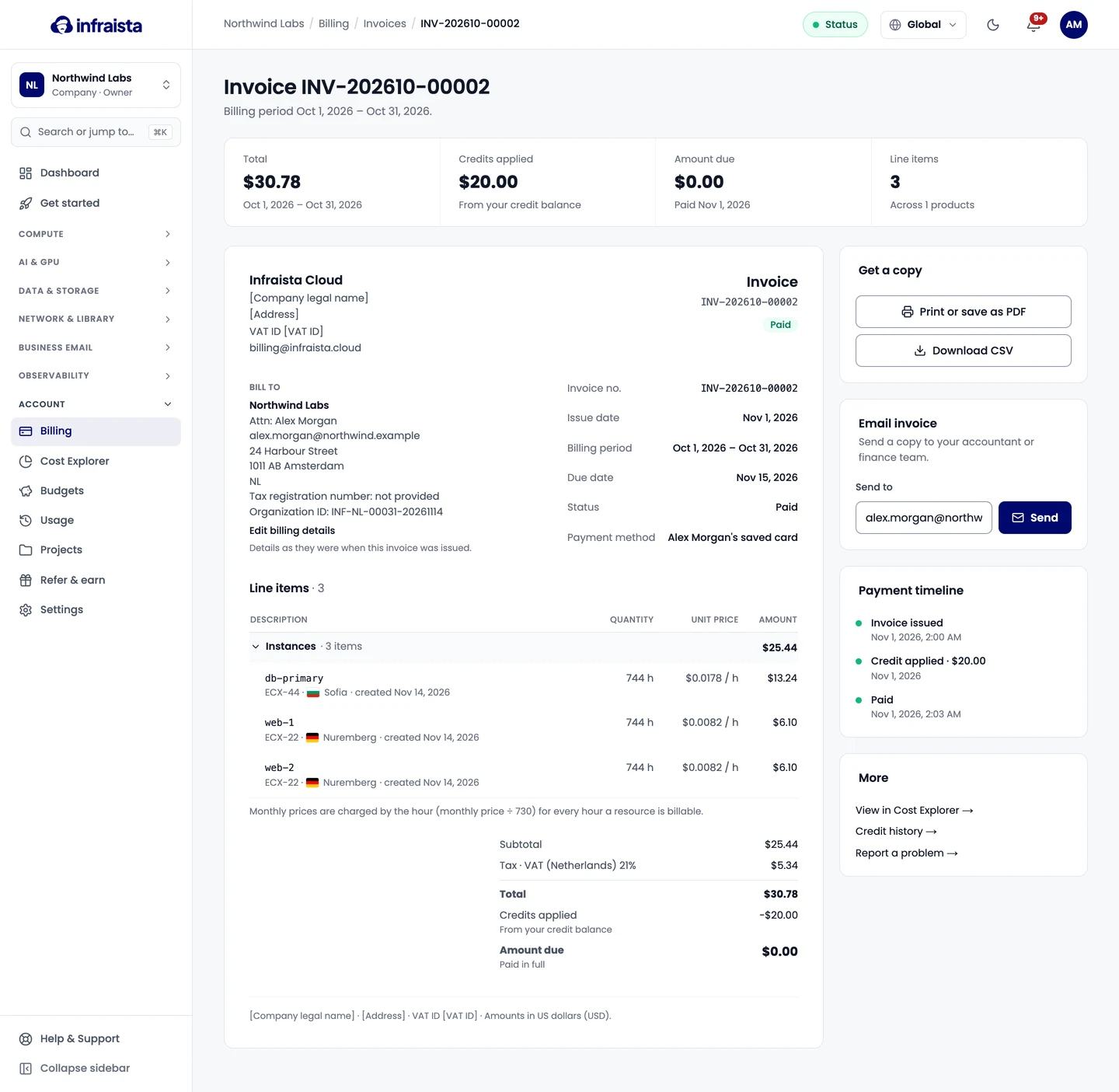
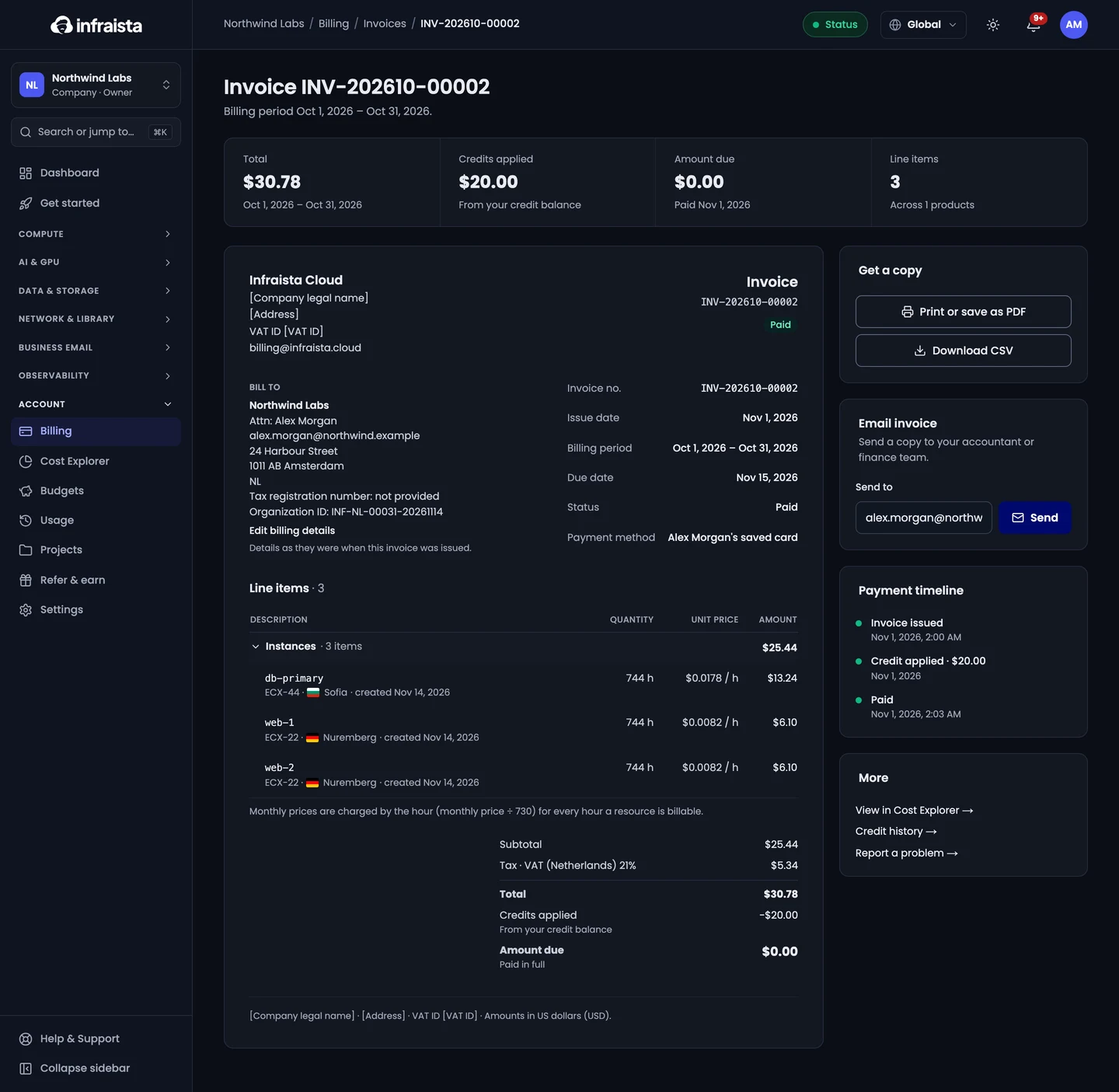
Open an invoice to see:
- the Invoice summary: total, Credits applied, amount due and line items;
- Bill to: your organization's billing details as they were when the invoice was issued;
- Line items grouped by product: each resource with its quantity (hours, GB, emails…), unit price and amount;
- the tax line, if tax applies to your country, and the Payment timeline.
All amounts are in US dollars (USD).
Get a copy
- Print or save as PDF.
- Download CSV for your spreadsheet or accounting tool.
- Email invoice: send a copy to your accountant or finance team.
Pay an open invoice
An invoice that wasn't paid automatically shows Due. Open it and select Pay. Adding credit also pays open invoices right away.
If a payment fails
When we can't charge the card, the invoice stays Due and the billing owner gets an email Payment needed for invoice with the reason and a Pay invoice link. We retry the card automatically once a day, up to four attempts in total. To fix it, update the card under Payment methods and pay the invoice, or add credit.