

Connect your app
Point your app's SMTP settings at MailGate, send a test email, and check delivery in the logs.
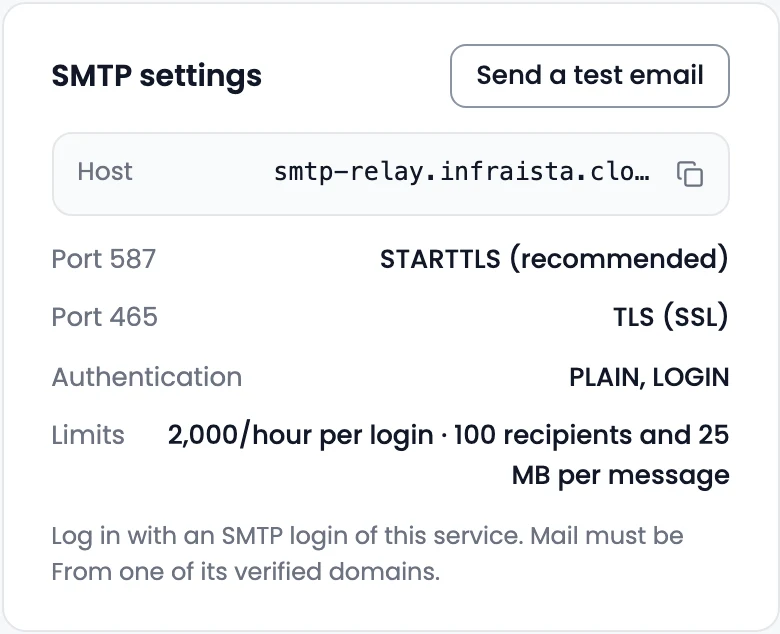
Your app sends through MailGate like through any SMTP server. The service's Overview shows the exact settings under SMTP settings.
| Setting | Value |
|---|---|
| Host | As shown under SMTP settings |
| Port | 587 with STARTTLS (recommended), or 465 with TLS (SSL) |
| Authentication | The username and password of an SMTP login of this service |
| From | Any address at one of the service's verified domains |
Send a test email
Select Send a test email on the service, pick a From address and a To address you can check, and select Send test. It goes through MailGate exactly like mail from your apps (domain check, DKIM signing, delivery) and appears in Logs.
If something goes wrong
- Mail is refused for the From address. The From domain isn't verified for this service, or the login is limited to other domains.
- Authentication fails. Check the username and password; after New password, the old one stops working.
- Sending is paused. MailGate refuses mail from the service; contact support to resume it.
Related
Create an SMTP login
Create an SMTP username and password for each app that sends through MailGate, limit its domains and hourly rate, and rotate or pause it.
Logs, rules and bounces
Track every message MailGate sends or refuses, see why a delivery failed, block senders or recipients with deny rules, and manage the bounce list.