

ComputeInstances
Your server's page
Find your way around a cloud server's page in the console, from the Connect card, live usage and cost to the tabs for metrics, networking and settings.
Open a server from Compute › Instances by selecting its name. Everything about that server is on this page.
The header
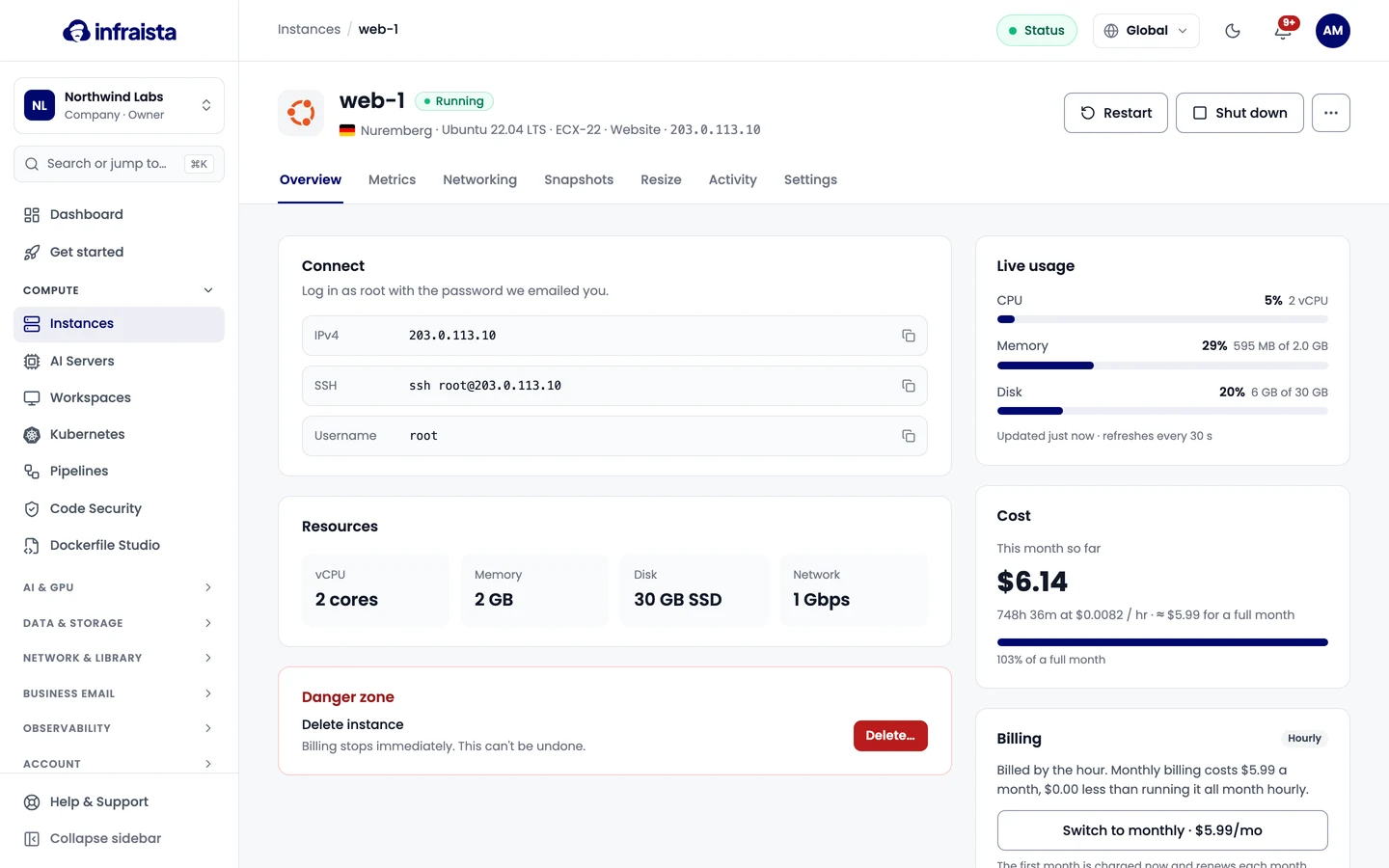
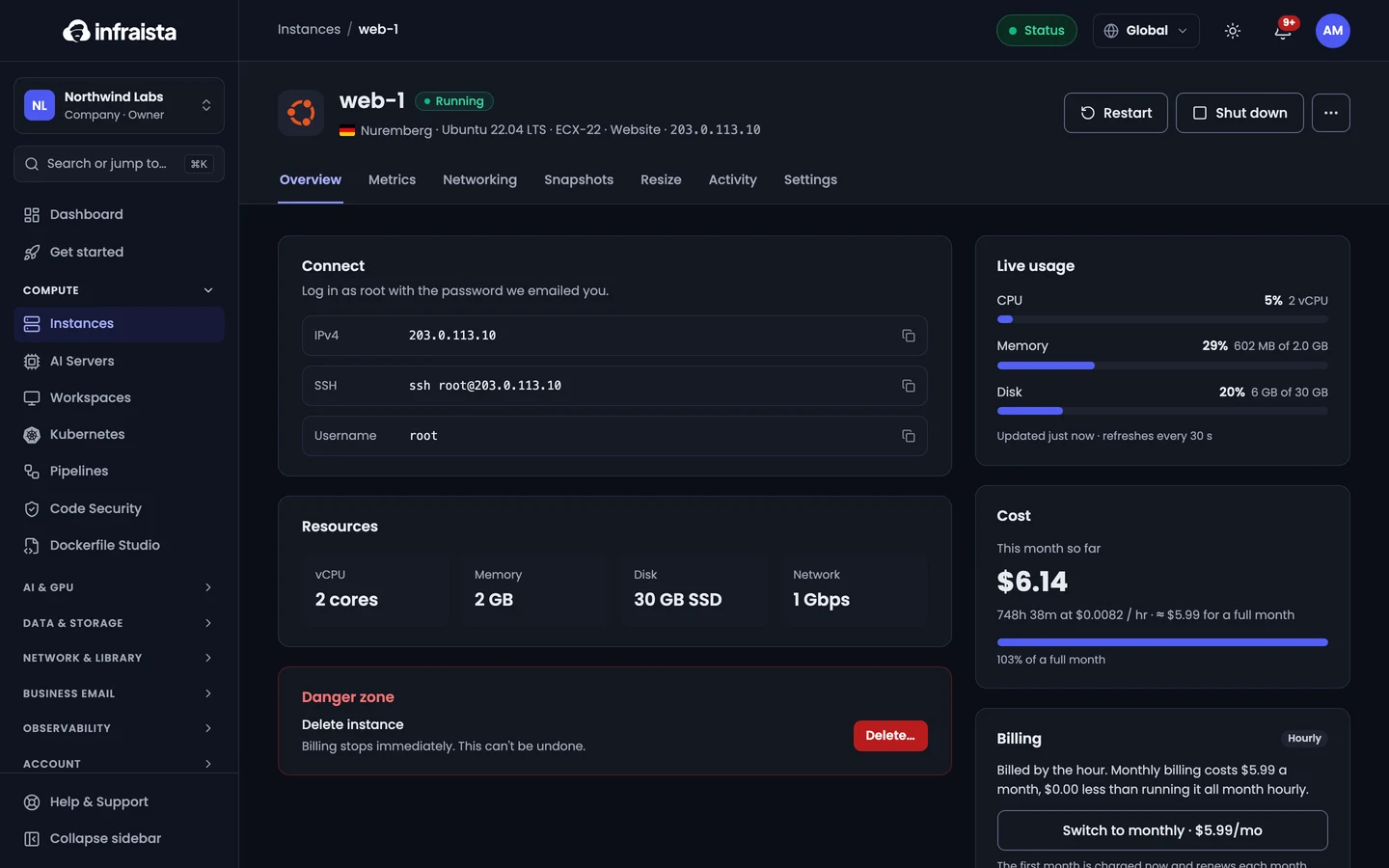
The header shows the server's name and status, its location, operating system, plan, project and IP address. The buttons depend on its state:
- Open console: the server's screen in your browser (while it's running).
- Start, or Restart and Shut down. See Start, stop and restart.
- The ⋯ menu: Reset root password…, Control panel (rescue, reinstall) and Delete….
The Overview tab
| Card | What it shows |
|---|---|
| Connect | The IPv4 address, the SSH command (or Remote Desktop address on Windows) and the Username, each with a copy button |
| Resources | vCPU, memory, disk and network speed |
| Live usage | CPU, memory and disk in use right now, refreshed every 30 seconds |
| Cost | What the server has cost this month so far. Only Owners and Admins see costs |
| Billing | Hourly or monthly billing, and the switch between them. See Monthly billing |
| Danger zone | Delete… |
The other tabs
| Tab | Use it to |
|---|---|
| Metrics | See CPU, memory, network and disk over time. See Metrics and activity |
| Networking | Set reverse DNS, firewall rules, a floating IP and the private network. See Firewall and networking |
| Snapshots | Back up and restore the disk. See Backups |
| Resize | Move to a bigger plan. See Resize a server |
| Activity | See everything that happened to the server |
| Settings | Rename it, move it to a project, reset the root password or delete it. See Rename, move or delete |
Related
Instances
Manage your cloud servers after they're created, from power and the firewall to resizing, backups, monthly billing and deleting a server.
Start, stop and restart a server
Shut down, start and restart a cloud server from the console, and see how hourly billing pauses while a server is stopped.