

Resize a server
Move a cloud server to a bigger plan for more CPU, memory and disk, with about a minute of downtime and the same IP address and data.
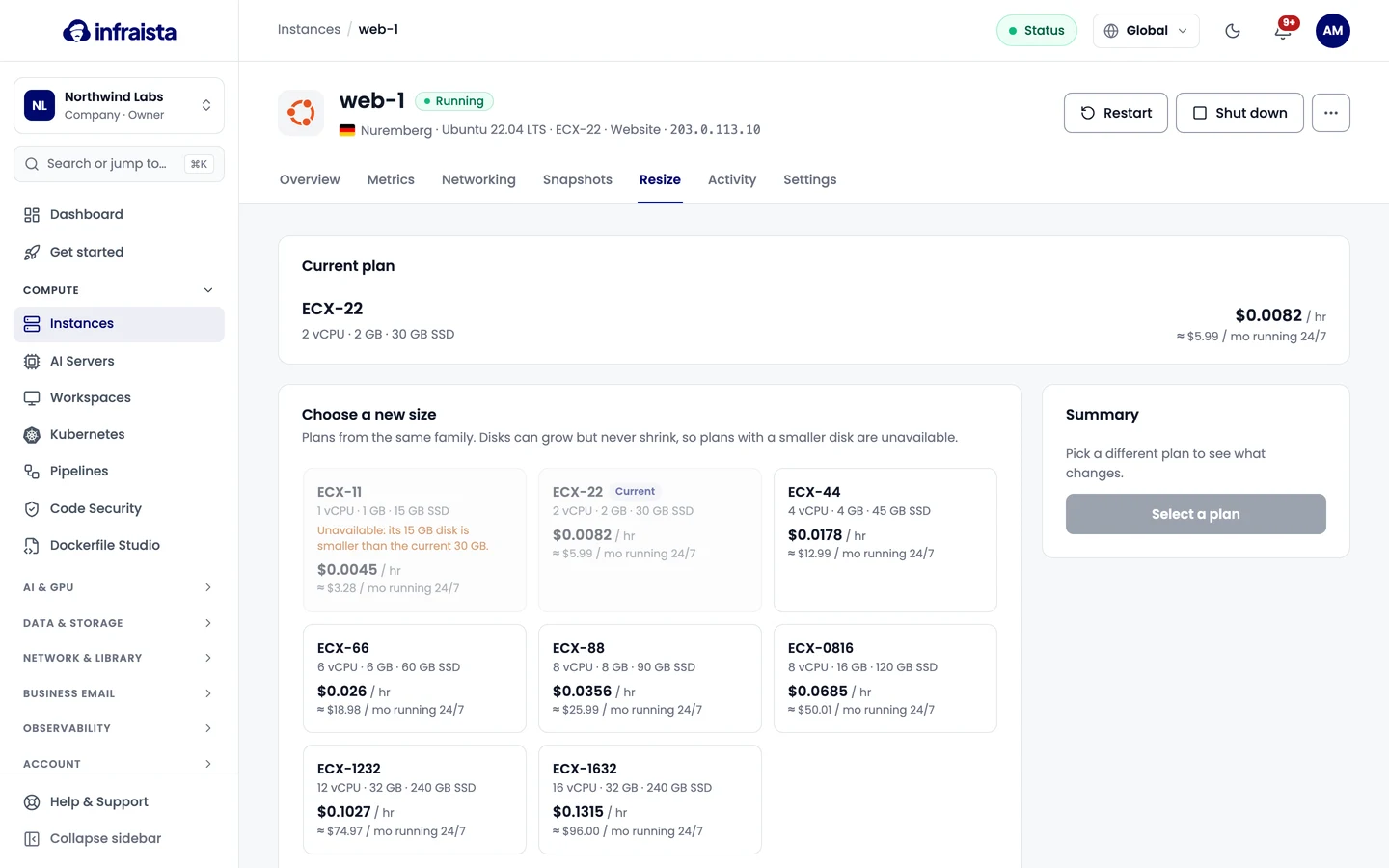
Resizing moves a server to another plan from the same family. The IP address and data stay.
Before you start: disks can grow but never shrink, so plans with a smaller disk than the current one are unavailable, and after resizing you may not be able to go back.
- Open the server and go to the Resize tab.
- Under Choose a new size, pick a plan. The Summary shows what changes (vCPU, memory, disk) and the new price.
- Select Resize to (plan).
What happens
- A running server reboots. Expect about a minute of downtime.
- A stopped server gets the new size right away and stays stopped. It applies when you start it.
- On some servers, new CPU and memory apply after the next restart; the disk grows right away. The page tells you when that's the case.
You're billed at the new rate from the moment the resize finishes.
If something goes wrong
- A plan is greyed out: its disk is smaller than the current one.
- "Wait until the server has finished…": the server is starting, stopping or rebooting. Try again once it's Running or Stopped.
- "Resizing isn't available for this server yet." Contact support and we'll resize it for you.
Related
Firewall and networking
Control which traffic reaches your server with firewall rules, set reverse DNS, enable IPv6, attach a floating IP and join the private network.
Back up and restore a server
Take a backup of a cloud server's disk from the Snapshots tab, see its restore points and roll the disk back to an earlier one.