

Firewall and networking
Control which traffic reaches your server with firewall rules, set reverse DNS, enable IPv6, attach a floating IP and join the private network.
The Networking tab of a server (Compute › Instances › the server › Networking) holds its addresses, firewall, floating IP, private network and bandwidth.
Firewall rules
The firewall decides which traffic may reach the server (Inbound) and leave it (Outbound). Anything not listed is blocked, and changes apply within a few seconds.
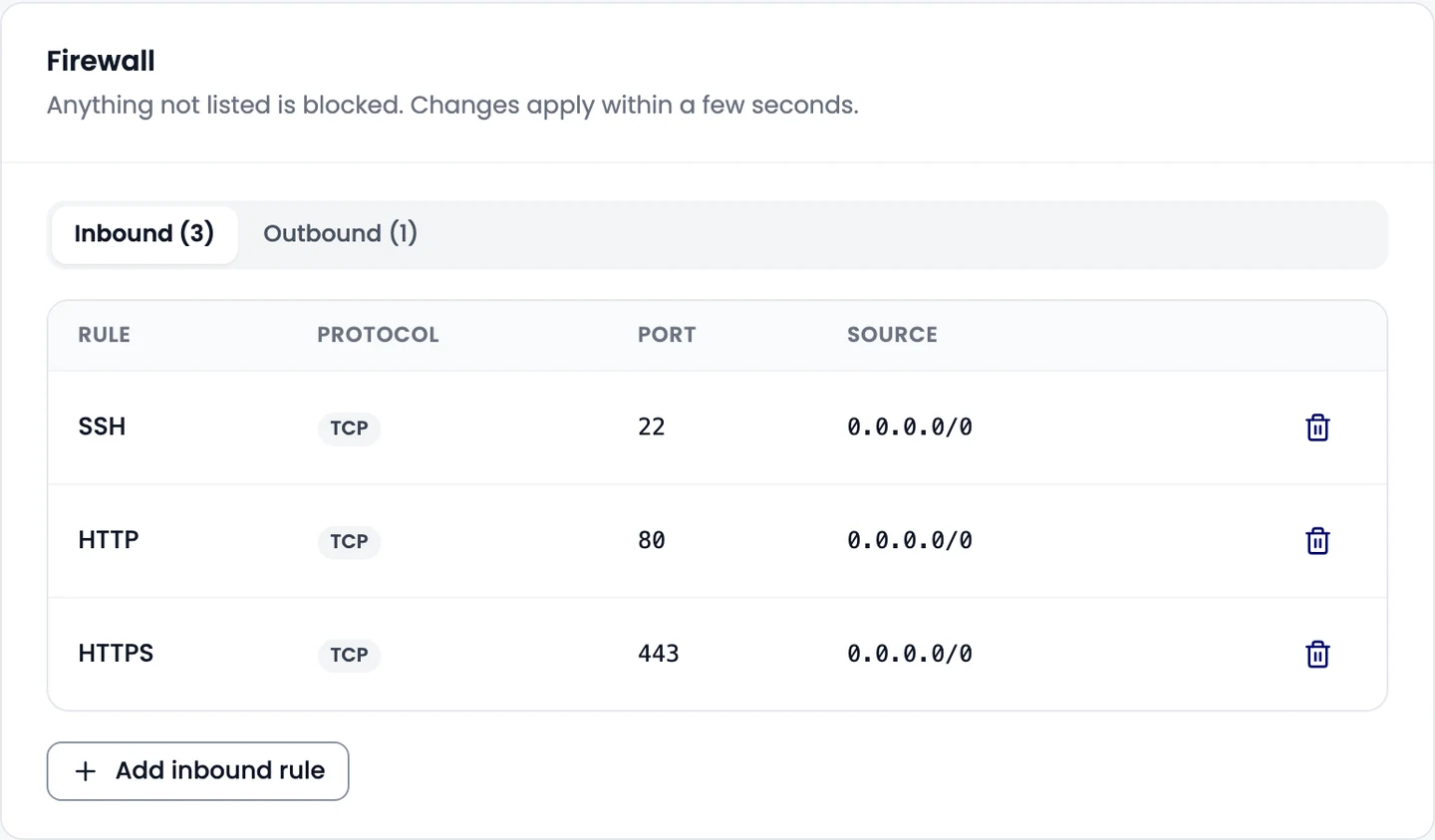
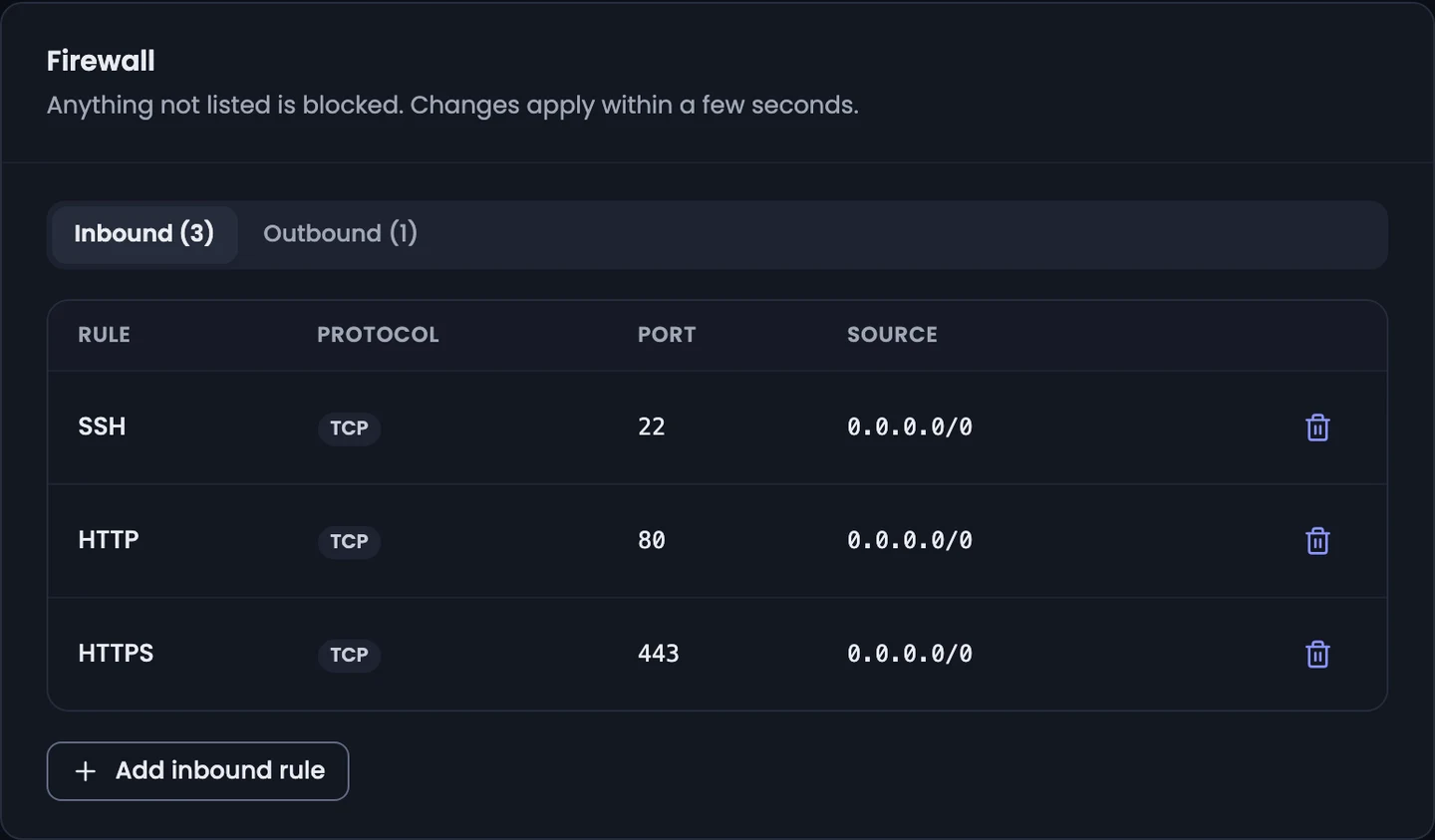
A new server's firewall is off: all traffic is allowed. Saving your first rule turns it on; at that moment SSH in and all traffic out are added for you, so you don't lock yourself out.
Add a rule:
- Pick Inbound or Outbound at the top of the card.
- Select Add inbound rule (or Add outbound rule). Serving a website? Select one of the suggested rules instead, such as Allow HTTPS (443), and you're done.
- Fill in:
- Label (optional): a name you'll recognize, for example "Render manager";
- Protocol: TCP, UDP, ICMP or Any;
- Port or range: a port like
8888or a range like6000-6100(ICMP has no ports); - Source (or Destination for outbound): IP addresses or CIDR ranges, separated by commas.
0.0.0.0/0means anywhere.
- Select Add rule.
Select the trash icon on a rule to remove it. Each direction can have up to 50 rules. With no rules in a direction, all traffic in that direction is blocked.
Reverse DNS
Reverse DNS maps the server's IP address back to a hostname. Mail servers check it.
- Under Public addresses, select Edit next to Reverse DNS.
- Enter a hostname like
mail.example.com. - Select Save.
Create an A record for that hostname pointing at the server's IP first, or mail servers may reject your mail.
IPv6
Select Enable IPv6 to add a /64 range to the server. No restart is needed.
Floating IP
A floating IP is a second public address you can move between servers in the same region. Under Floating IP, pick one and select Attach, or Reserve new. Detach frees it for another server. Floating IPs only attach to servers in their own region.
Private network
Traffic between your servers in the same city can stay off the public internet. Select Attach to private network; the server gets a Private IP you can use from your other servers there.
Depending on the server, IPv6 and private networking may be set up by our team: the tab then says so, with a Contact support button.
Bandwidth
Bandwidth this month shows traffic in and out, the plan's allowance, and when the count resets.
Related
Start, stop and restart a server
Shut down, start and restart a cloud server from the console, and see how hourly billing pauses while a server is stopped.
Resize a server
Move a cloud server to a bigger plan for more CPU, memory and disk, with about a minute of downtime and the same IP address and data.