

NetworkingFloating IPs
Move a floating IP
Assign a floating IP to a server, move it to another one for failover, or unassign it while keeping the address reserved for later.
Moving a floating IP switches its traffic to another server within a few seconds. No restart is needed.
- Go to Network & Library › Floating IPs and open the address.
- Under Assignment, choose the server in Move to another server (or Assign to if it isn't assigned).
- Select Reassign (or Assign) and confirm.
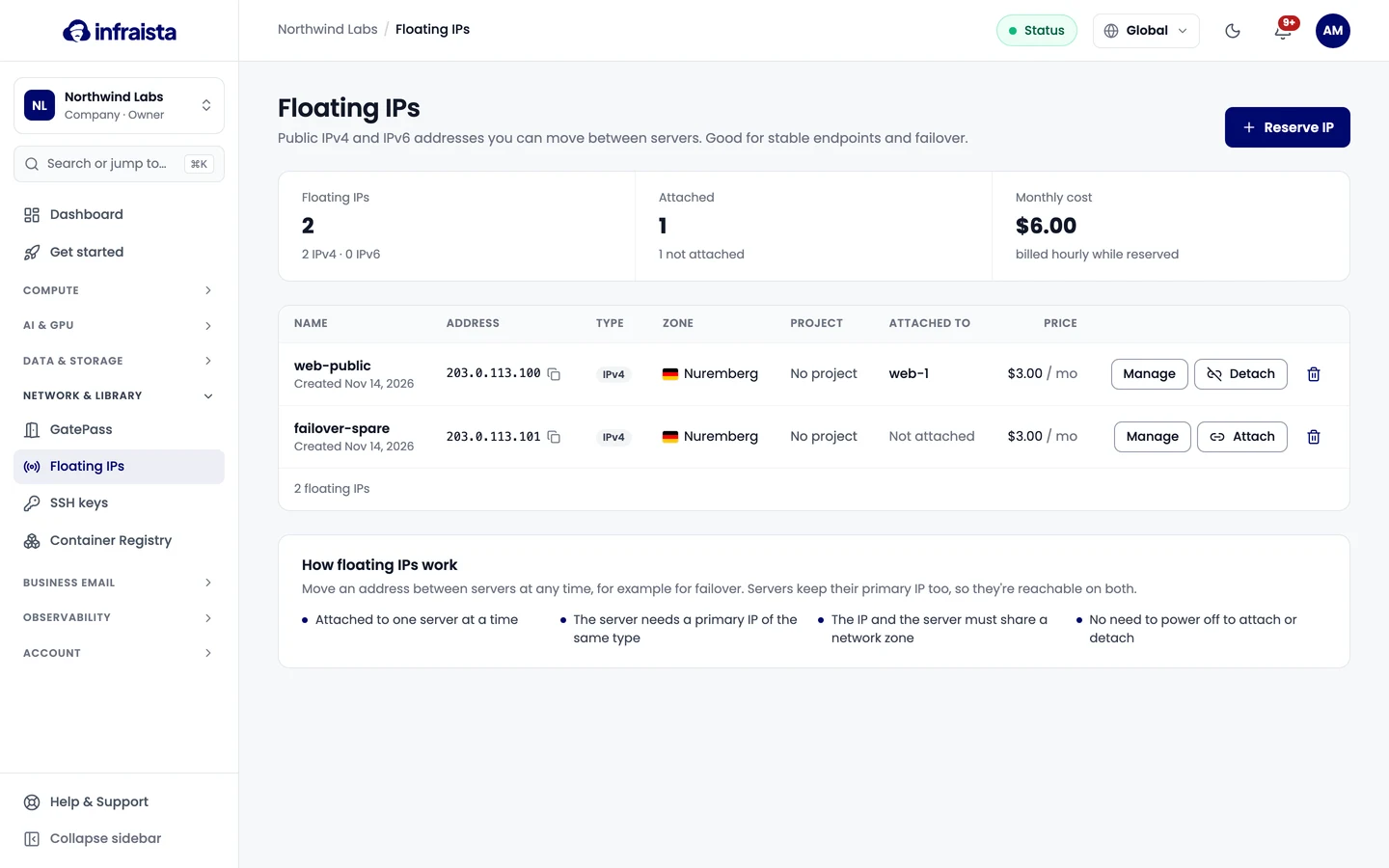
Only instances and AI servers in the same zone, with a primary IP of the same type and no other floating IP, are listed. If none qualify, create a server in that zone, or unassign the floating IP held by a server that already has one.
You can also select Attach or Detach on the address's row in the list.
Unassign without releasing
Select Unassign. Requests to the address stop reaching the server right away, but you keep the address and can assign it again at any time. It's still billed while reserved.