

Create access keys
Create S3 access keys for Object Storage, limit each key to the buckets it needs with read-only or read-write permission, and revoke keys you no longer use.
Access keys are the S3 credentials your tools and apps sign requests with. Each key has an access key ID and a secret. Give every app its own key, with only the buckets it needs.
Keys belong to the organization and work in every region.
Create a key
- Go to Data & Storage › Object Storage and select Access keys (or open a bucket's Permissions tab and select Manage access keys).
- Select Create access key.
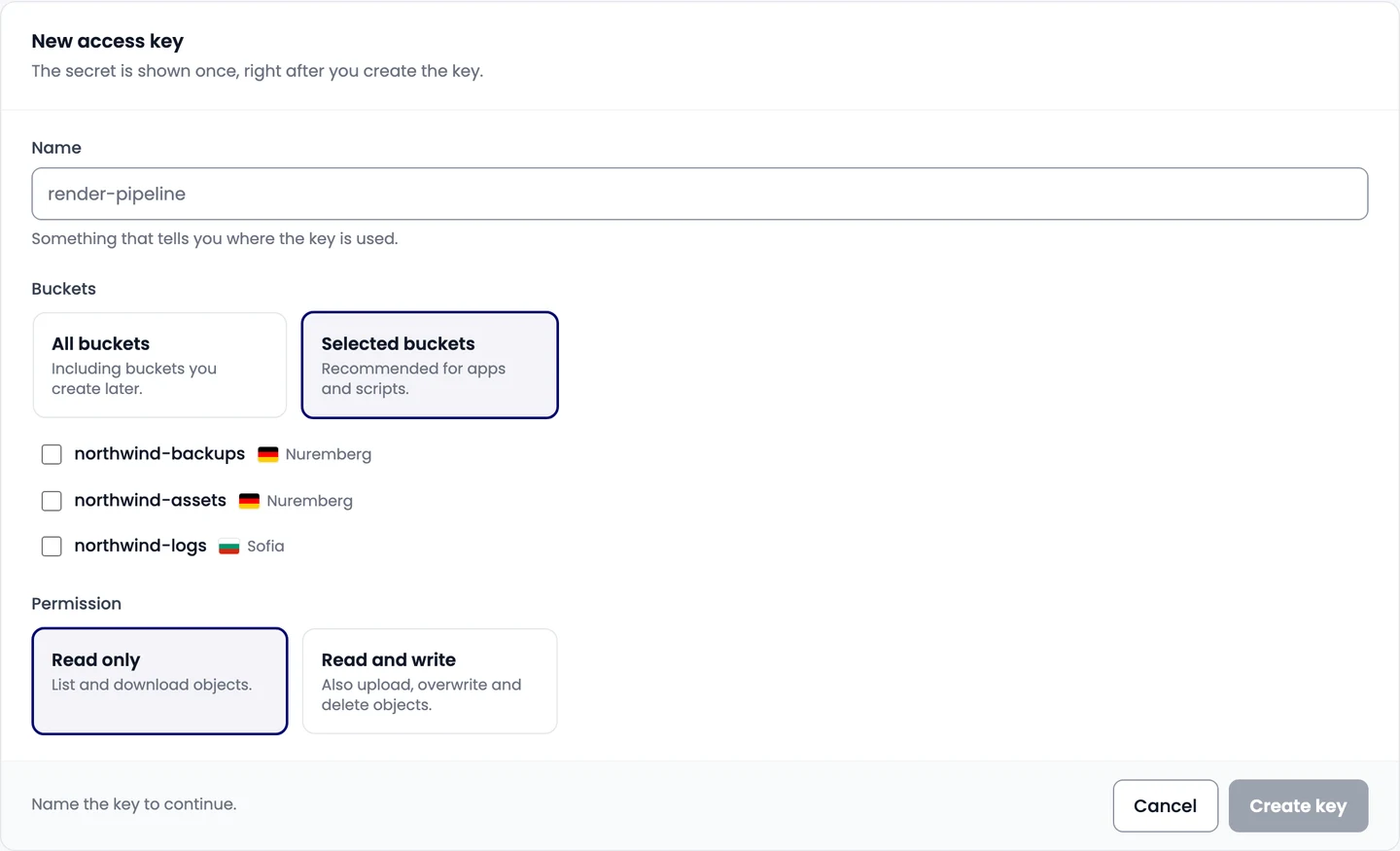
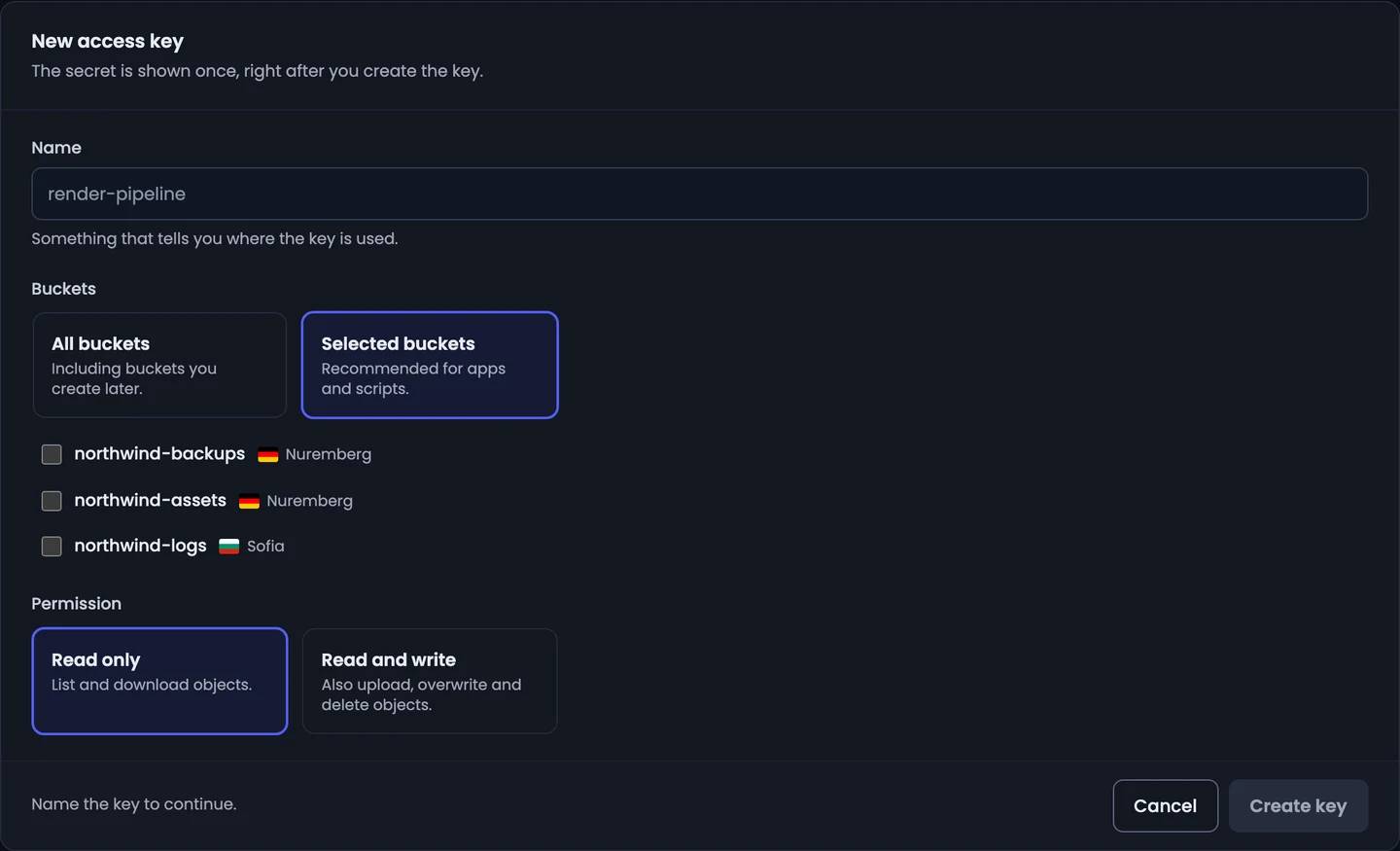
- Enter a Name that tells you where the key is used.
- Under Buckets, choose All buckets (including buckets you create later) or Selected buckets (recommended for apps and scripts) and tick them.
- Under Permission, choose:
- Read only: list and download objects;
- Read and write: also upload, overwrite and delete objects.
- Select Create key.
Save the secret
The console shows the Access key ID and the Secret access key once. Copy the secret into a password manager or your app's secret store, then select I've saved the secret.
Lost it? Revoke the key and create a new one: the secret can't be shown again.
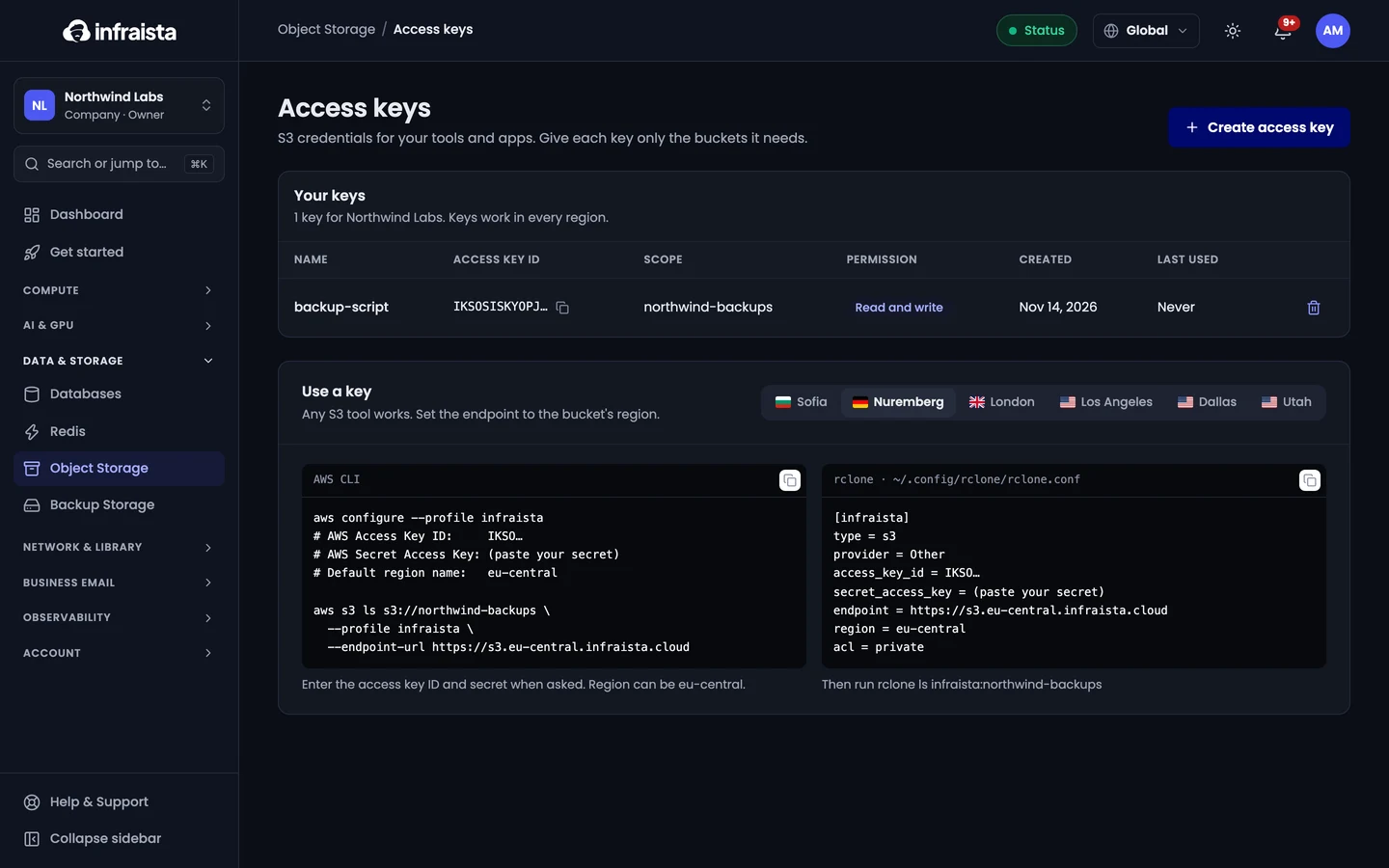
After you create a key, Use a key on the same page shows ready-made AWS CLI and rclone setups with its key ID filled in. See Connect your S3 tools.
See and revoke keys
Your keys lists every key with its scope, when it was created and when it was last used.
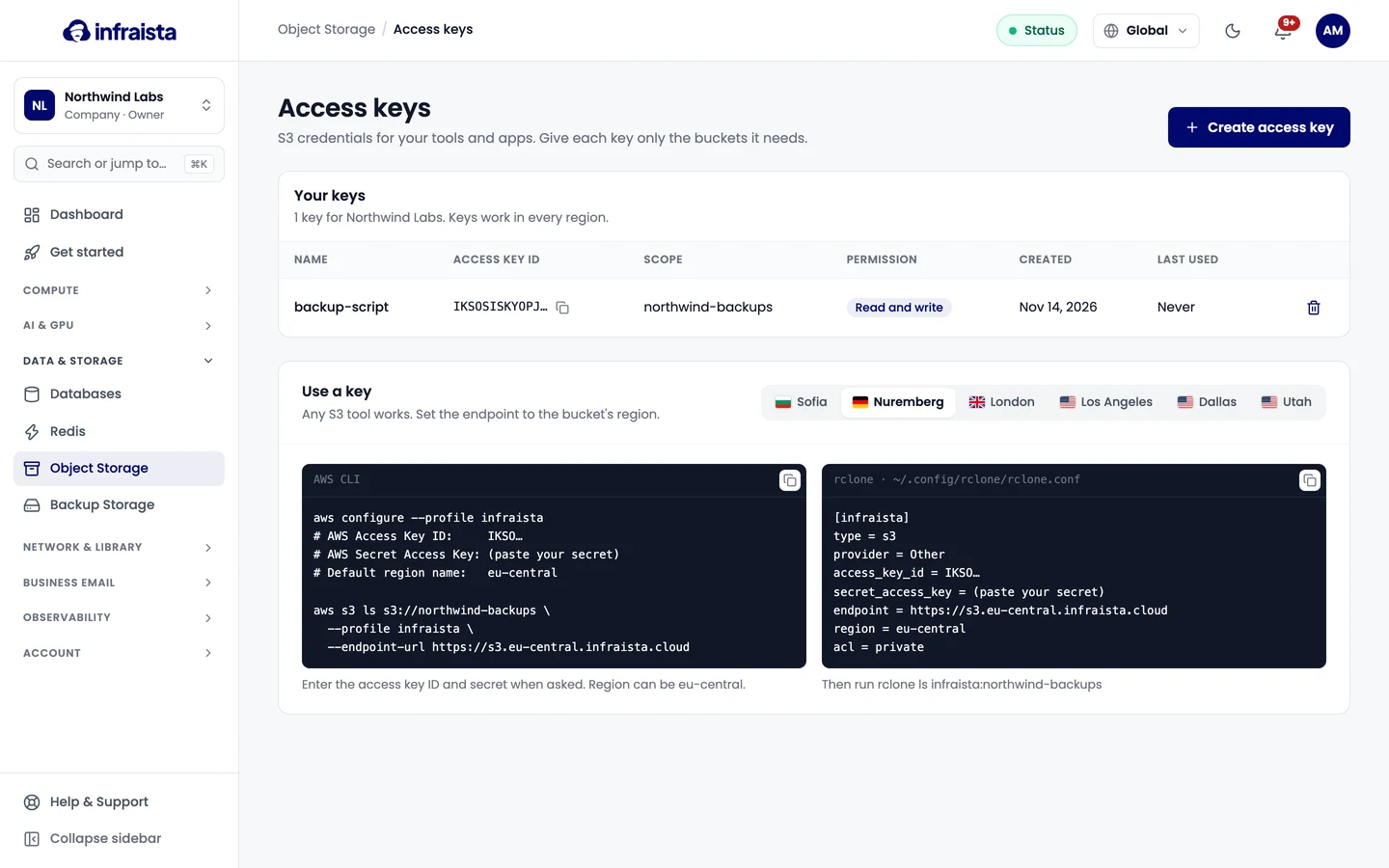
To stop a key, select Revoke on its row and confirm with Revoke key. Apps using it stop working right away, and presigned links it signed stop working too.
Related
Create a bucket
Create an S3-compatible bucket in Infraista Object Storage. Pick a name and a region, choose private or public read access, and turn on versioning.
Connect your S3 tools
Point the AWS CLI, rclone, Python boto3 or any S3 SDK at an Infraista bucket using its regional endpoint, path-style addressing and your access key.