

Control access to a bucket
Decide who can read a bucket. Switch between private and public read, write a bucket policy, and create presigned URLs to share or receive single files.
A bucket's Permissions tab decides who can reach its objects without your access keys.
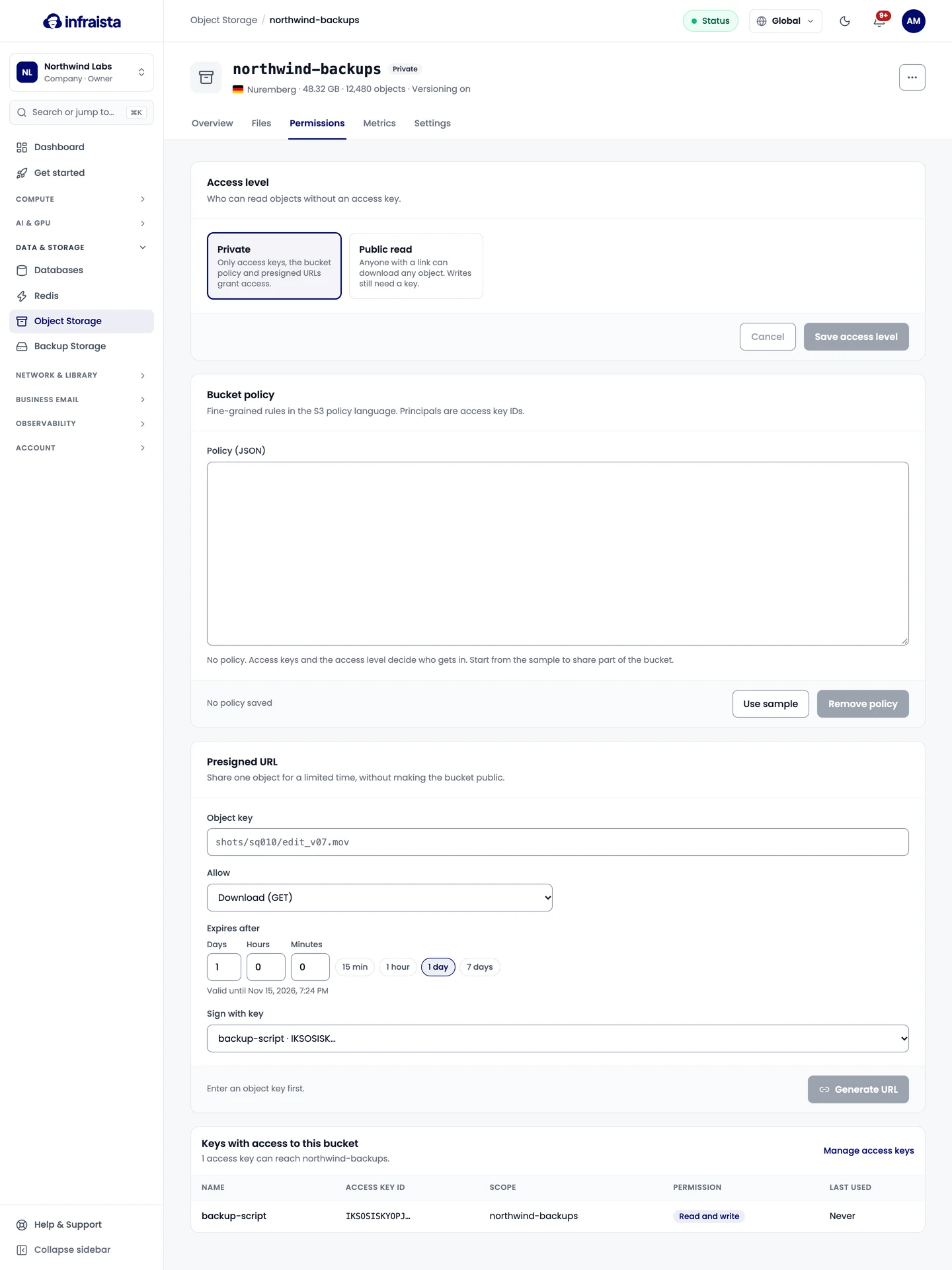
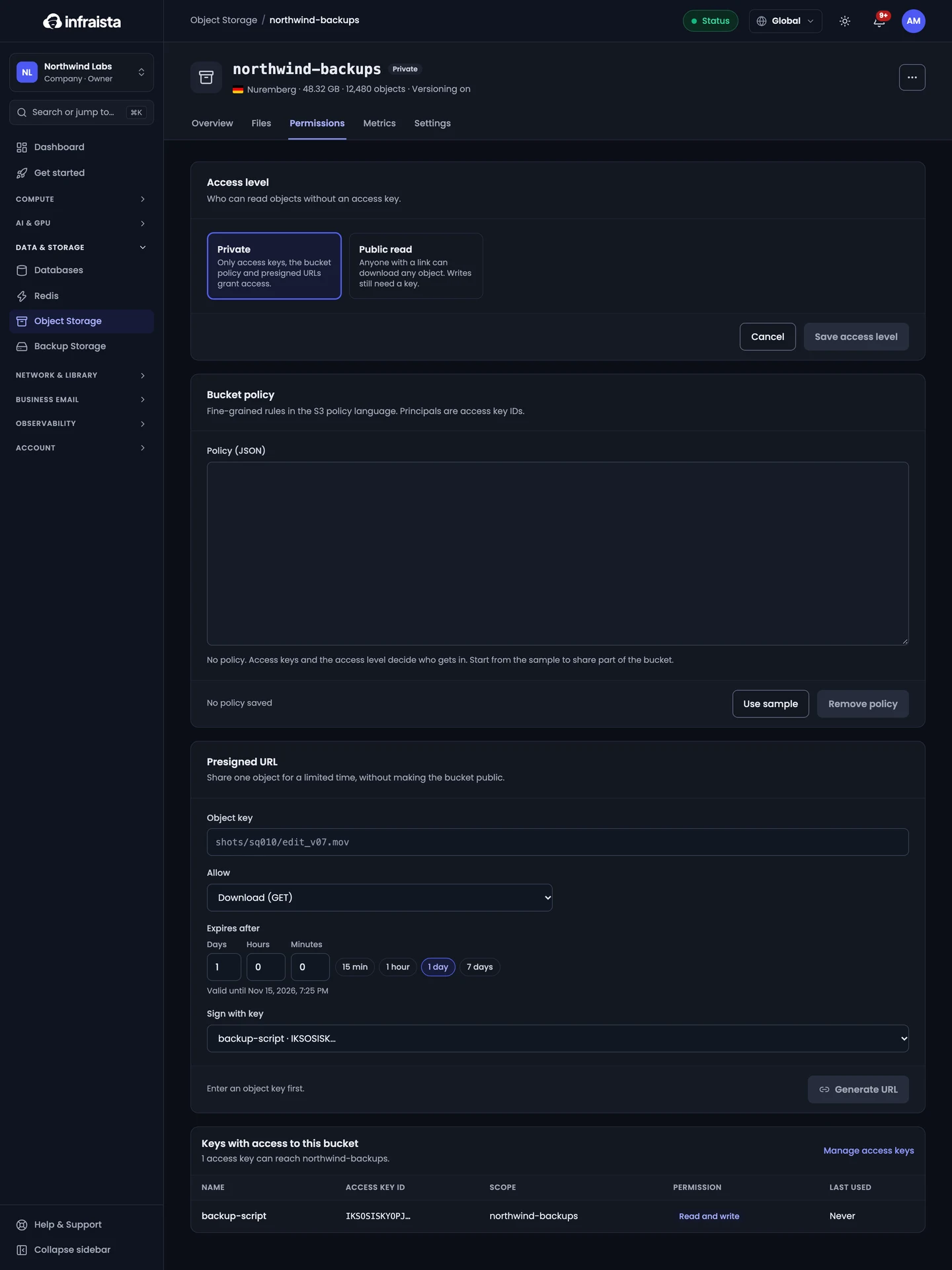
Access level
| Level | Who can read objects |
|---|---|
| Private | Only access keys, the bucket policy and presigned URLs grant access |
| Public read | Anyone with a link can download any object. Writes still need a key |
Pick one and select Save access level. The bucket's actions menu (⋯) also has Make private and Allow public read.
Bucket policy
For finer rules, write a policy in the S3 policy language. Principals are access key IDs.
- Under Bucket policy, select Use sample to start from an example, or paste your own JSON.
- The editor shows Valid JSON or Invalid JSON as you type.
- Select Save policy. Remove policy deletes it.
With no policy, access keys and the access level decide who gets in.
Presigned URLs
A presigned URL shares one object for a limited time without making the bucket public. Unlike a share link, it can also allow uploads.
- Under Presigned URL, enter the Object key (its path in the bucket).
- Under Allow, choose Download (GET) or Upload (PUT).
- Choose when it Expires after: 15 minutes, 1 hour, 24 hours or 7 days (maximum).
- Pick the access key to Sign with. Upload links need a read-write key that can reach this bucket.
- Select Generate URL and copy it. Upload links are used with an HTTP
PUT.
Anyone with the link can use it until it expires. Revoking the signing key also stops it.
Keys with access
Keys with access to this bucket lists every access key that can reach it. Manage access keys opens the key list.
Related
Browse and share files
Upload, download, preview and delete files in a bucket from the console, restore older versions, and share a file with a temporary link.
Bucket settings
Turn on versioning, set a size limit, add lifecycle rules that delete old objects, allow browser uploads with CORS, tag a bucket, move it to a project or delete it.