

Connect to an AI server
Log in to a GPU server over SSH on Linux or Remote Desktop on Windows, use the browser console, and move files over SFTP.
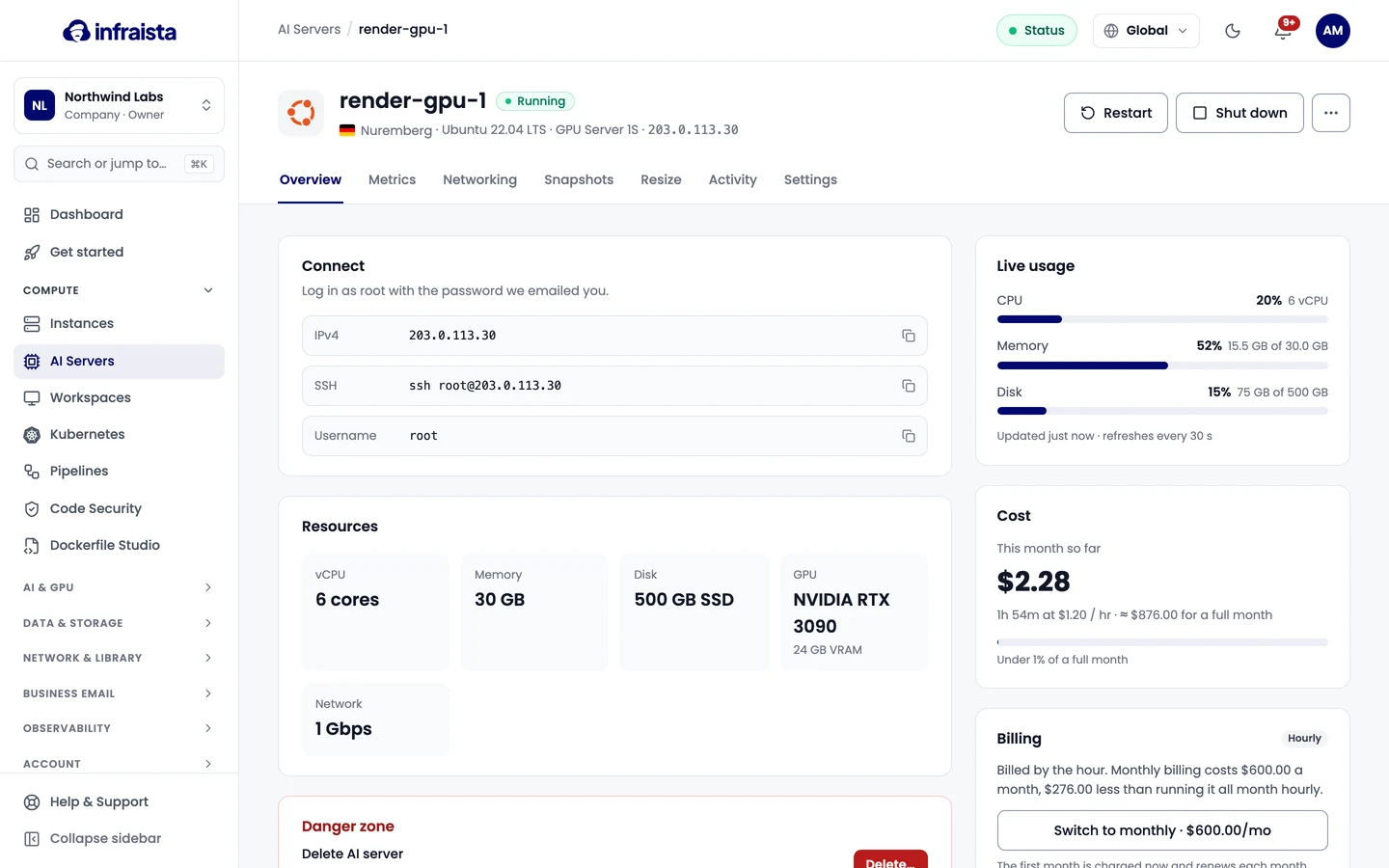
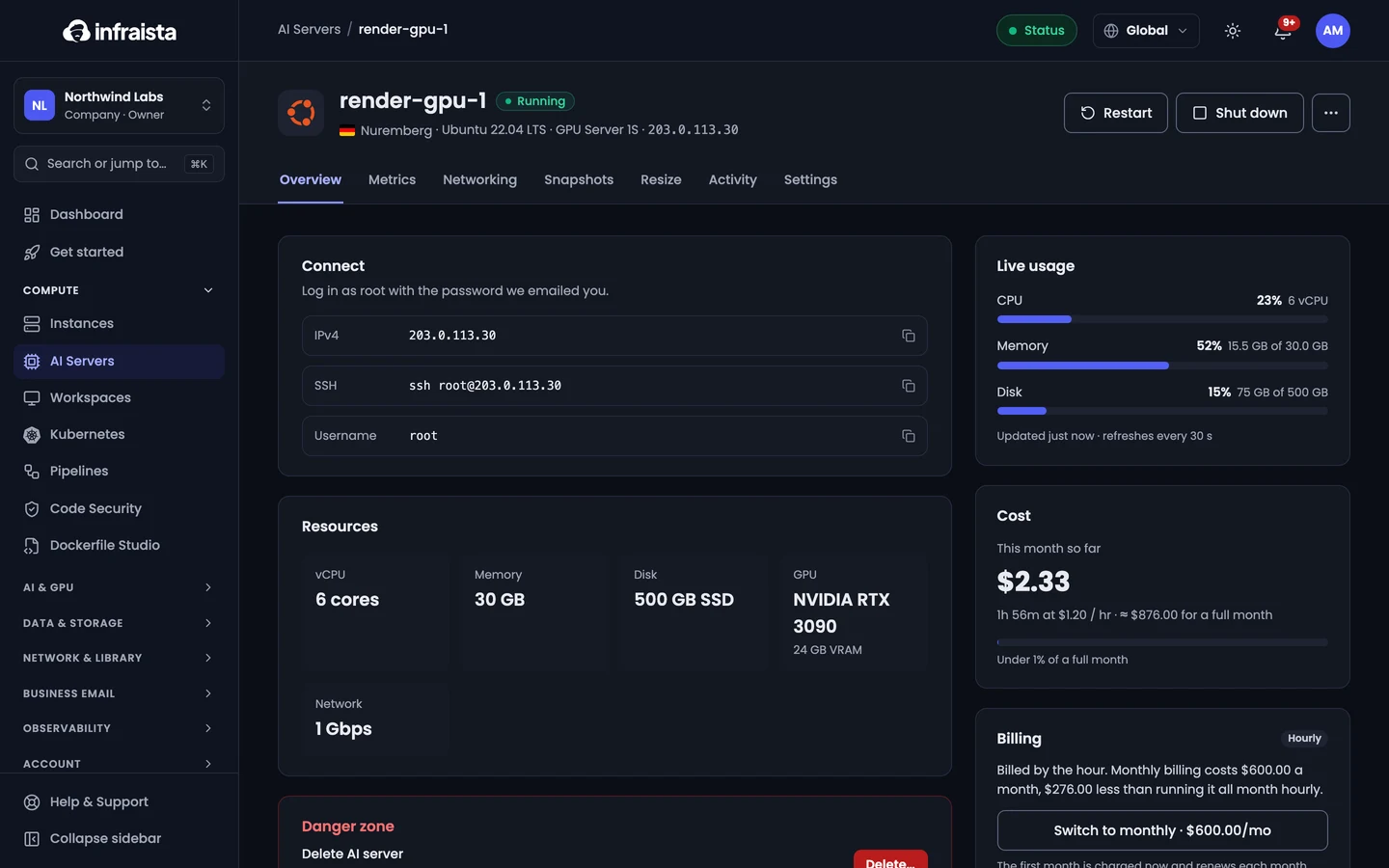
Open the server (Compute › AI Servers › the server). The Connect card on its Overview tab shows how to log in, with copy buttons.
Linux: SSH
Log in as root with the SSH command shown, for example:
ssh root@203.0.113.30Use your SSH key, or the root password we emailed when the server was created. Check the GPUs with:
nvidia-smiMove files with any SFTP or SCP client (the same address, user and key or password), or with rsync
over SSH.
Windows: Remote Desktop
On a Windows server the card shows a Remote Desktop address instead of SSH. Open it in any Remote Desktop app and sign in as Administrator with the password we emailed you.
Browser console
When SSH or Remote Desktop isn't reachable, select Open console in the server's header to see its screen in your browser.
Lost the password?
Select Reset it on the Connect card, or ⋯ › Reset root password… in the header. The new password (Administrator on Windows) is shown once: copy it straight away.
Related
- Connect to your server: SSH keys and troubleshooting
Create an AI server
Launch a dedicated GPU server in minutes. Pick a GPU plan, an operating system and a location, choose how you log in and how you're billed.
Manage an AI server
Power, networking, resizing, backups, billing and deletion work the same on AI servers as on instances, with GPU metrics and GPU-only resizing.