

Connect to a database
Get a managed database's host, port, user and password, turn on public access through our gateway, allow trusted sources, and copy a ready-made connection string.
Apps and tools reach a managed database in one of two ways:
- Private endpoint: from your Infraista servers in the same region. Use it when your app runs next to the database.
- Public access: from anywhere else (your laptop, another cloud), through our secure gateway, limited to your trusted sources.
Connect from your servers in the same region
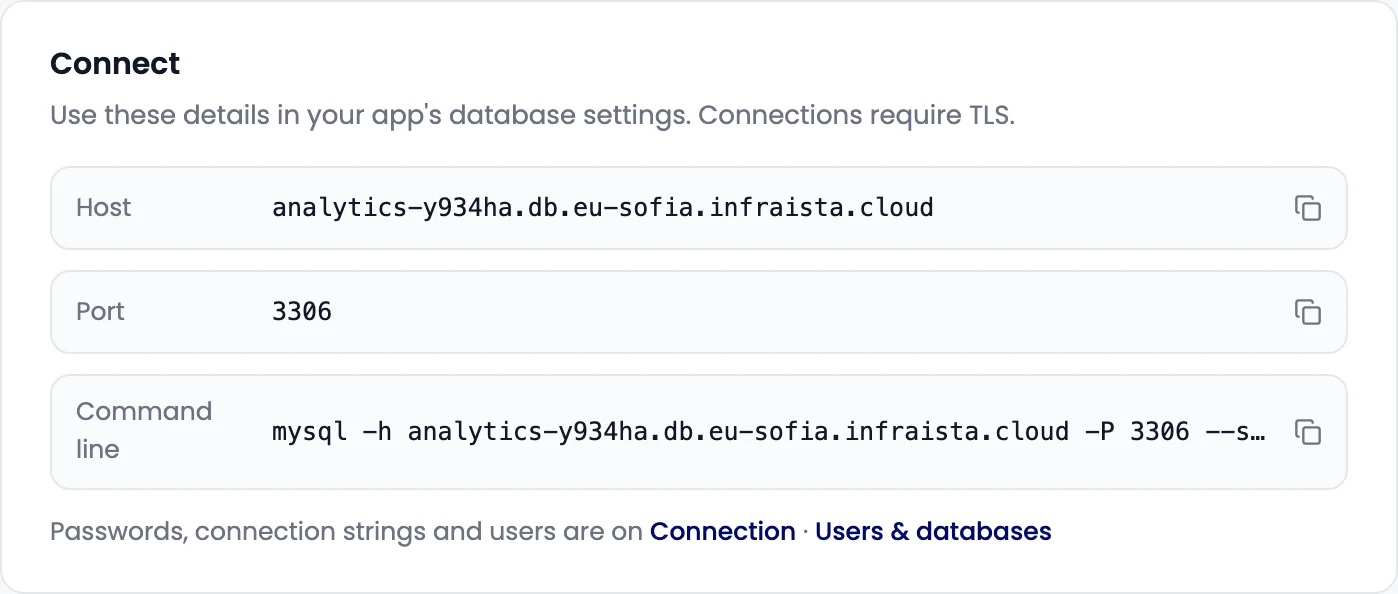
Open the database's Connection tab. The private host and port are reachable from your servers in the database's region. Use them with the user and password shown on the same tab.
Connect from anywhere else
Open the Networking tab. How to connect walks through three steps:
-
Turn on public access. The gateway host and port appear on the left. The port stays the same while public access is on; turning it off and on again gives the database a new port.
-
Choose who can connect. Under Trusted sources, add each address you connect from:
- IP or CIDR: one address as
203.0.113.7/32, or a range as203.0.113.0/24; - Instance: pick one of your servers; it's tracked by name, so its IP can change safely.
With no trusted sources, any address can reach the login (the password is still required).
- IP or CIDR: one address as
-
Connect with your database client, using the gateway host and port and a database user.
Connection details
The Connection tab shows:
- Host, Port, Database and User;
- Password: select Show to reveal it, or Copy password. Only people allowed to see passwords can reveal it; others see Ask an admin;
- SSL mode to use.
Connection strings
Under Connection string, pick a Snippet format: URI, the command line, Node.js, Python, Django or Laravel. Copy the snippet, or Copy with the real password.
Keep the password in an environment variable such as DB_PASSWORD, not in code. The snippets look like
this, with your values and the database's SSL mode filled in:
# PostgreSQL
psql "postgresql://<user>:<password>@<host>:<port>/<database>?sslmode=<mode>"

# MySQL and MariaDB
mysql --host=<host> --port=<port> --user=<user> --password --ssl-mode=<MODE> <database>
Give each app its own database user, so you can change one password without touching the others.
If something goes wrong
- The connection times out from your laptop: public access is off, or your address isn't a trusted source. Check Networking.
- TLS or SSL errors: use the SSL mode shown on the Connection tab in your client's settings.
- Authentication failed: the password changed. Copy the current one, or reset the user's password on Users & databases.
Related
Create a database
Create a managed PostgreSQL, MySQL or MariaDB database in three steps. Pick the engine and version, a plan, the region and a name, and connect in minutes.
Users and databases
Add database users with admin, read-write or read-only access, reset their passwords, and create more logical databases on the same managed database server.